TriNet HR Platform setup
TriNet HR Platform connects through the unified HRIS connector. This page covers the TriNet-side configuration you complete first. Once it's done, add the connector in Mesh by following Connect your HR system.
These are different products with different setup, and picking the wrong one in the connection window is the most common reason this connector fails.
- TriNet HR Platform was formerly Zenefits. If you see
zenefitsin your URL, this is your page. - If your interface looks nothing like the screenshots below, you are probably on TriNet PEO — use TriNet setup instead, and select the TriNet option rather than TriNet HR in the connection window.
You finish with one value: a REST API token.
Before you start
You need admin permissions in your company's TriNet instance, or a colleague who has them.
These steps reflect Axiad's current understanding of TriNet's configuration. Because TriNet HR Platform is a third-party product, there may be variations between your experience and what this guide describes, depending on the version in use and recent updates.
If you find a significant difference, or anything that doesn't make sense, let us know through Axiad support.
Step 1 — Generate an API token
-
Under Admin Apps, open Company Profile.
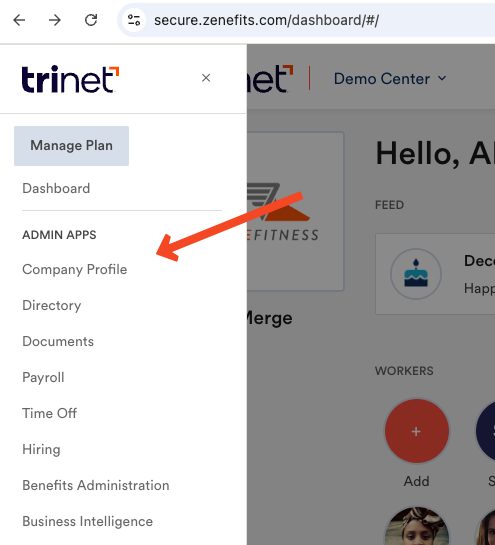
-
Select Custom Integrations.
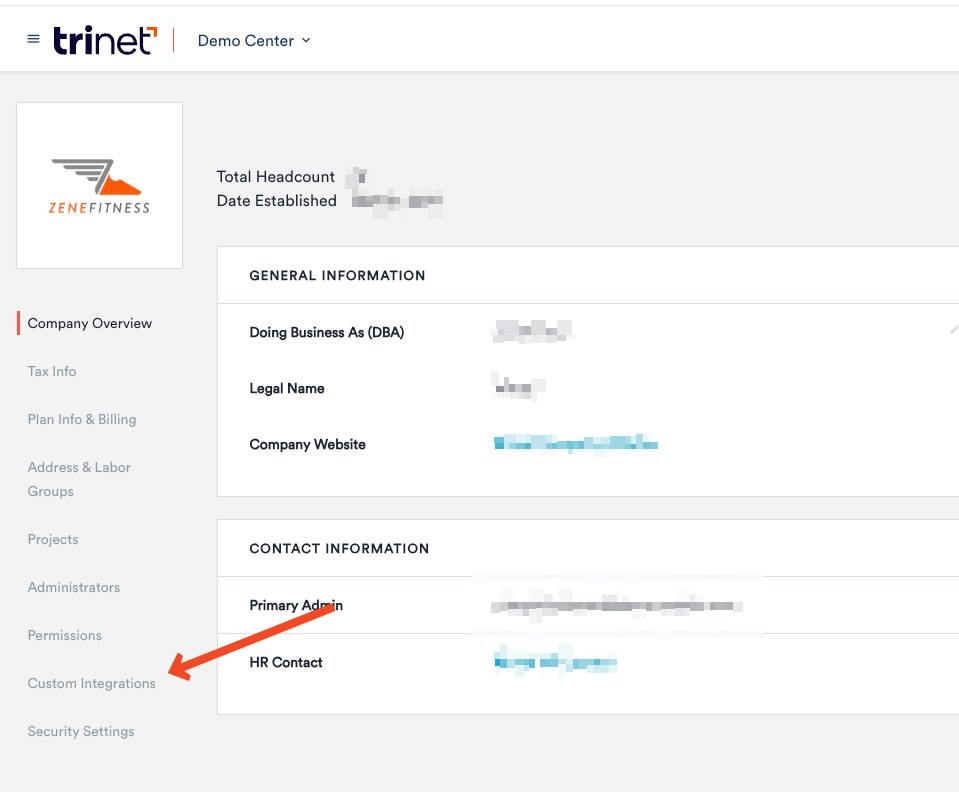
-
Under Rest API Access, select Add Token.
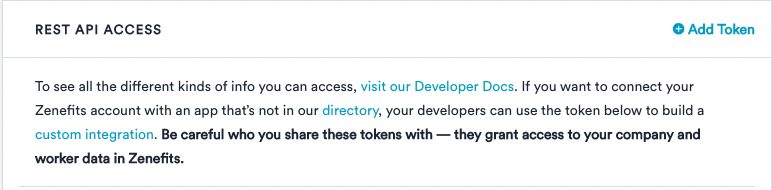
-
Set the permissions you want to grant, then save.
Step 2 — Reveal and copy the token
Select the eye icon to reveal the token, then copy it.
Step 3 — Connect in Mesh
Follow Connect your HR system, choose TriNet HR in the connection window, and paste the token.
After connecting
The connector appears in your connectors list with Health: Initializing while the first collection runs, then moves to Good. Access is read-only: Mesh does not write back to TriNet.
If it doesn't come online, see Troubleshoot HR connectors.
Troubleshooting
| What you see | Likely cause | Fix |
|---|---|---|
| The screens don't match this guide | You are on TriNet PEO rather than TriNet HR Platform | Follow TriNet setup and select TriNet in the connection window |
| Authentication fails | The token was copied before being revealed, so only the mask was captured | Select the eye icon first, then copy |
| Some data is missing | The token's permissions are narrower than the data expected | Add a token with the permissions you need |