Freshteam setup
Freshteam connects through the unified HRIS connector. This page covers the Freshteam-side configuration you complete first. Once it's done, add the connector in Mesh by following Connect your HR system.
You finish with two values:
| Value | Where it comes from |
|---|---|
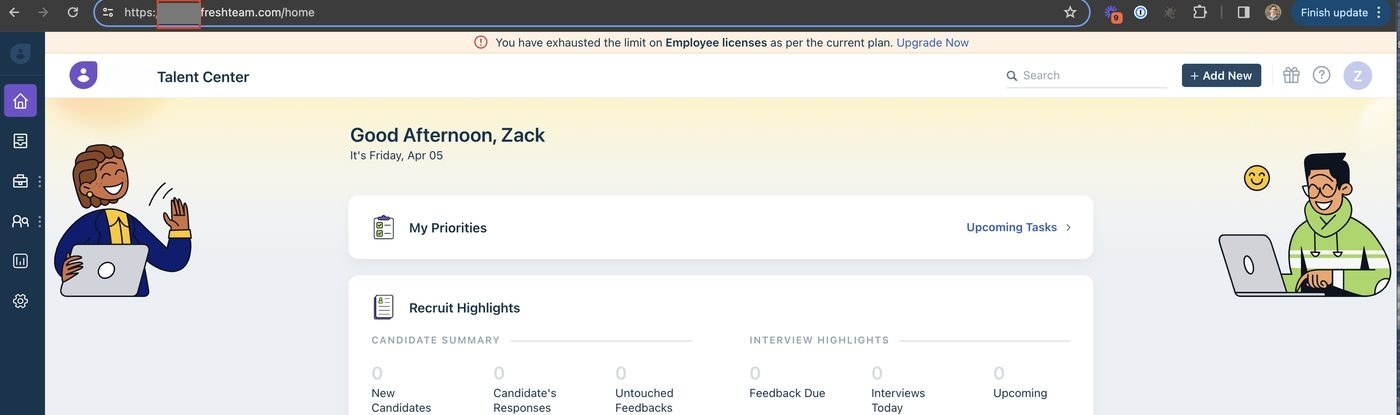
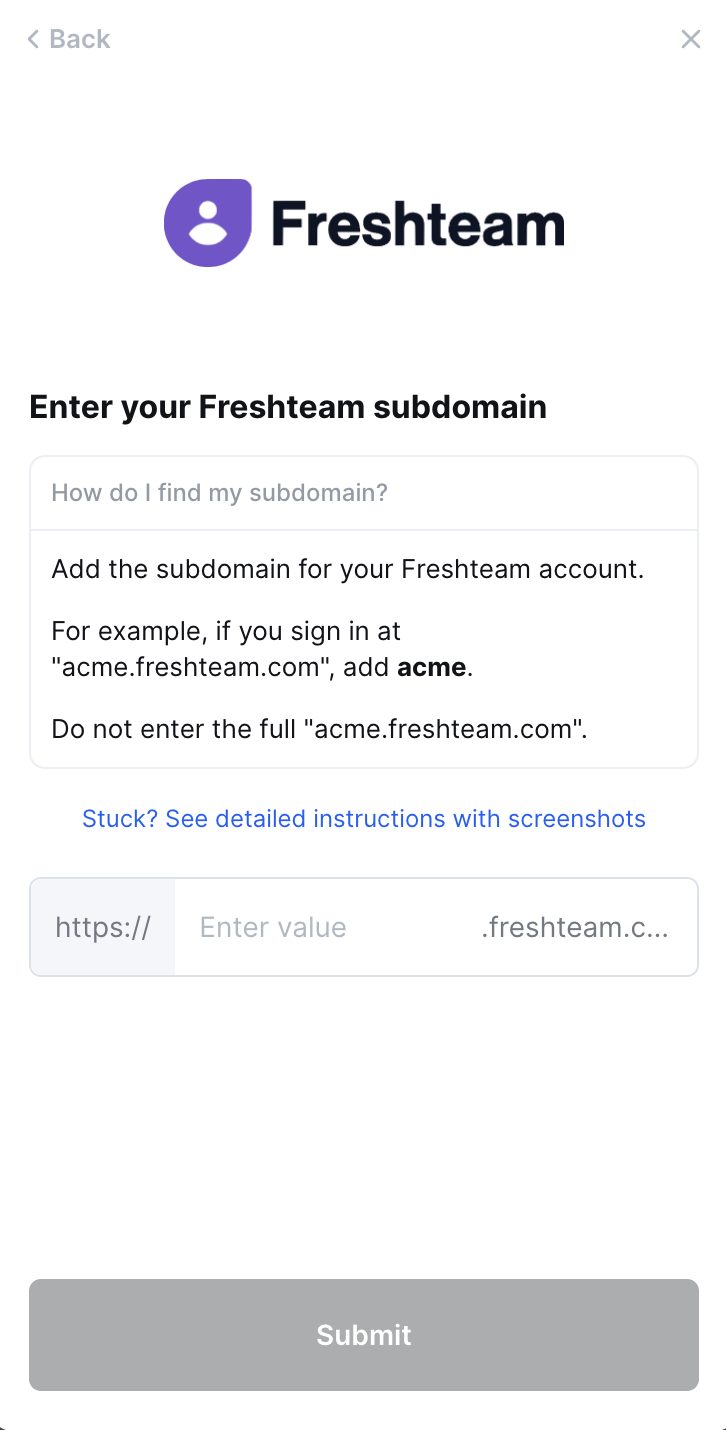
| Subdomain | The first label of your Freshteam URL |
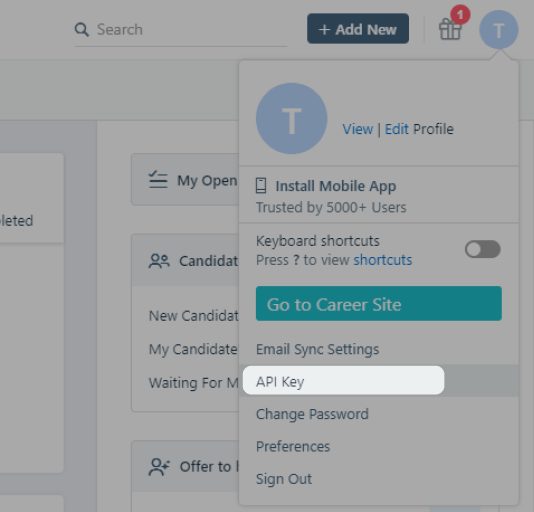
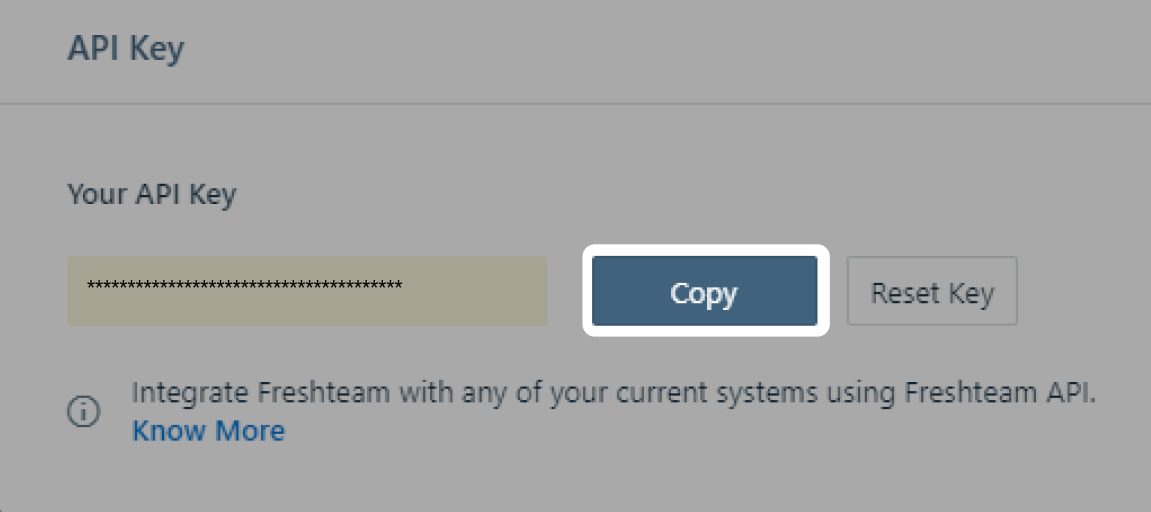
| API key | Your profile menu |
These steps reflect Axiad's current understanding of Freshteam's configuration. Because Freshteam is a third-party product, there may be variations between your experience and what this guide describes, depending on the version in use and recent updates.
If you find a significant difference, or anything that doesn't make sense, let us know through Axiad support.
Step 1 — Find your subdomain
Your subdomain is the part between https:// and .freshteam.com.
Step 2 — Find your API key
-
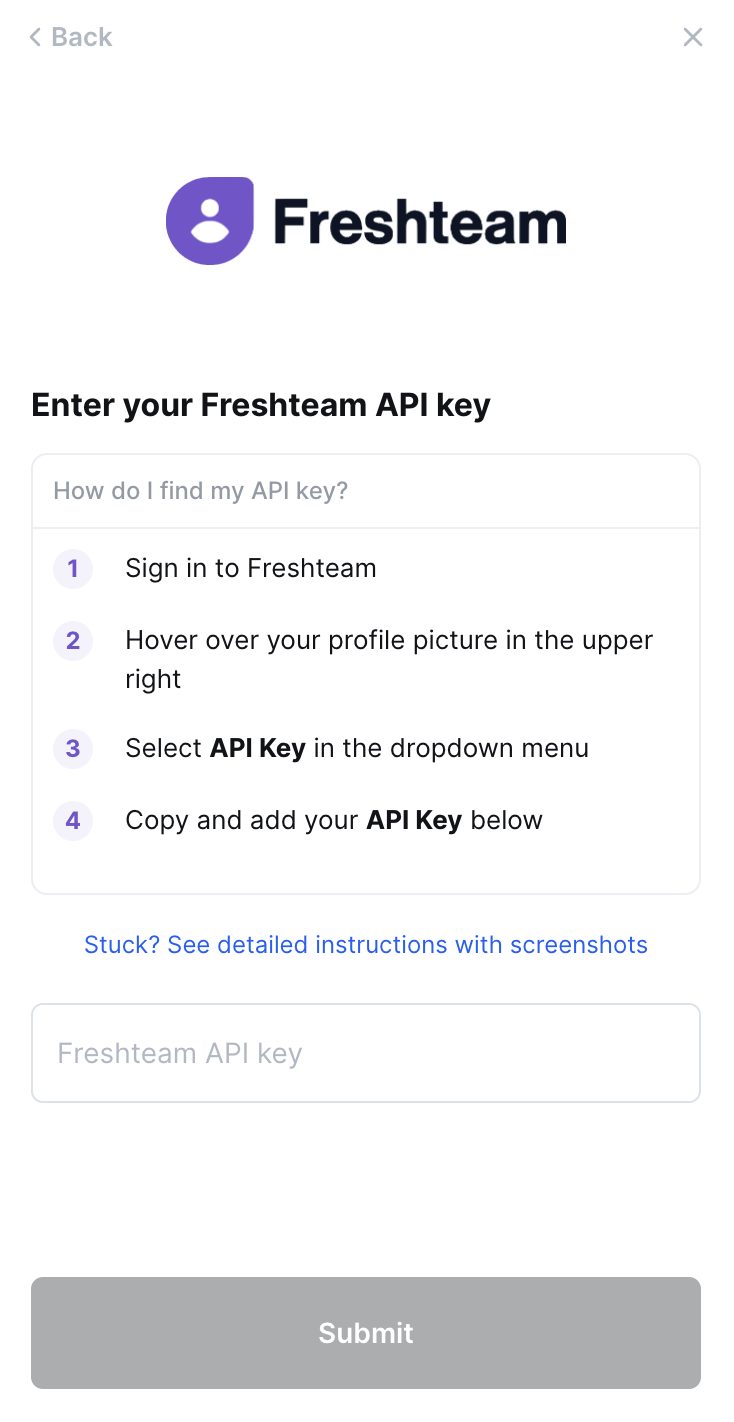
Sign in and hover over your profile image at the top right of any page, then select API Key.
-
Copy the key.
Step 3 — Connect in Mesh
Follow Connect your HR system, choose Freshteam in the connection window, and paste the key.
After connecting
The connector appears in your connectors list with Health: Initializing while the first collection runs, then moves to Good. Access is read-only: Mesh does not write back to Freshteam.
If it doesn't come online, see Troubleshoot HR connectors.
Troubleshooting
| What you see | Likely cause | Fix |
|---|---|---|
| Authentication fails | The full host was entered instead of the subdomain | Enter only the part before .freshteam.com |
| The API Key item is missing | The account lacks the rights to view it | Ask a Freshteam administrator to retrieve the key |