HiBob setup
HiBob connects through the unified HRIS connector. This page covers the HiBob-side configuration you complete first. Once it's done, add the connector in Mesh by following Connect your HR system.
You finish with two values:
| Value | Where it comes from |
|---|---|
| Service user ID | Shown once when the service user is created |
| Service user token | Shown alongside the ID |
Before you start
You need administrator permissions in your company's HiBob instance.
These steps reflect Axiad's current understanding of HiBob's configuration. Because HiBob is a third-party product, there may be variations between your experience and what this guide describes, depending on the version in use and recent updates.
If you find a significant difference, or anything that doesn't make sense, let us know through Axiad support.
Step 1 — Create a service user
Mesh reads from HiBob as a dedicated service user rather than as a person, so the connection keeps working when individuals join or leave.
-
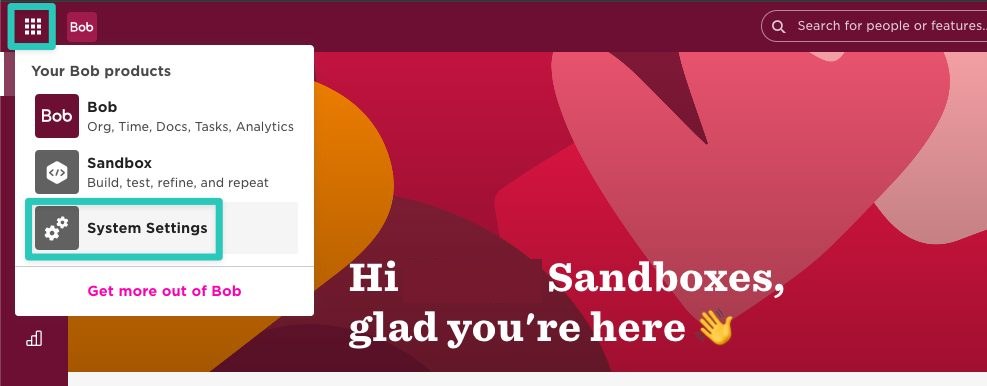
Open your HiBob System Settings.
-
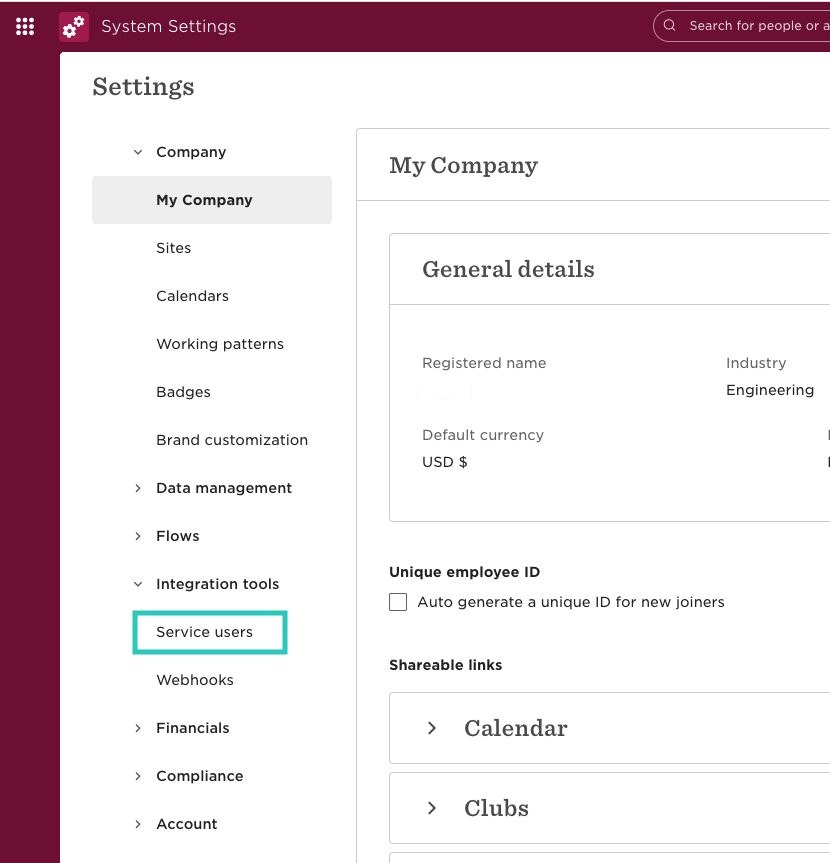
Open the Integrations dropdown and select Service users.
-
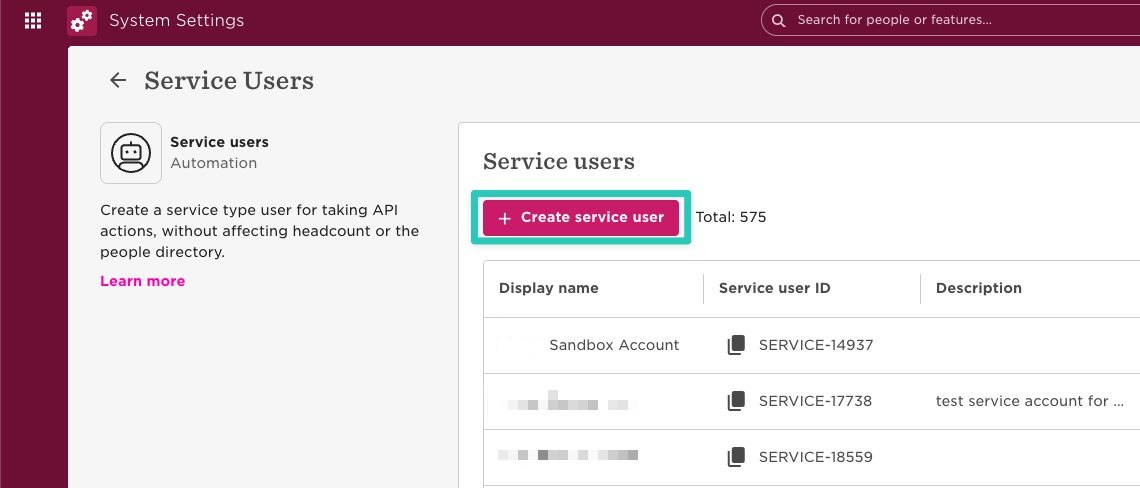
Select Create service user.
-
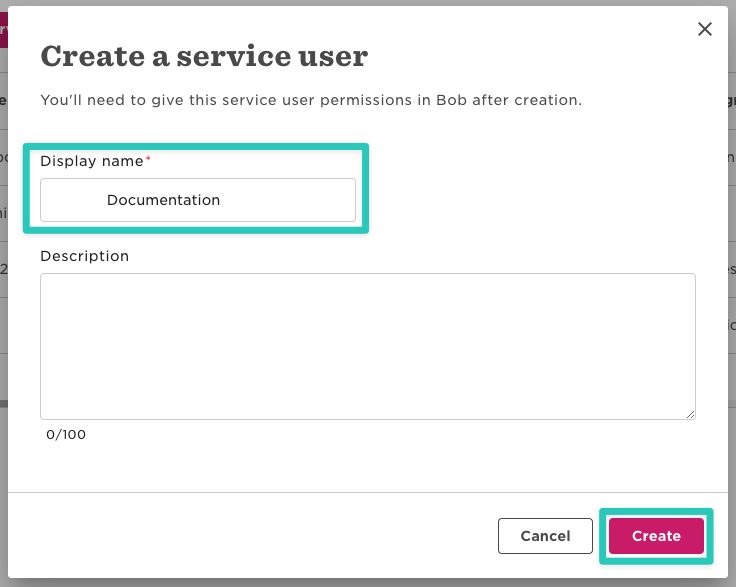
Enter a display name and select Create. Choose something that identifies this as the Axiad Mesh connection.
-
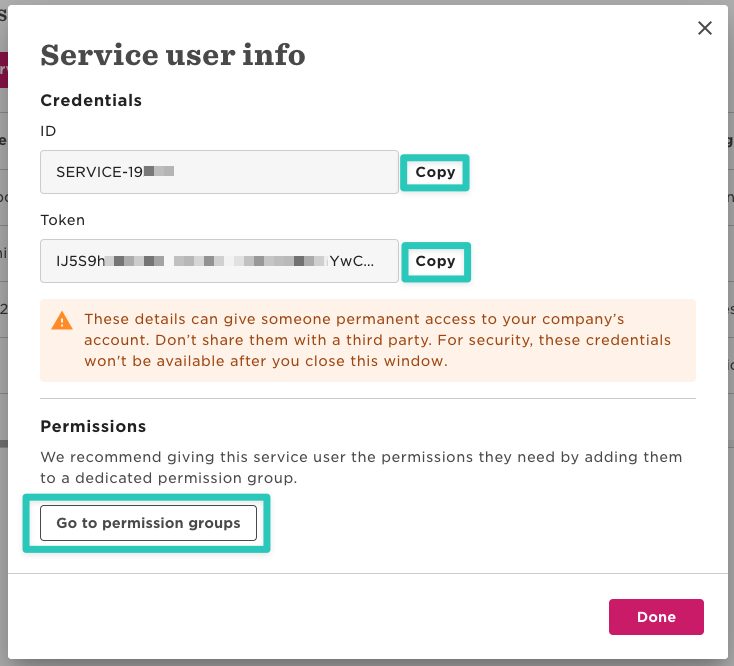
HiBob shows the new service user's ID and Token.
Copy both values nowThe token is displayed once. If you leave the screen without copying it, you have to create a new service user.
-
Select Go to permission groups to continue.
Step 2 — Create a permission group
A service user with no permission group authenticates but reads nothing, so this step is required.
-
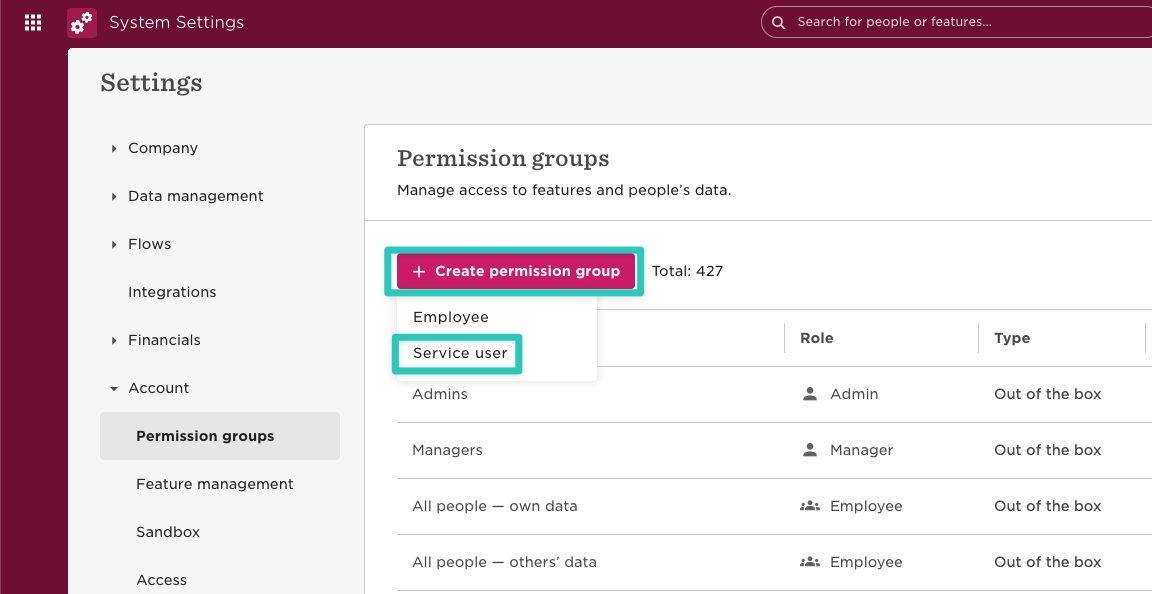
Select Create permission group, then Service user.
-
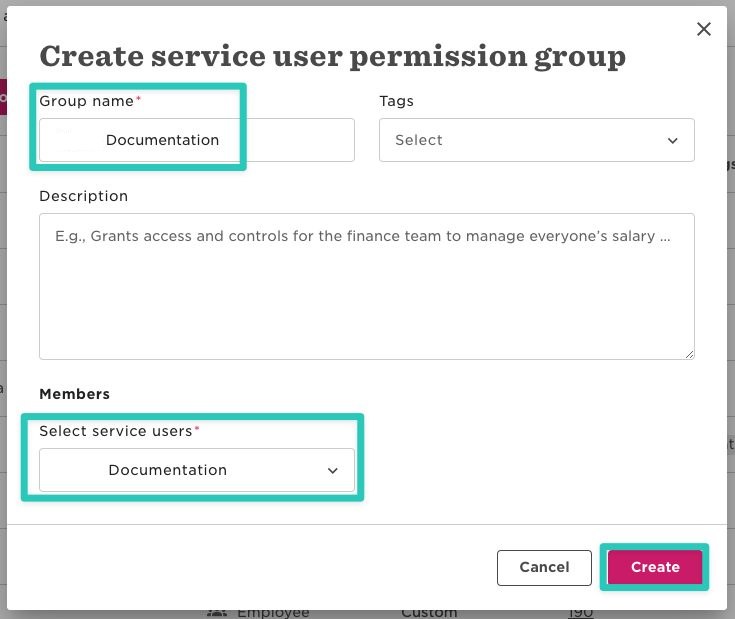
Enter a group name, select the service user you just created, and select Create.
-
Grant the group view access to the employee data you want Mesh to read. Mesh uses HR data for identity correlation and risk assessment, so people, employment, and organizational fields are the useful ones. Mesh reads what the group can see, and nothing more.
Step 3 — Connect in Mesh
Follow Connect your HR system, choose HiBob in the connection window, and supply the service user ID and token from Step 1.
After connecting
The connector appears in your connectors list with Health: Initializing while the first collection runs, then moves to Good. Access is read-only: Mesh does not write back to HiBob.
If it doesn't come online, see Troubleshoot HR connectors.
Troubleshooting
| What you see | Likely cause | Fix |
|---|---|---|
| The connector authorizes but collects zero employees | The service user is not in a permission group, or the group grants no view access | Complete Step 2 and grant view access, then re-run the collection |
| You no longer have the token | HiBob shows it once and cannot re-display it | Create a new service user and reconnect with its credentials |
| Some employee fields are missing | The permission group does not cover those fields | Widen the group's view access and re-run the collection |