SAP SuccessFactors setup
SAP SuccessFactors connects through the unified HRIS connector. This page covers the SAP-side configuration you complete first. Once it's done, add the connector in Mesh by following Connect your HR system.
You finish with four values:
| Value | Where it comes from |
|---|---|
| API server URL | SAP's API server list, by region |
| Username | Your SAP SuccessFactors profile |
| Company ID | The version information dialog |
| OAuth client ID and certificate | An OAuth2 client you register |
Before you start
You need administrator access to your company's SAP SuccessFactors instance, or a colleague who has it.
These steps reflect Axiad's current understanding of SAP SuccessFactors' configuration. Because SAP SuccessFactors is a third-party product, there may be variations between your experience and what this guide describes, depending on the version in use and recent updates.
If you find a significant difference, or anything that doesn't make sense, let us know through Axiad support.
Step 1 — Find your API server URL
Your API domain depends on your region, so it has to be looked up rather than guessed.
-
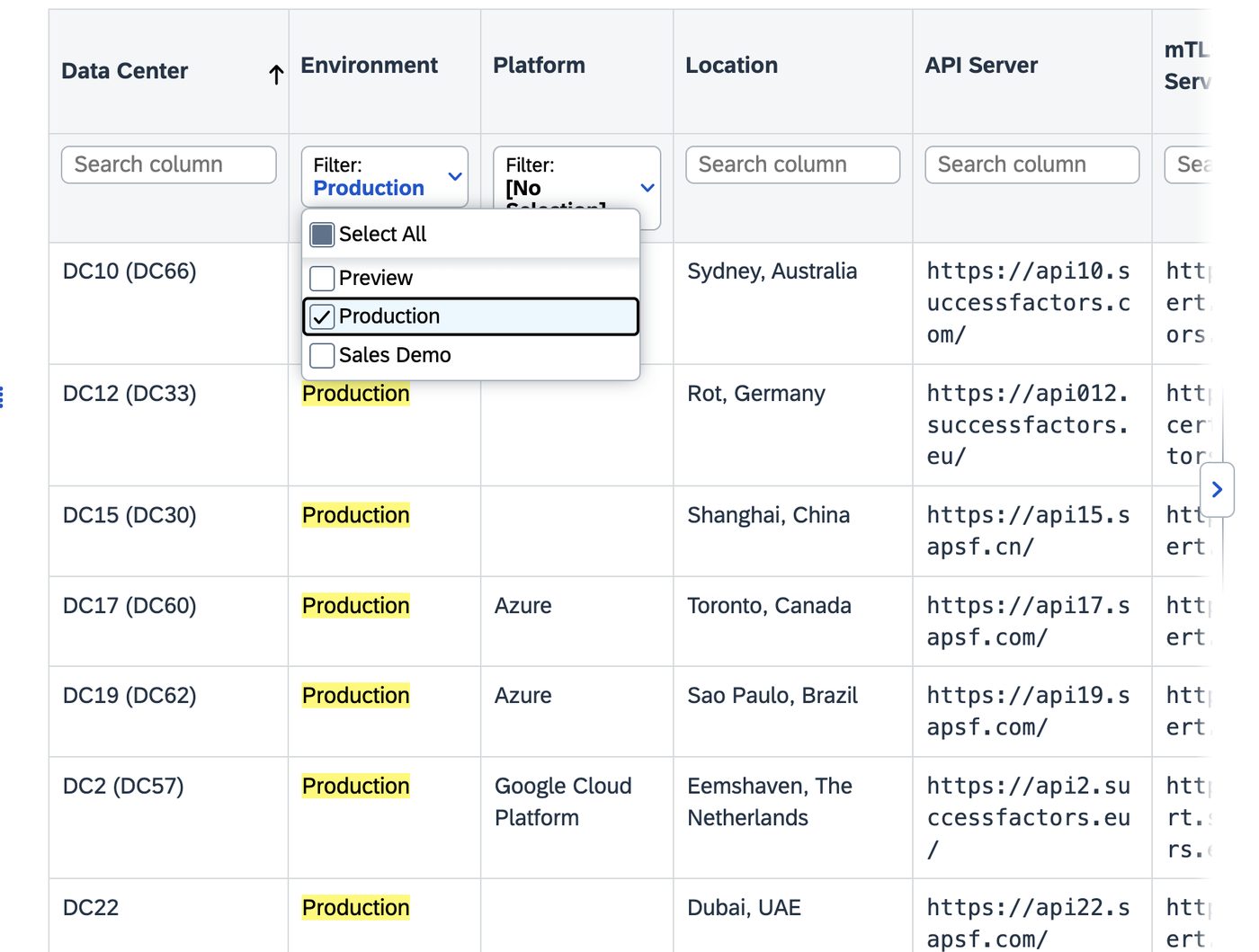
Open SAP's API Servers list.
-
Filter for your environment — production, unless you're connecting a preview or demo instance.
-
Find your location and its corresponding API server URL.
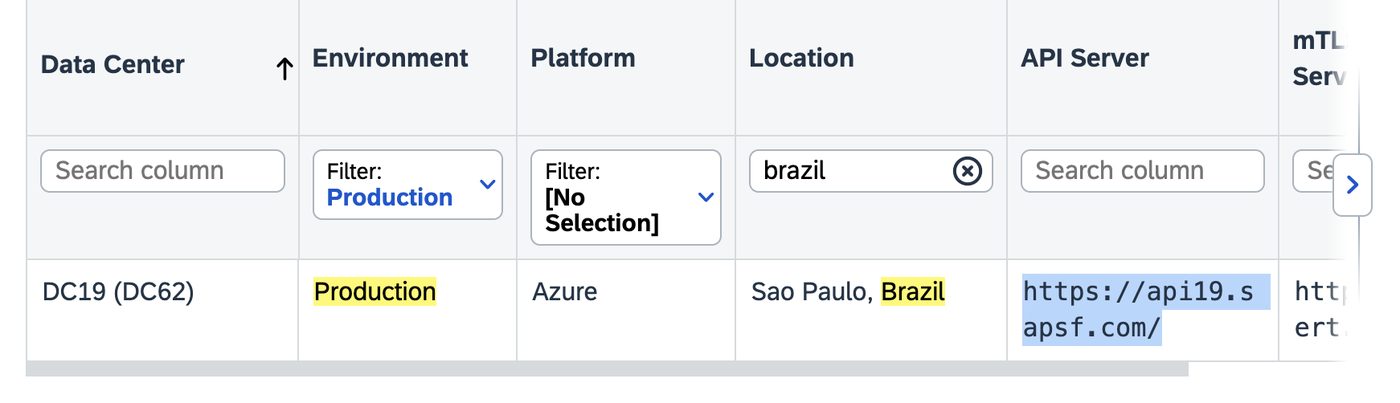
The API server URL usually mirrors your sign-in URL. If you sign in at
hcm68sales.successfactors.com, the API server is typically
api68sales.successfactors.com. Treat that as a sanity check rather than the
source of truth — if the connection fails, confirm the URL with your SAP support
team, which is what SAP recommends.
Step 2 — Find your username and company ID
-
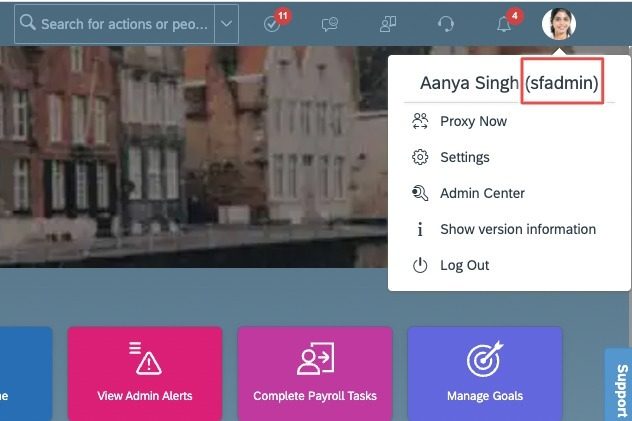
Select your profile image at the top right to see your username.
Use the username, not the email addressSAP SuccessFactors distinguishes the two, and the connection fails if you supply the email address.
-
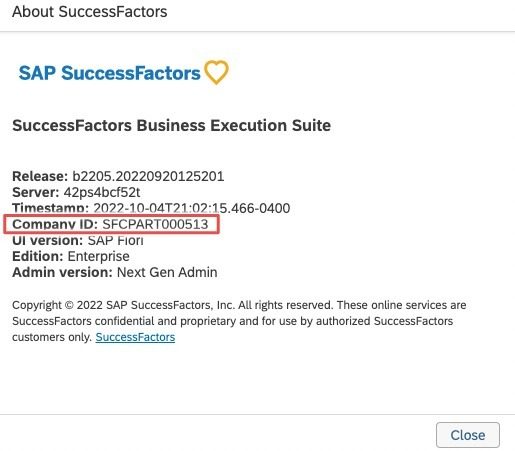
In the same menu, select Show version information and read the Company ID from the dialog.
Step 3 — Register an OAuth client
-
In Admin Center, go to Tools and search for Manage OAuth2 Client Applications.
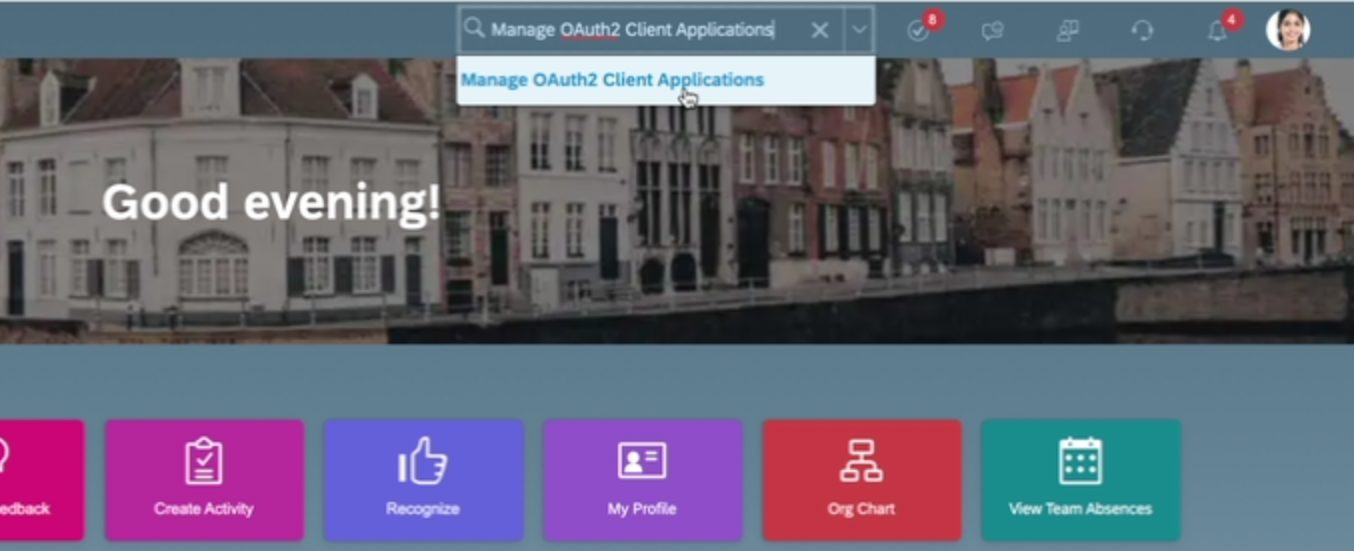
-
Select Register Client Application.
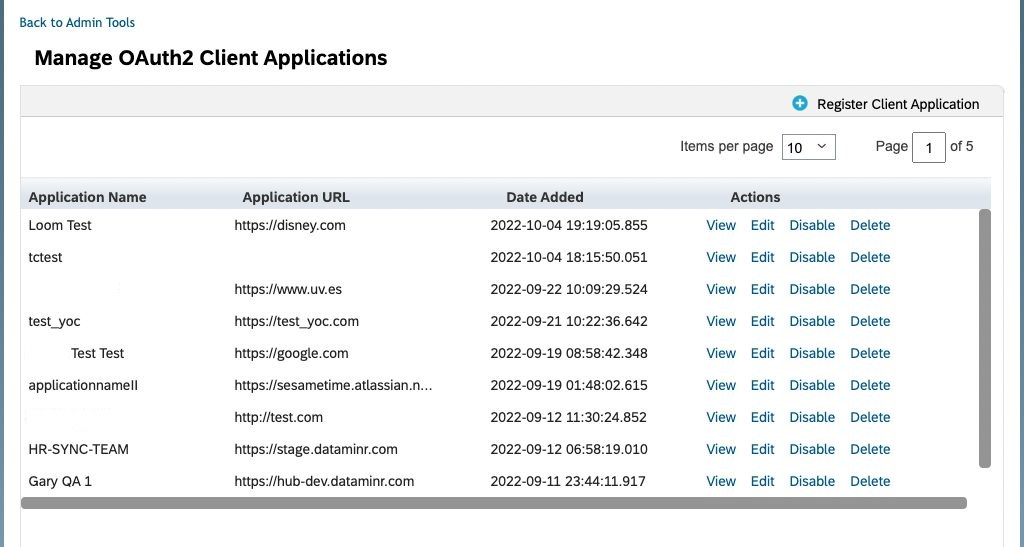
-
Enter an Application Name and Application URL. The values are not used by the connection, but the URL must begin with
https://.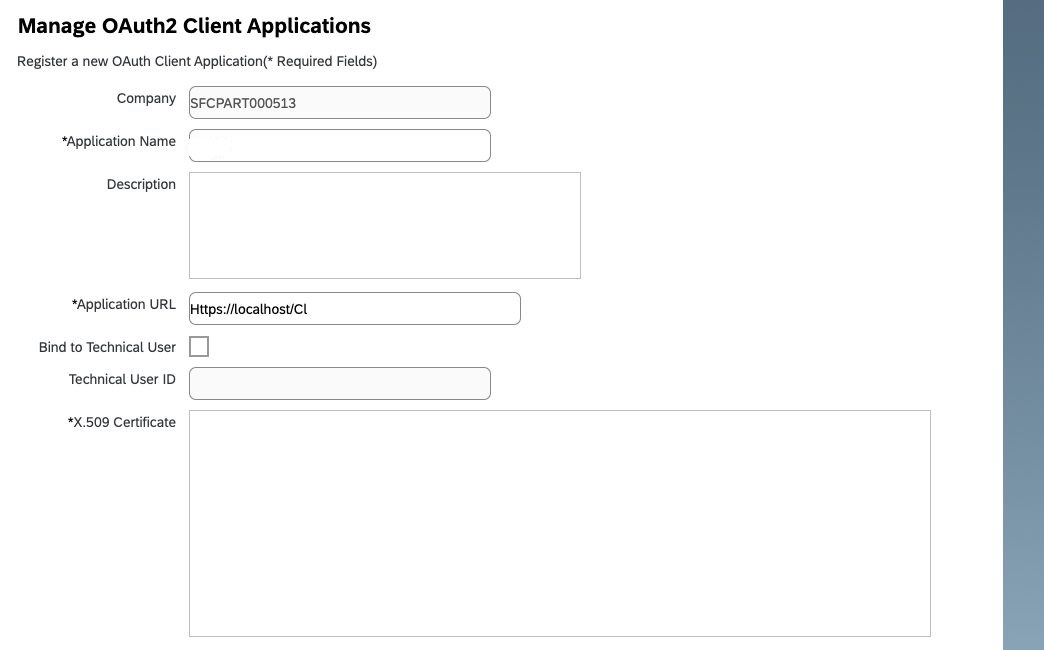
-
Select Generate X.509 Certificate, enter any Common Name, and select Generate.
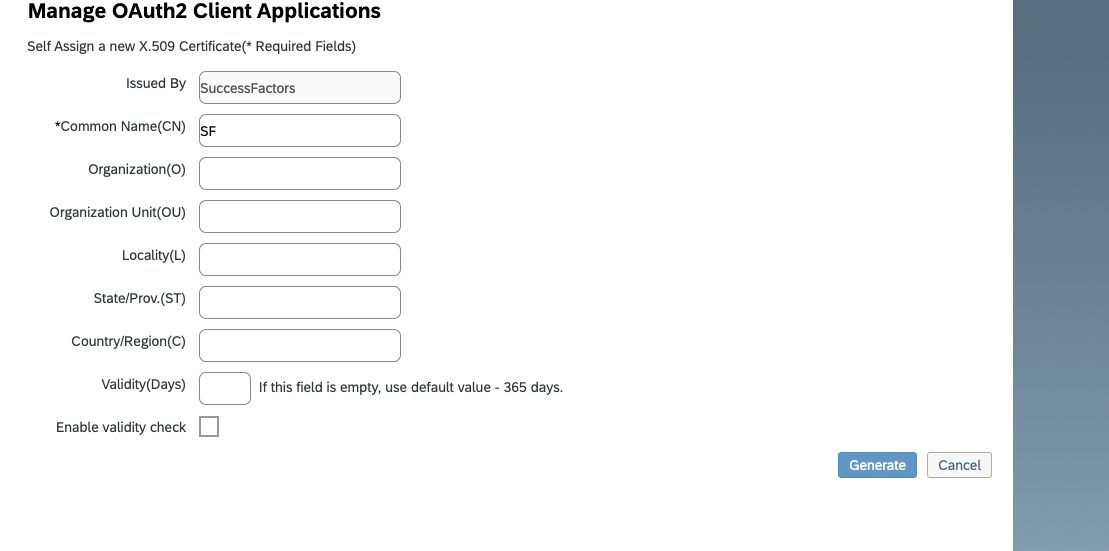
-
Download and save the generated
Certificate.pemfile.Save the certificate before leaving the pageThe certificate is offered once. If you register the client without downloading it, you have to generate a replacement.

-
Select Register, then reopen the application from the list and select Edit to read its API key — this is the client ID you supply to Mesh.

Step 4 — Connect in Mesh
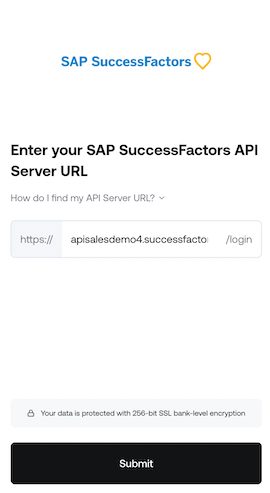
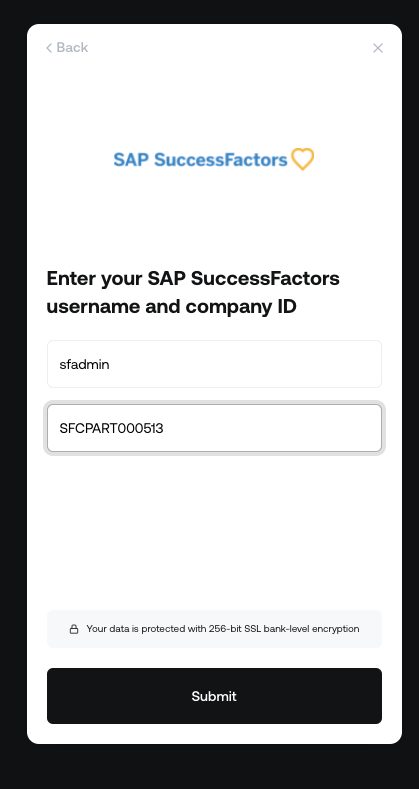
Follow Connect your HR system, choose SAP SuccessFactors in the connection window, and supply the API server URL, username, company ID, and OAuth credentials.
After connecting
The connector appears in your connectors list with Health: Initializing while the first collection runs, then moves to Good. Access is read-only: Mesh does not write back to SAP SuccessFactors.
If it doesn't come online, see Troubleshoot HR connectors.
Troubleshooting
| What you see | Likely cause | Fix |
|---|---|---|
| Authentication is rejected | The email address was supplied instead of the username | Take the username from your profile menu and reconnect |
| The connection cannot reach SAP | The API server URL is for the wrong region or environment | Re-check it against SAP's API server list, or confirm with SAP support |
| You no longer have the certificate | SAP offers it once at generation | Register a new OAuth client and reconnect with its certificate |