PeopleHR setup
PeopleHR connects through the unified HRIS connector. This page covers the PeopleHR-side configuration you complete first. Once it's done, add the connector in Mesh by following Connect your HR system.
You finish with one value: an API key.
Before you start
You need administrator access to your company's PeopleHR instance, or a colleague who has it.
These steps reflect Axiad's current understanding of PeopleHR's configuration. Because PeopleHR is a third-party product, there may be variations between your experience and what this guide describes, depending on the version in use and recent updates.
If you find a significant difference, or anything that doesn't make sense, let us know through Axiad support.
Step 1 — Open API key management
-
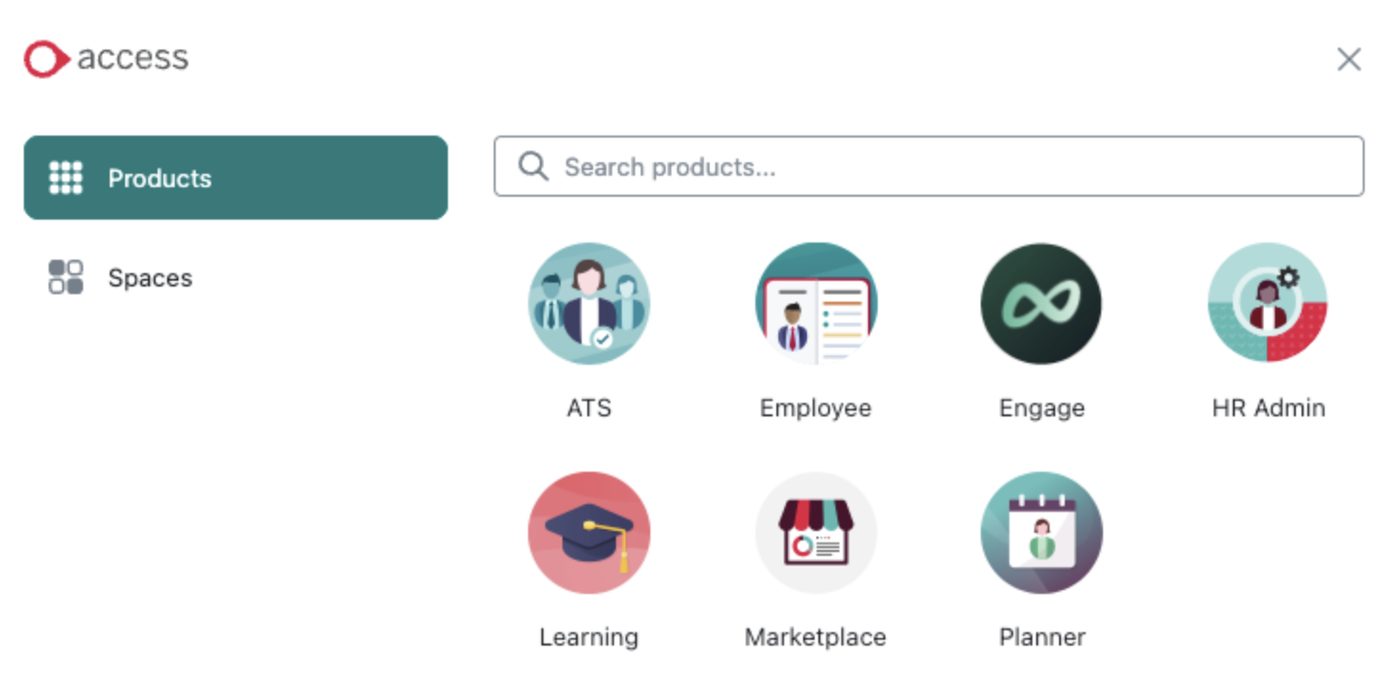
Select Access at the top left and choose HR Admin.
-
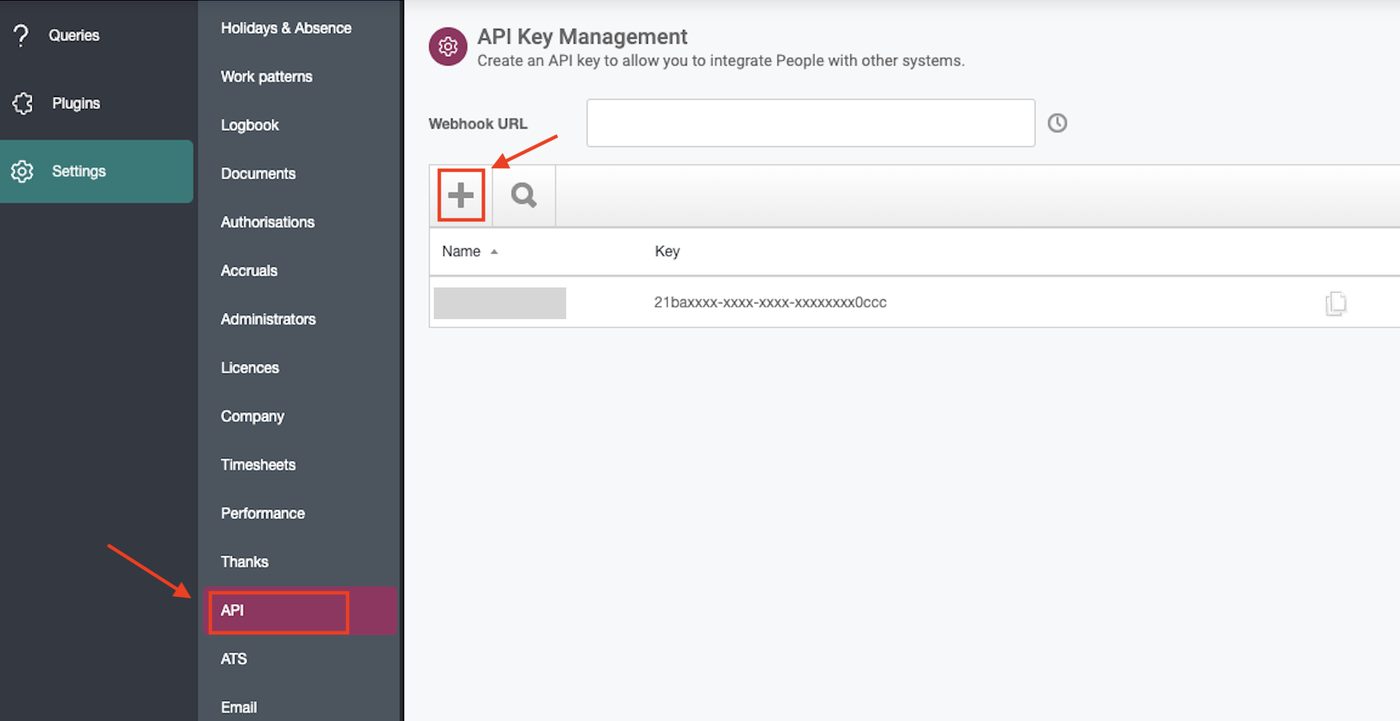
Go to Settings in the left sidebar, select API, and select the + icon.
Step 2 — Create the key
-
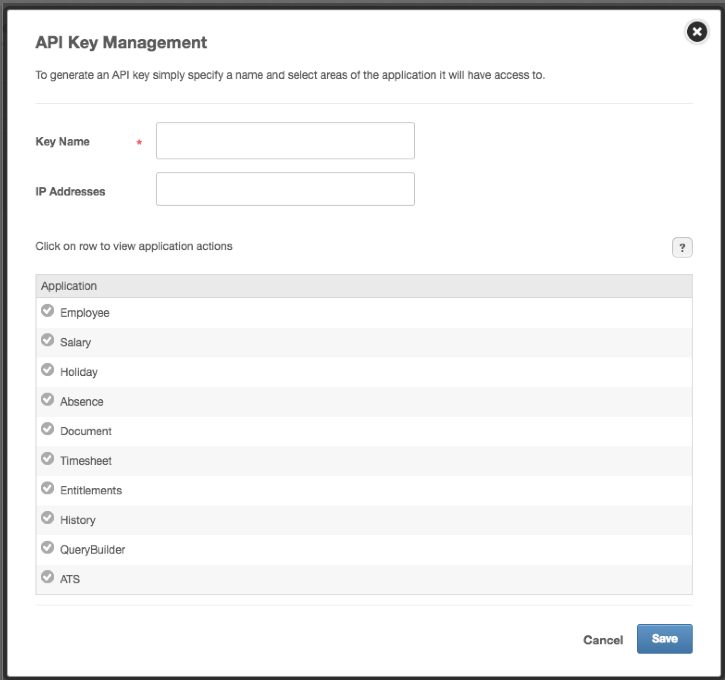
Name the key — something identifying the Axiad Mesh connection.
-
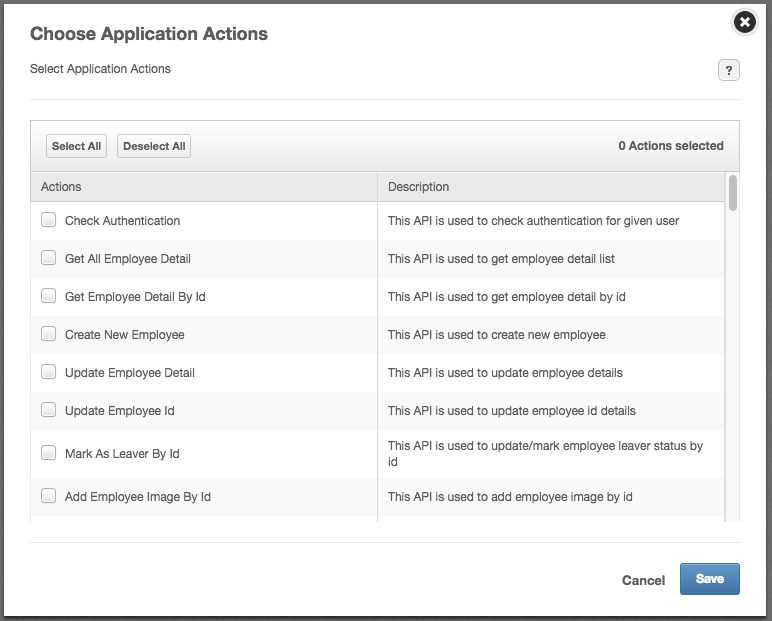
Under application actions, select the data the key may read. Employee is what identity correlation depends on; Salary, Absence, and Holiday are optional.
-
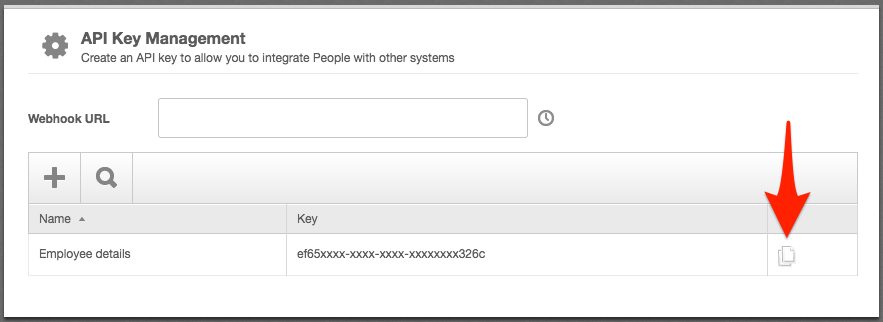
Select Save, then copy the key.
Store the key nowCopy it somewhere secure before leaving the screen.
Step 3 — Connect in Mesh
Follow Connect your HR system, choose PeopleHR in the connection window, and paste the API key.
After connecting
The connector appears in your connectors list with Health: Initializing while the first collection runs, then moves to Good. Access is read-only: Mesh does not write back to PeopleHR.
If it doesn't come online, see Troubleshoot HR connectors.
Troubleshooting
| What you see | Likely cause | Fix |
|---|---|---|
| The connector authorizes but collects no people | The key has no Employee application actions | Create a key with them selected |
| You no longer have the key | PeopleHR shows it once at creation | Create a new key and reconnect |