Sage HR setup
Sage HR connects through the unified HRIS connector. This page covers the Sage-side configuration you complete first. Once it's done, add the connector in Mesh by following Connect your HR system.
You finish with two values:
| Value | Where it comes from |
|---|---|
| Subdomain | The first label of your Sage HR URL |
| API key | Settings → Integrations → API |
Before you start
You need administrator or manager permissions in your company's Sage HR instance, or a colleague who has them.
These steps reflect Axiad's current understanding of Sage HR's configuration. Because Sage HR is a third-party product, there may be variations between your experience and what this guide describes, depending on the version in use and recent updates.
If you find a significant difference, or anything that doesn't make sense, let us know through Axiad support.
Step 1 — Find your subdomain
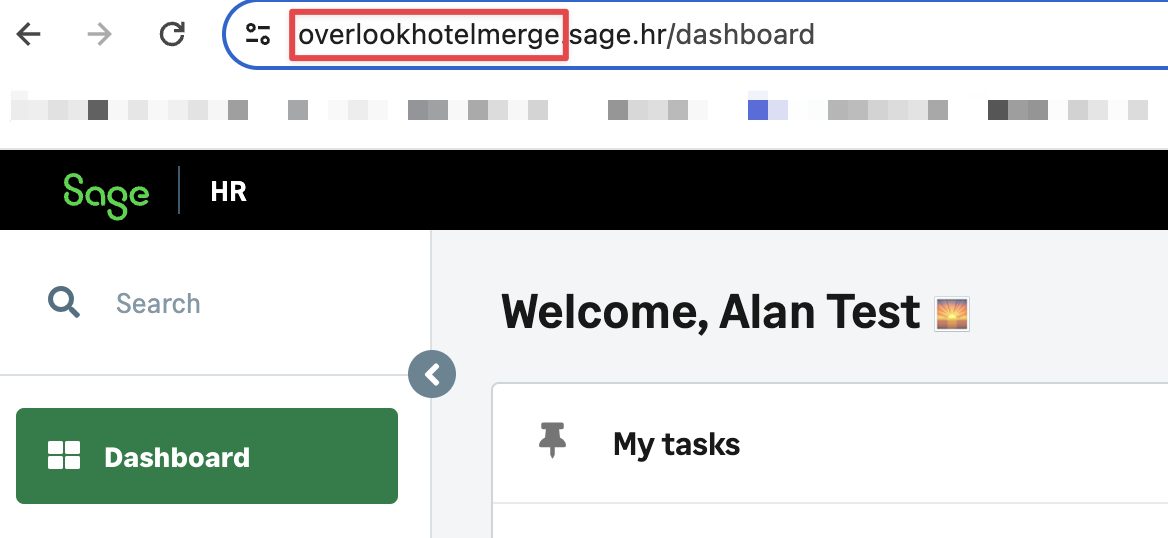
Your subdomain is the first label of the URL you sign in at, not the whole host.
In the example below it is overlookhotel.
Step 2 — Find your API key
-
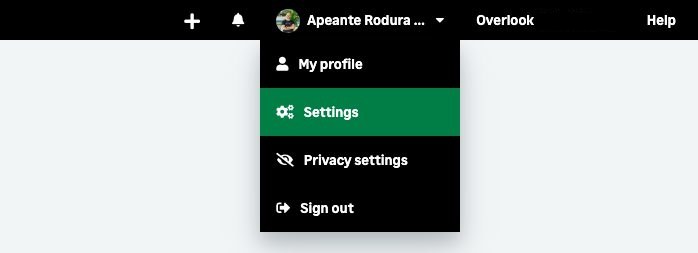
Select your name at the top right and choose Settings.
-
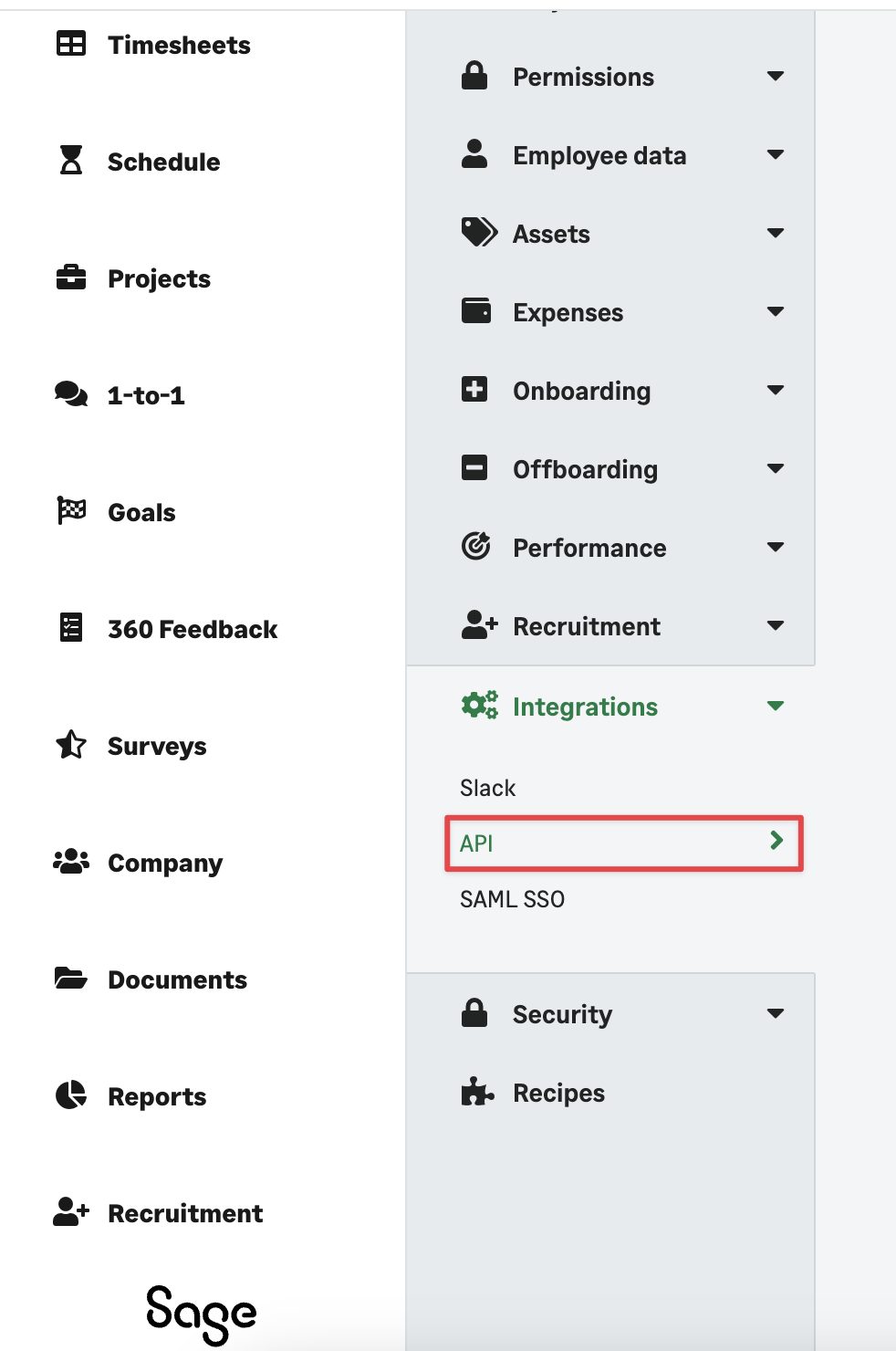
Select Integrations in the left menu, then API.
-
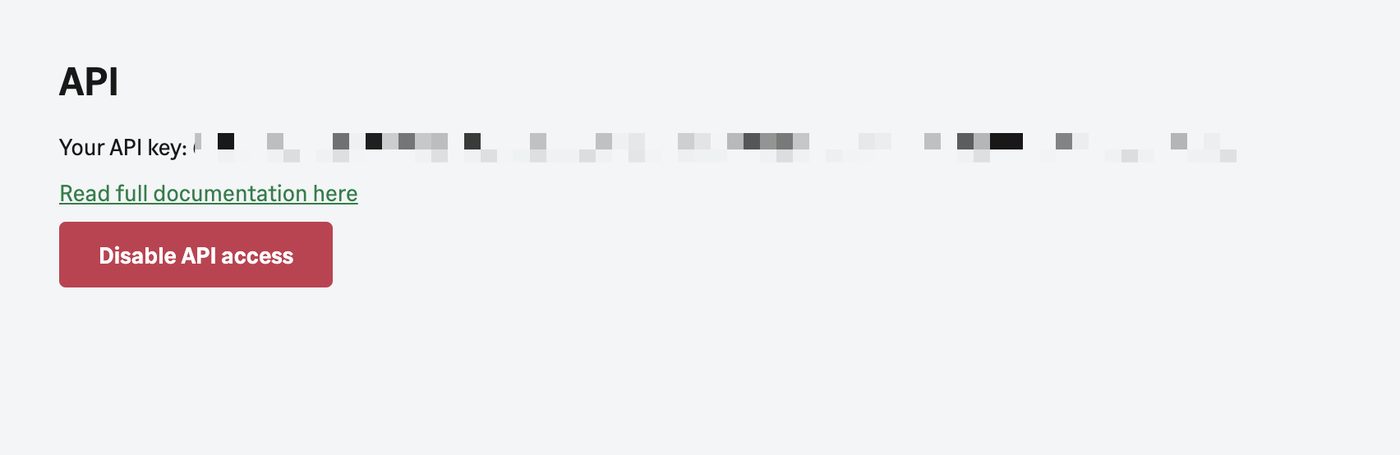
Copy the API key.
Step 3 — Connect in Mesh
Follow Connect your HR system, choose Sage HR in the connection window, and supply the subdomain and API key.
After connecting
The connector appears in your connectors list with Health: Initializing while the first collection runs, then moves to Good. Access is read-only: Mesh does not write back to Sage HR.
If it doesn't come online, see Troubleshoot HR connectors.
Troubleshooting
| What you see | Likely cause | Fix |
|---|---|---|
| Authentication fails | The full host was entered instead of the subdomain | Enter only the first label of your Sage HR URL |
| The API section is missing | The account lacks administrator or manager permissions | Ask an administrator to retrieve the key |