UKG Pro setup
UKG Pro connects through the unified HRIS connector. This page covers the UKG-side configuration you complete first. Once it's done, add the connector in Mesh by following Connect your HR system.
You will finish with three values, and the connection window asks for them in this order:
| Value | Where it comes from |
|---|---|
| Customer API Key | Service Account Administration, in UKG Pro |
| Service account username and password | A service account you create |
| Web service domain | The Web Services page, in UKG Pro |
Before you start
You need administrator access to your company's UKG Pro instance, or a colleague who has it. Every step on this page happens inside UKG Pro, not in Mesh.
If you don't administer UKG Pro yourself, you don't have to collect these values at all — the connection window can hand the whole authorization to whoever does. See If you don't administer the HR system.
These steps reflect Axiad's current understanding of UKG Pro's configuration. Because UKG Pro is a third-party product, there may be variations between your experience and what this guide describes, depending on the version in use and recent updates.
If you find a significant difference, or anything that doesn't make sense, let us know through Axiad support.
Step 1 — Find your Customer API Key
- Sign in to UKG Pro.
- Search for Service Account Administration using the search box at the top right.
- Copy the Customer API Key shown under the page header.
Keep it to hand — you paste it into the connection window in Mesh.
Step 2 — Create a service account
Mesh reads from UKG Pro as a dedicated service account rather than as a person, so the connection keeps working when individuals join or leave.
-
On the Service Account Administration page, select + Add at the top right.
-
Enter a new username and email for the service account. Note the username — you need it in Step 4.
-
Scroll to Web Service and enable View Employee Person Details.
This permission is requiredWithout View Employee Person Details, the connector authenticates successfully but returns no employee records, so the connector goes healthy and syncs nothing. If your first collection completes with zero records, this is the first thing to check.
-
Depending on what you want Mesh to read, you may also need:
- Employee Employment Information
- Employee Job History Details
- Employee Compensation Details
- Employee Pay Statement
- Employee User Defined Fields
- PTO Plan Integration
- Company Configuration Integration
- Payroll Integration
- Personnel Integration
Mesh uses HR data for identity correlation and risk assessment, so employment and job history are the useful ones. Add only what you're comfortable sharing — Mesh reads what the account can see, and nothing more.
-
Select Save. UKG Pro generates a password and shows it once.
Save the password nowThe generated password is displayed a single time and cannot be retrieved afterwards. Store it somewhere safe before leaving the page. If you lose it, you have to generate a new one.
Step 3 — Find your web service domain
- Search for Web Services in the UKG Pro search bar.
- Copy any one of the service URLs listed on that page.
The URL looks like https://serviceN.ultipro.com/services/BIDataService, where
the host varies by tenant. Mesh only needs the domain portion, but pasting the
whole URL is fine — take it from this page rather than typing it from memory, as
the host differs between UKG customers.
Step 4 — Connect in Mesh
Follow Connect your HR system and choose UKG Pro in the connection window. You are asked for the three values in turn.
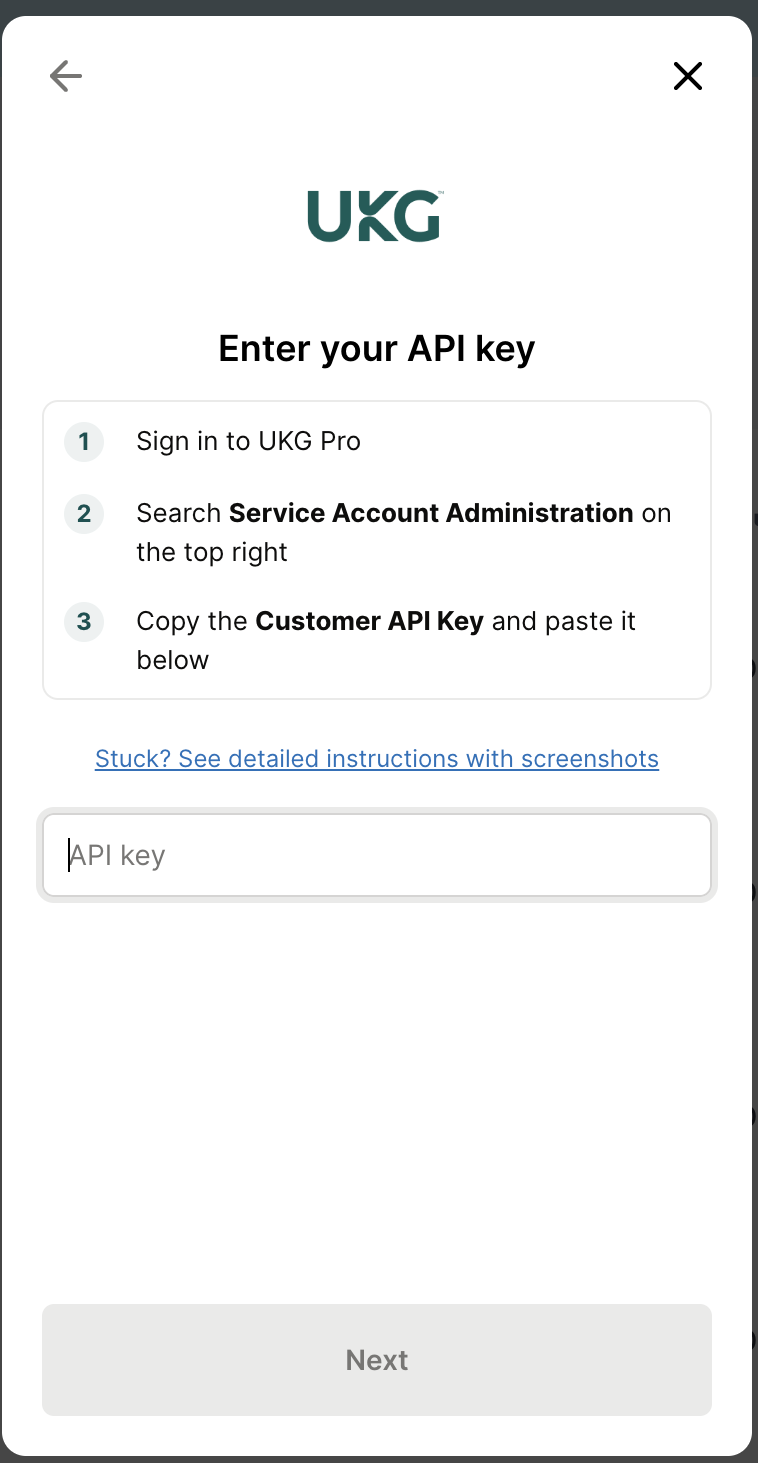
The Customer API Key from Step 1:
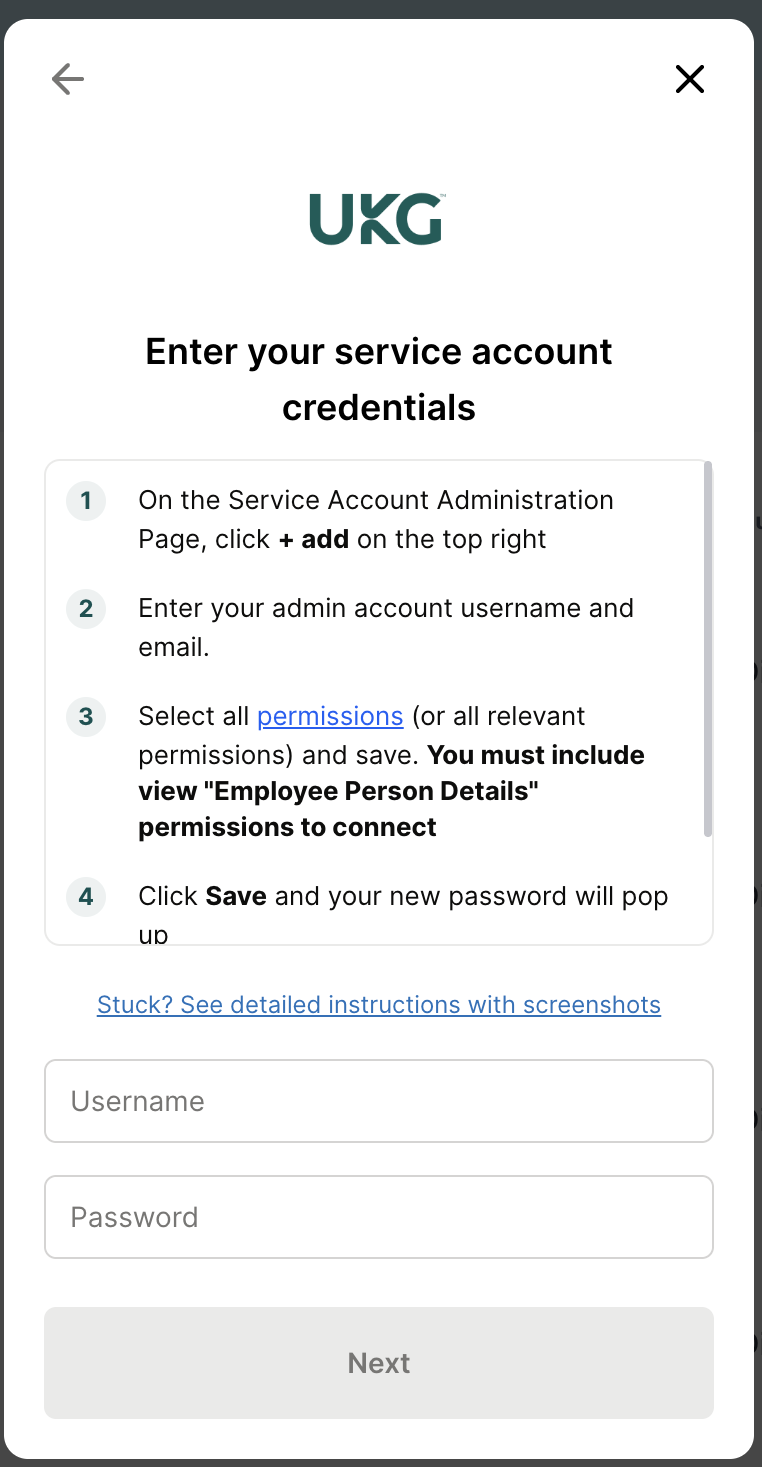
The service account username and password from Step 2:
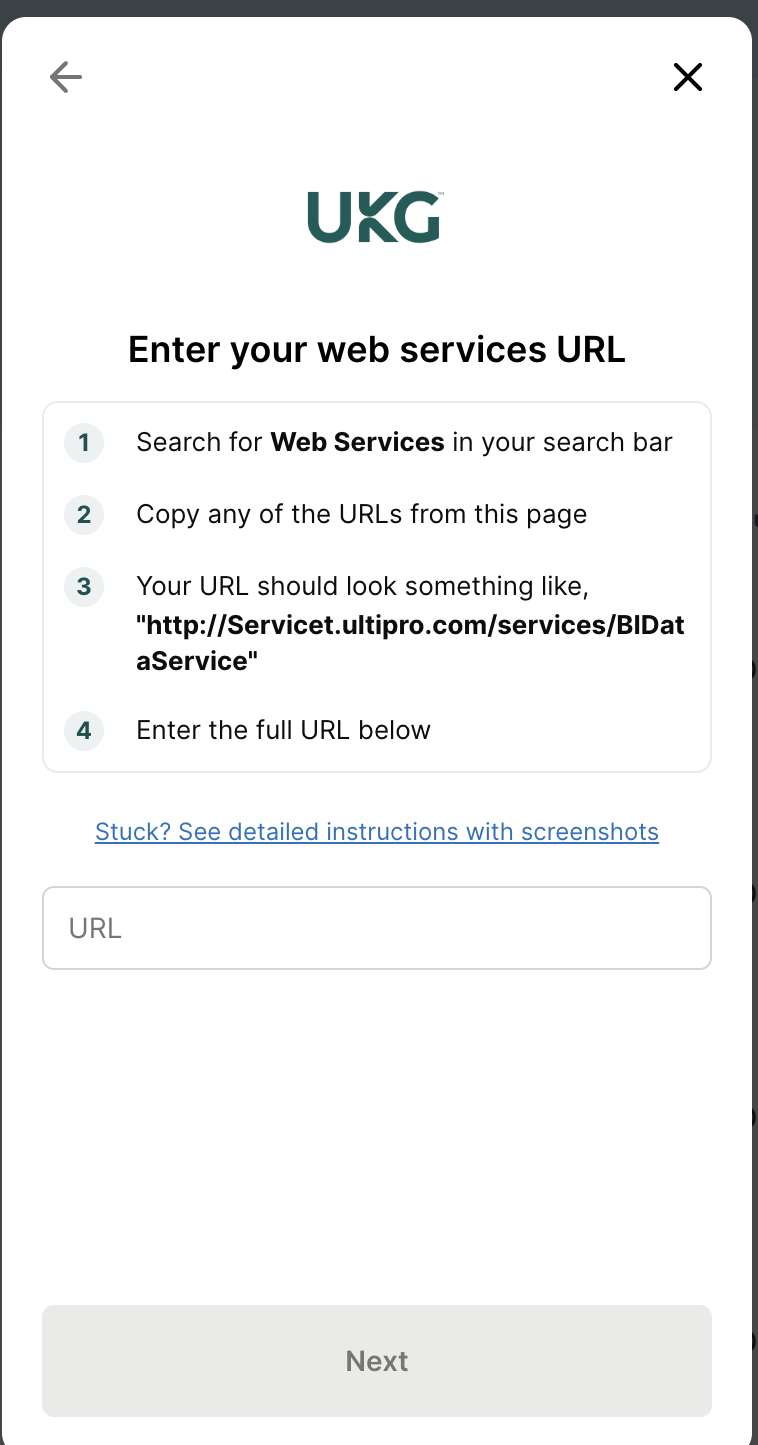
The web service domain from Step 3:
Mesh never sees your own UKG Pro password — only the service account credential you created for this purpose, and the exchange happens directly with UKG.
After connecting
The connector appears in your connectors list with Health: Initializing while the first collection runs, then moves to Good. Access is read-only: Mesh does not write back to UKG Pro.
If it doesn't come online, see Troubleshoot HR connectors.
Troubleshooting
| What you see | Likely cause | Fix |
|---|---|---|
| Connector goes healthy but collects zero employees | The service account is missing View Employee Person Details | Add the permission in Service Account Administration, then re-run the collection |
| Authorization is rejected | The Customer API Key and the service account belong to different UKG instances, or the password was mistyped | Re-copy the key from Service Account Administration and re-enter the saved password |
| Fewer records than expected | The service account's permissions are narrower than the data you expected | Add the relevant Web Service permissions from Step 2 |
| You no longer have the service account password | UKG Pro shows it once and cannot re-display it | Generate a new password on the service account and reconnect |