iTrent setup
iTrent connects through the unified HRIS connector. This page covers the iTrent-side configuration you complete first. Once it's done, add the connector in Mesh by following Connect your HR system.
You finish with four values:
| Value | Where it comes from |
|---|---|
| Web server name | Your iTrent URL |
| Connection name | Your iTrent URL |
| Username | The API user you create |
| Password | Set on that user |
Before you start
You need administrator permissions in your company's iTrent instance.
These steps reflect Axiad's current understanding of iTrent's configuration. Because iTrent is a third-party product, there may be variations between your experience and what this guide describes, depending on the version in use and recent updates.
If you find a significant difference, or anything that doesn't make sense, let us know through Axiad support.
Step 1 — Create a function access profile
-
Search for the Function Access Details page.
-
Add a new entry with:
Field Value Name Anything recognizable, for example WEBSERVICESAccess type Web Services Start date Today; no end date needed Status Active 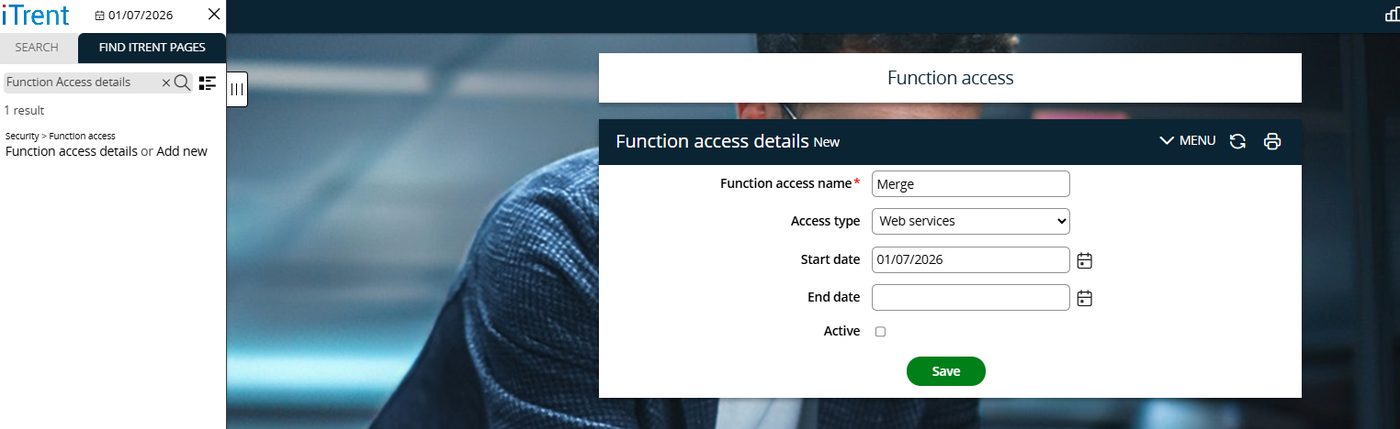
Step 2 — Create a user bound to it
-
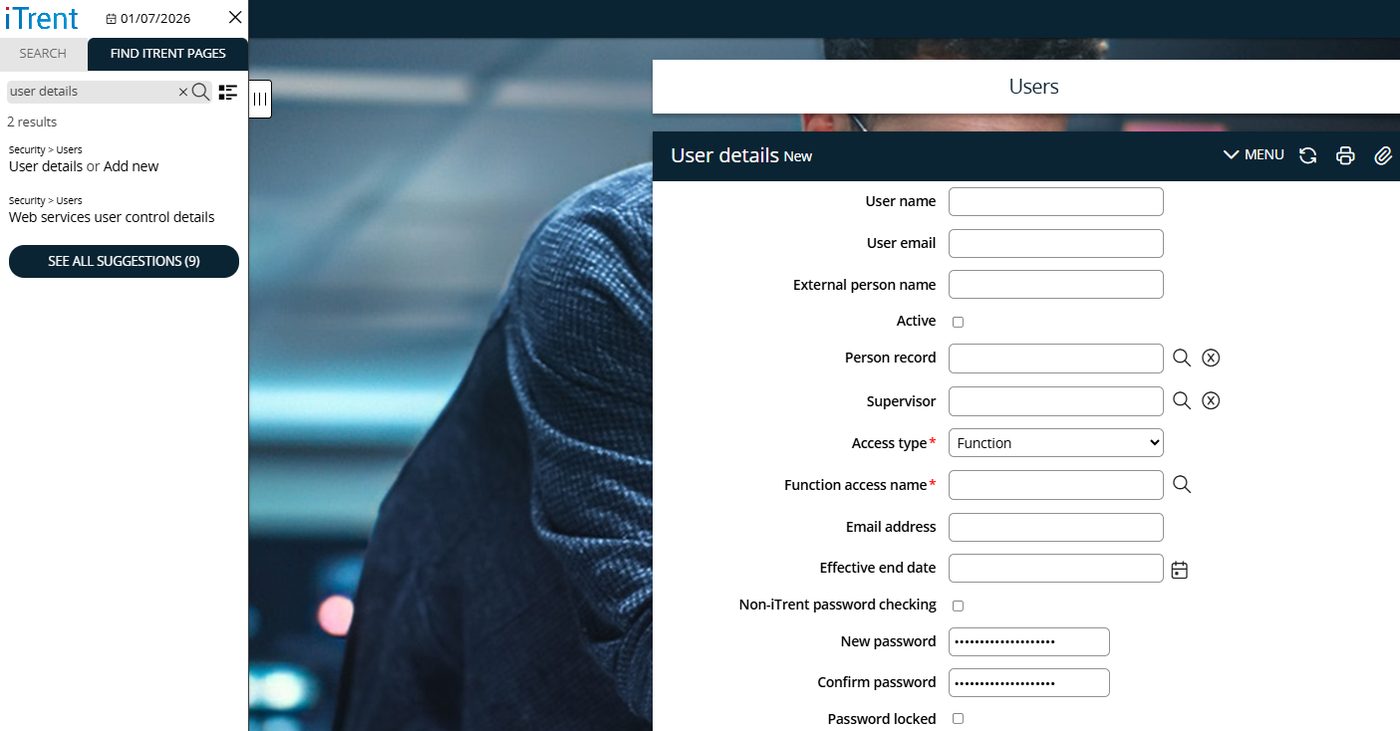
Search for the User Details page and add a new user.
-
Set:
Field Value Username Your choice Access type Function Access Function access name The profile from Step 1 -
Set a password and save.
Step 3 — Grant API access areas
-
Go to the Web Services User Control Details page.
-
Find the user you just created.
-
Select the API access areas the connector should read, and save.
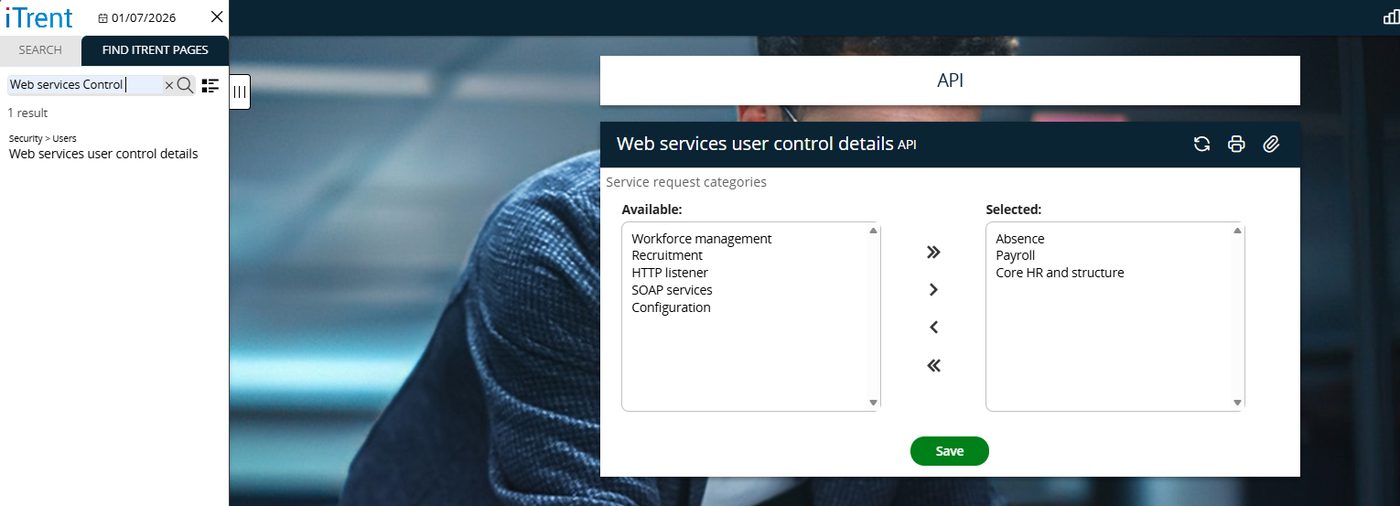
A user with the function access profile but no API access areas authenticates successfully and reads nothing. If your first collection completes empty, this step is the one to check.
Step 4 — Find your web server and connection names
Both are in the URL you use to reach iTrent. Take them from the address bar rather than typing them from memory — they differ between iTrent customers.
Step 5 — Connect in Mesh
Follow Connect your HR system, choose iTrent in the connection window, and supply the web server name, connection name, and the API user's credentials.
After connecting
The connector appears in your connectors list with Health: Initializing while the first collection runs, then moves to Good. Access is read-only: Mesh does not write back to iTrent.
If it doesn't come online, see Troubleshoot HR connectors.
Troubleshooting
| What you see | Likely cause | Fix |
|---|---|---|
| The connector authorizes but collects nothing | No API access areas are selected for the user | Complete Step 3, then re-run the collection |
| Authentication fails | The user's access type is not Function Access, or the profile is not web services | Re-check Steps 1 and 2 |
| The connection cannot be established | The web server or connection name was mistyped | Copy both from your iTrent URL |