ADP Workforce Now setup
ADP Workforce Now connects through the unified HRIS connector. This page covers the ADP-side configuration you complete first. Once it's done, add the connector in Mesh by following Connect your HR system.
Which ADP route to use
ADP offers more than one way to send data, and the right one depends on how your vendor relationship is set up:
| Route | Use it when | Trade-off |
|---|---|---|
| Practitioner role (this page) | You administer ADP Workforce Now directly | Self-served; the steps below |
| ADP Marketplace | Your connection is established through an ADP Marketplace subscription | Stable and scalable, but needs an active ADP partnership |
| SFTP file export | You prefer scheduled custom-report exports | Customizable, but file-based rather than live |
If you are not sure which applies, ask your ADP account team — they can tell you whether a Marketplace subscription exists for your organization.
Before you start
- You need administrator access to your company's ADP instance, or a colleague who has it.
- This guide covers ADP Workforce Now. ADP Workforce Now Canada is not supported by this connector.
These steps reflect Axiad's current understanding of ADP's configuration. Because ADP Workforce Now is a third-party product, there may be variations between your experience and what this guide describes, depending on the version in use and recent updates.
If you find a significant difference, or anything that doesn't make sense, let us know through Axiad support.
Step 1 — Create a practitioner profile
-
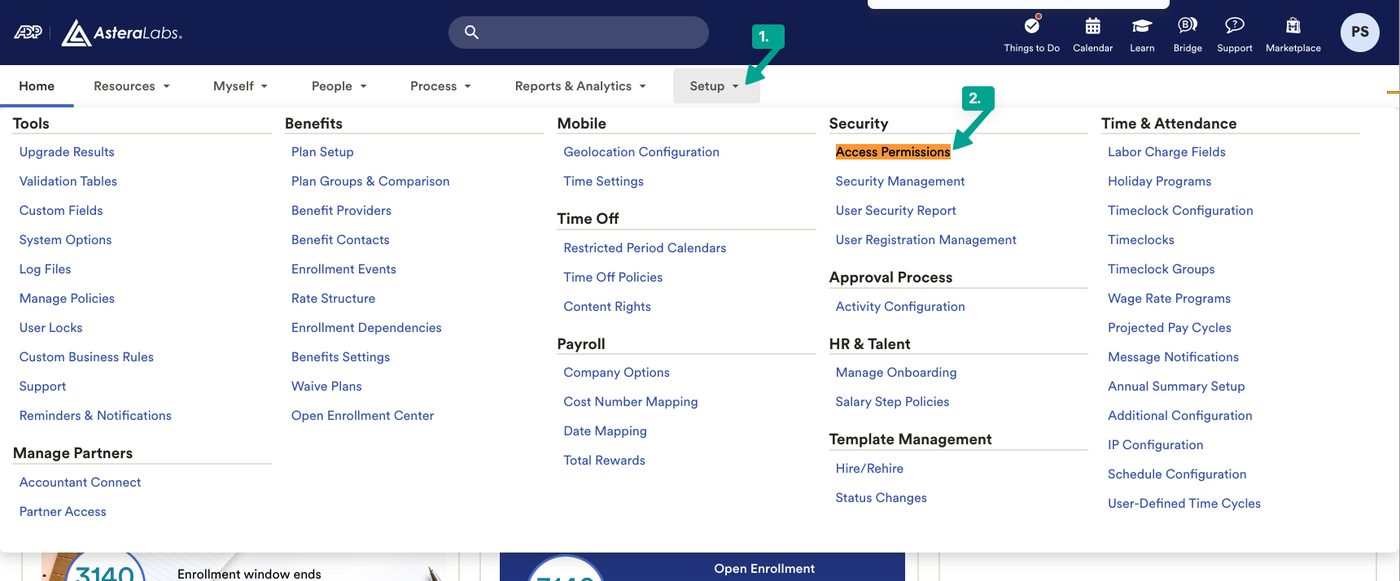
In ADP Workforce Now, go to Setup and open Access Permissions.
-
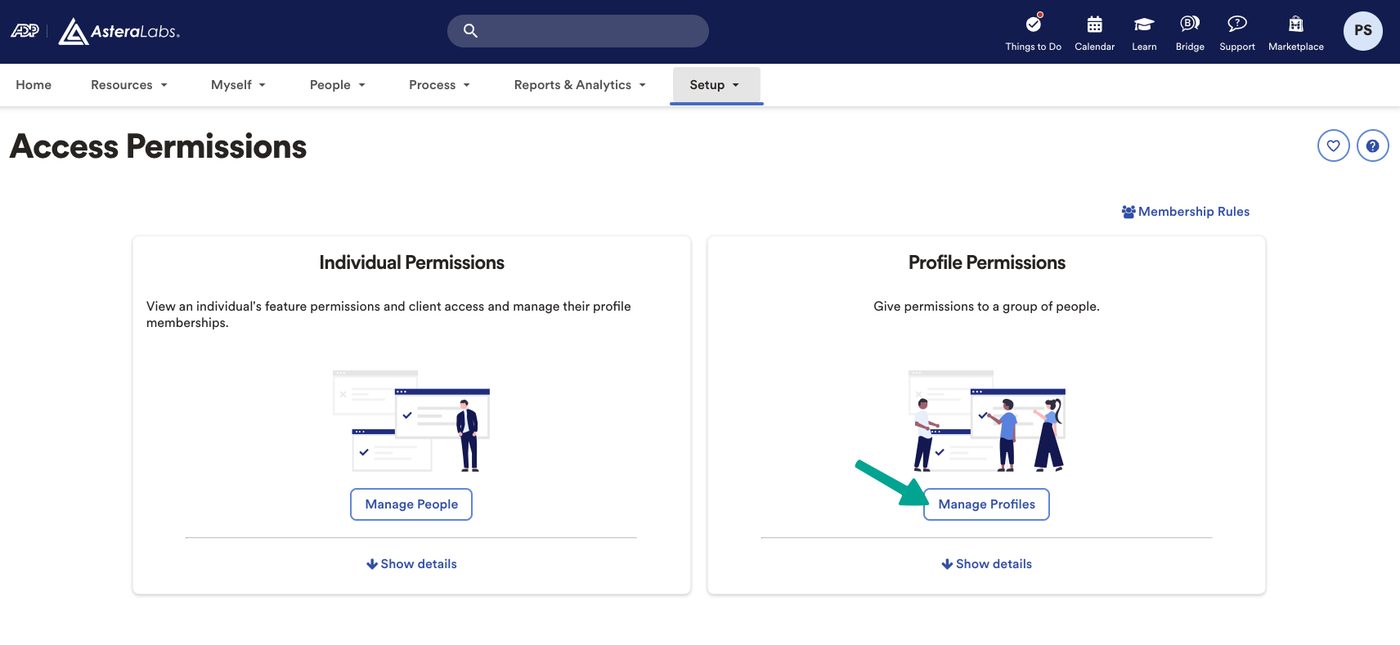
Select Manage Profiles → Create Profile.
-
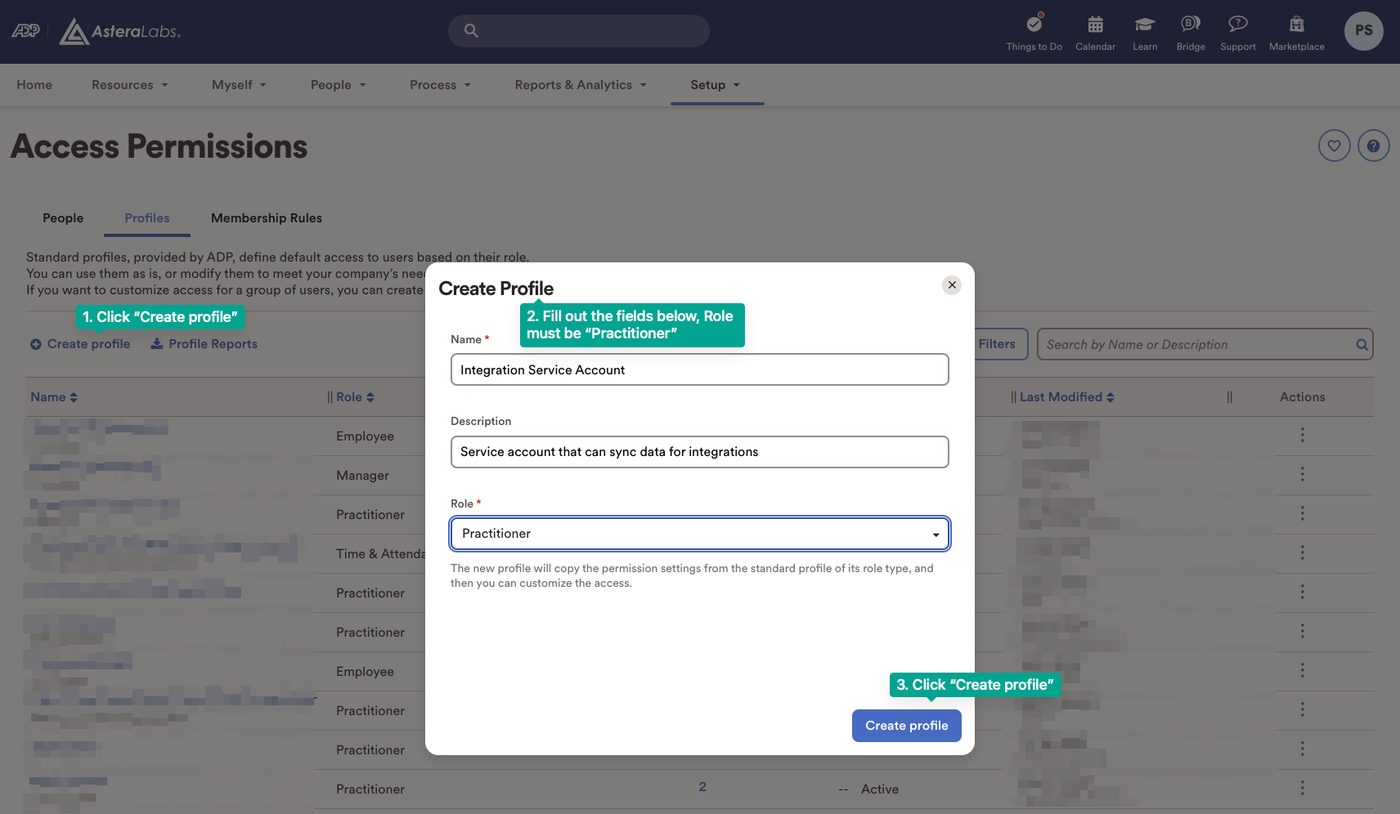
Give the profile any name you like, but set Role to Practitioner.
Step 2 — Grant the reports permissions
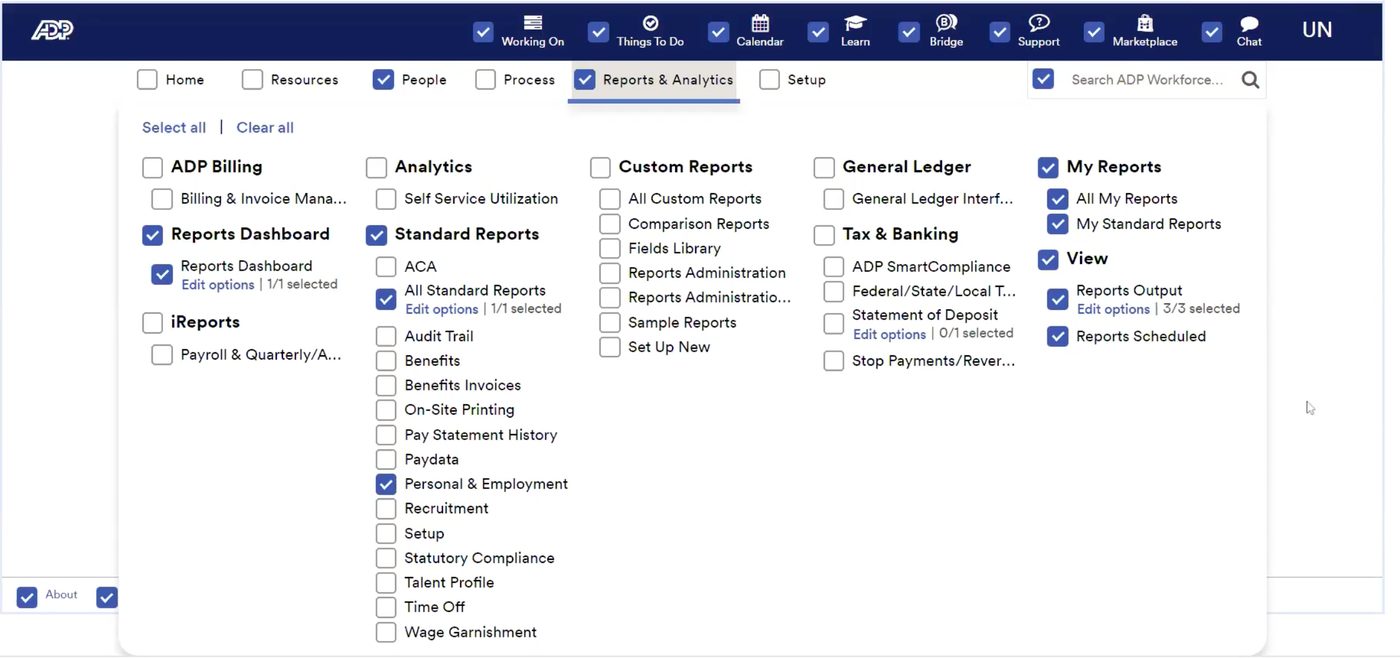
Creating the profile opens a permissions screen. Under Menus & Features → Reports & Analytics, check all of the following.
The connector reads through ADP's reporting surface, so a profile without them authenticates successfully and then collects nothing. If your first collection completes with zero records, this is the first thing to check.
- My Reports — My Reports, All Reports, My Standard Reports
- View — Reports Output, Reports Scheduled
- Reports Dashboard — Reports Dashboard
- Standard Reports — All Reports, and Personal & Employment
If you want more than people and employment data, you can additionally select these under Standard Reports:
| Option | Adds |
|---|---|
| Benefits | Benefits data |
| Pay Statement History | Pay data |
| Time Off | Time off data |
Mesh uses HR data for identity correlation and risk assessment, so Personal & Employment is the useful part. Add the others only if you have a reason to — Mesh reads what the profile can see, and nothing more.
Step 3 — Connect in Mesh
Follow Connect your HR system and choose ADP Workforce Now in the connection window, then authorize with the practitioner account.
After connecting
The connector appears in your connectors list with Health: Initializing while the first collection runs, then moves to Good. Access is read-only: Mesh does not write back to ADP.
If it doesn't come online, see Troubleshoot HR connectors.
Troubleshooting
| What you see | Likely cause | Fix |
|---|---|---|
| The connector goes healthy but collects zero employees | The practitioner profile is missing one or more Reports & Analytics permissions | Re-check every box in Step 2, then re-run the collection |
| Authorization is rejected | The account's role is not Practitioner | Open the profile and set the role, then reconnect |
| The connector never comes online on a Canadian instance | ADP Workforce Now Canada is not supported | Contact Axiad Customer Success to discuss alternatives |