Paycor setup
Paycor connects through the unified HRIS connector. This page covers the Paycor-side configuration you complete first. Once it's done, add the connector in Mesh by following Connect your HR system.
You finish with three values, and the connection window asks for them in this order:
| Value | Where it comes from |
|---|---|
| Environment | Whether you sign in to Paycor production or sandbox |
| Company ID | Company → Departments, in the Paycor portal |
| Username and password | Your Paycor sign-in, used once to authorize |
Before you start
You need a Paycor username and password with access to AppCreator. The developer portal is open to all Paycor clients, but an HR, payroll, or company administrator has to create the App Creator account before the API can be used.
Paycor can apply a cost to retrieving API credentials. Confirm that with your Paycor account team before you start, so the connector isn't blocked partway through.
These steps reflect Axiad's current understanding of Paycor's configuration. Because Paycor is a third-party product, there may be variations between your experience and what this guide describes, depending on the version in use and recent updates.
If you find a significant difference, or anything that doesn't make sense, let us know through Axiad support.
Step 1 — Create an App Creator account
-
Go to
developers.paycor.comand select Sign In at the top right, then sign in with your Paycor username and password.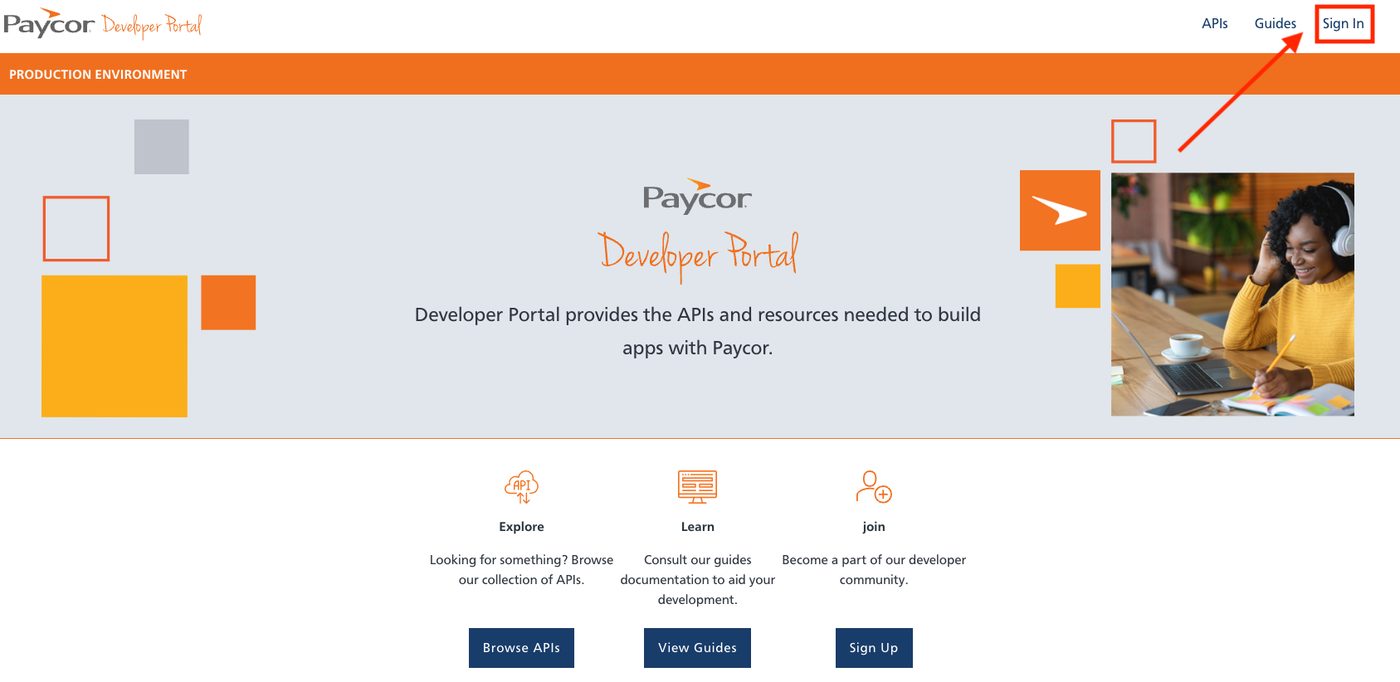
-
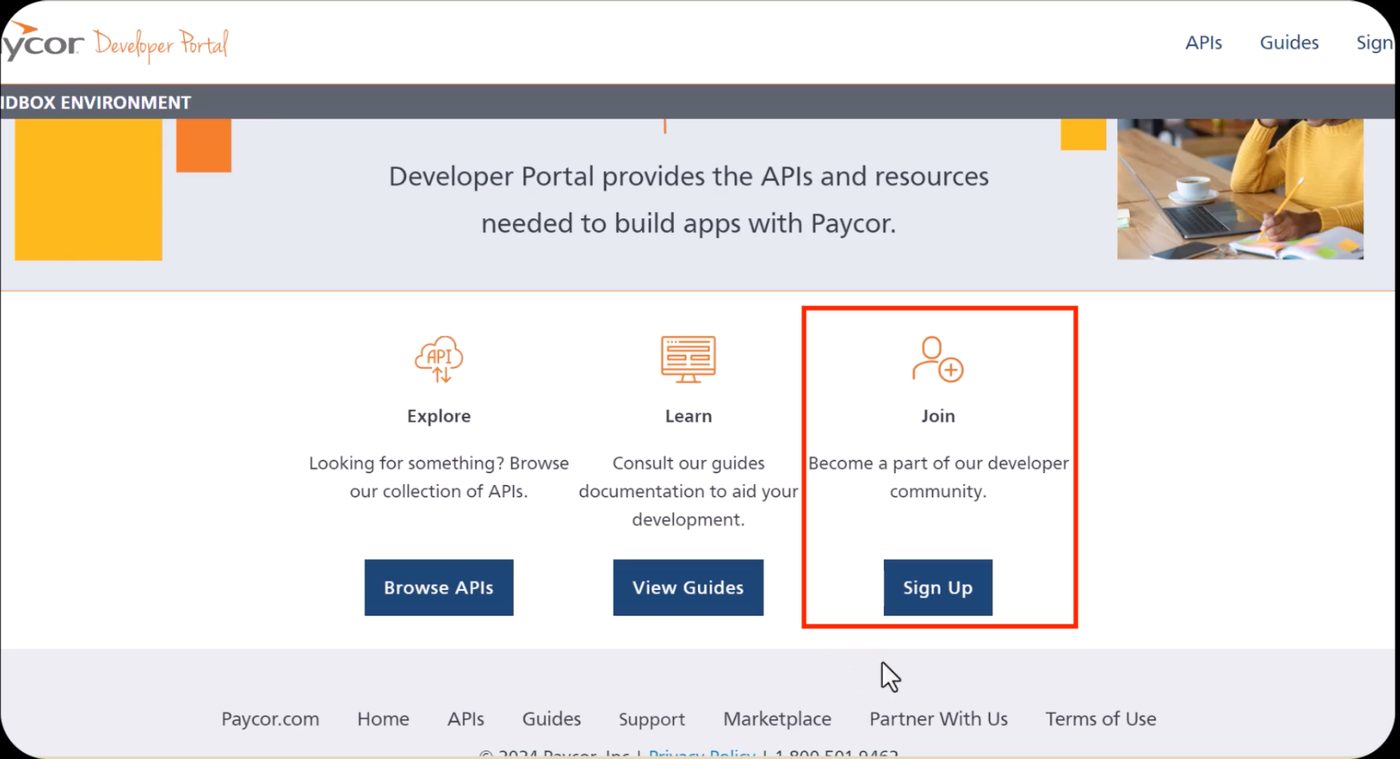
Return to the developer portal landing page and select Join. Depending on the version you see, the button may be labelled Sign Up.
-
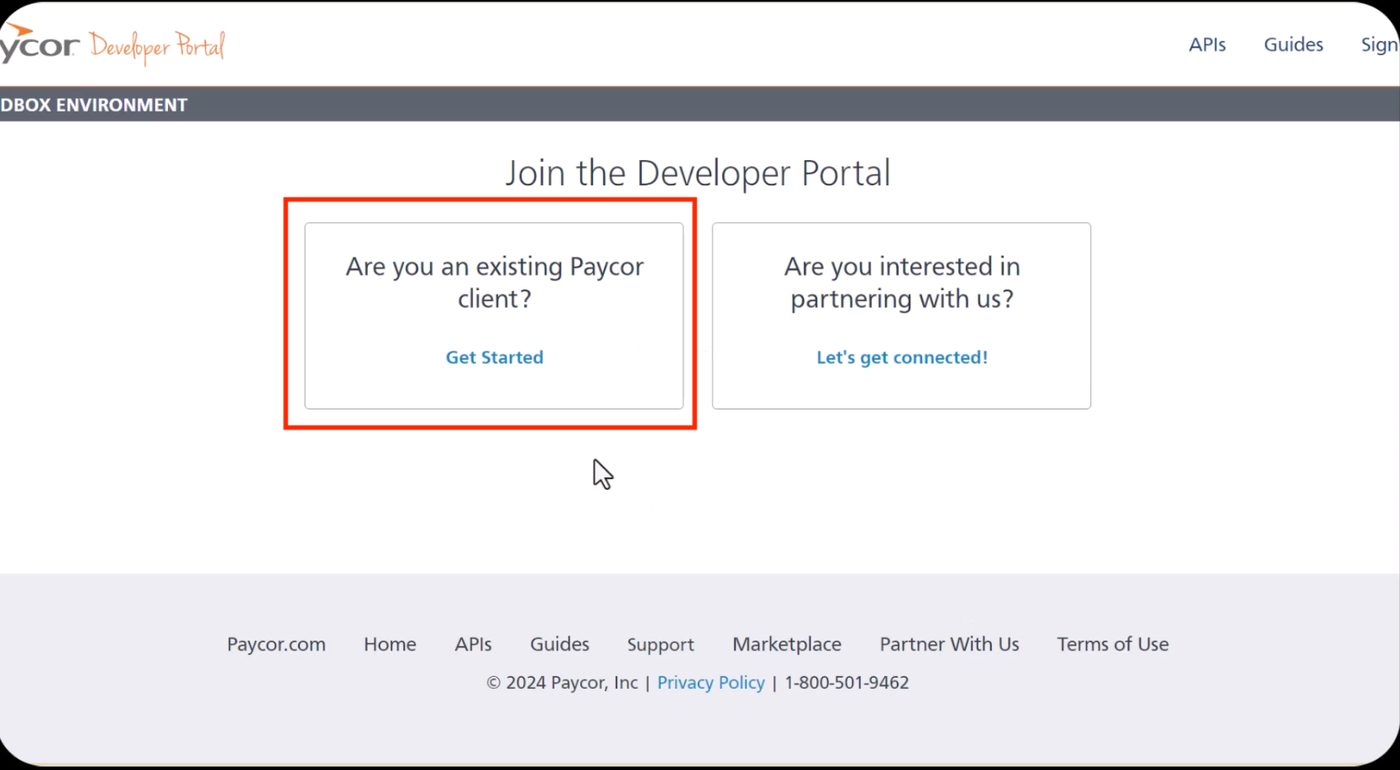
Under Are you an existing Paycor Client, select Get Started.
-
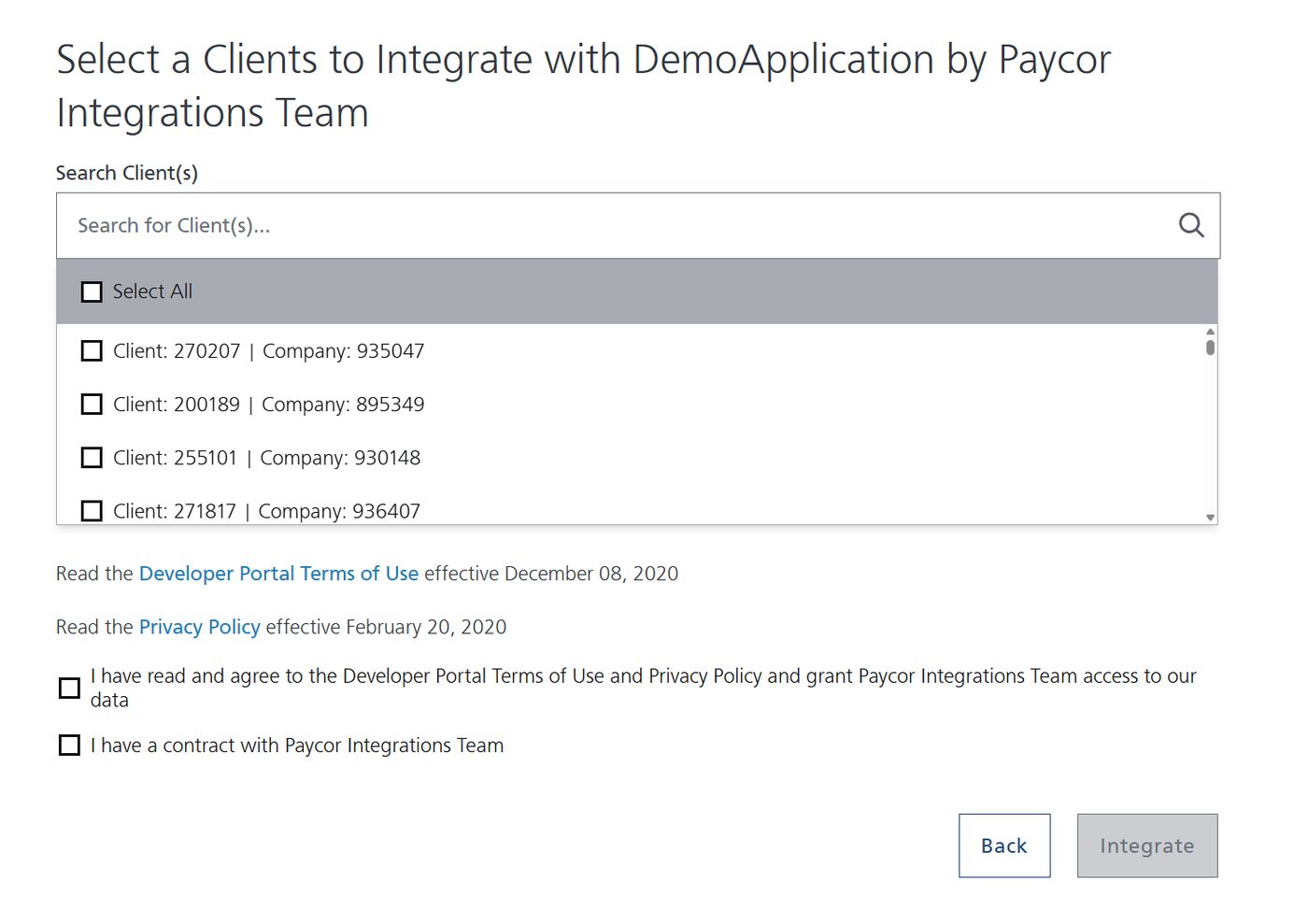
Select the client IDs this App Creator account should cover. If you'd rather not revisit this when your estate changes, choose All existing and Future Clients.
Step 2 — Find your company ID
-
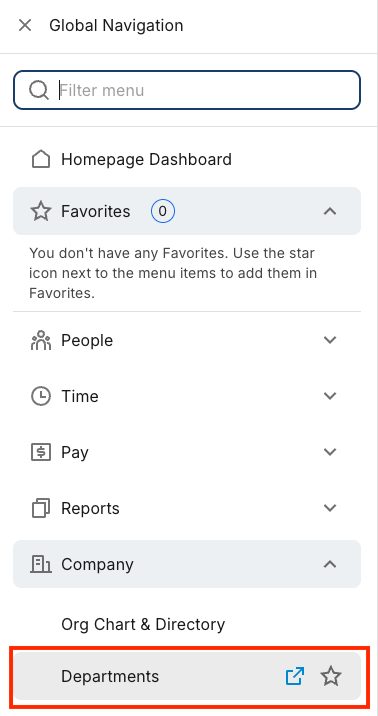
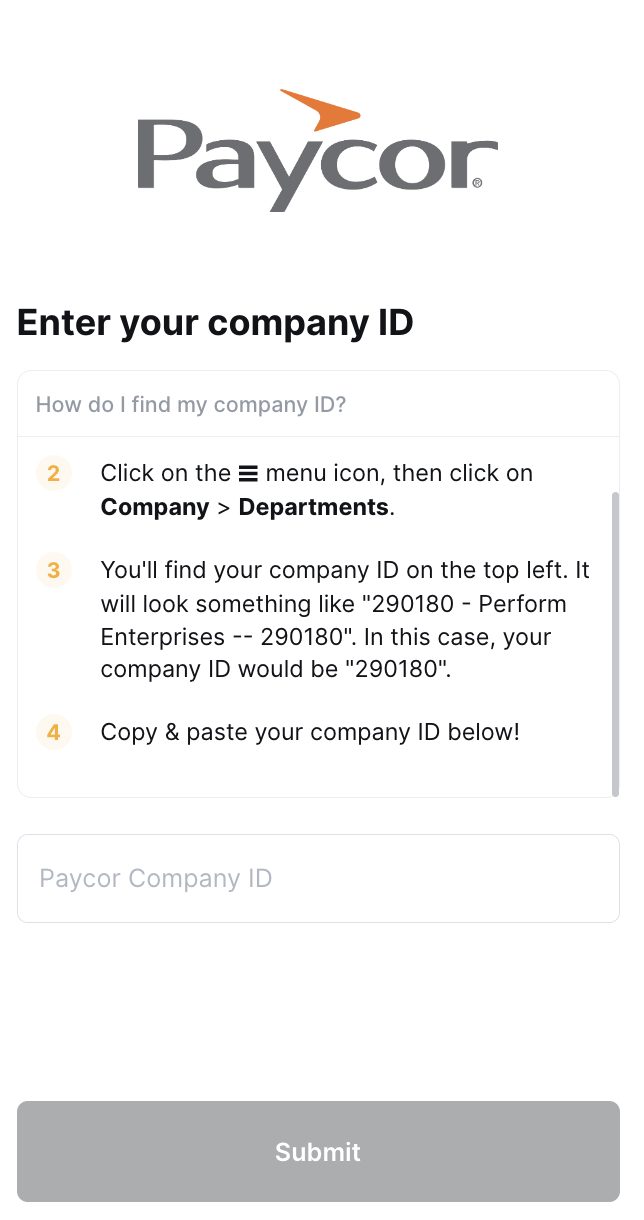
In the Paycor portal, open the ☰ menu and go to Company → Departments.
-
Read the company ID from the top left of the page. It is a short number, for example
385423.
Keep it to hand — you enter it in the connection window.
Step 3 — Authorize in Mesh
Follow Connect your HR system and choose Paycor in the connection window.
-
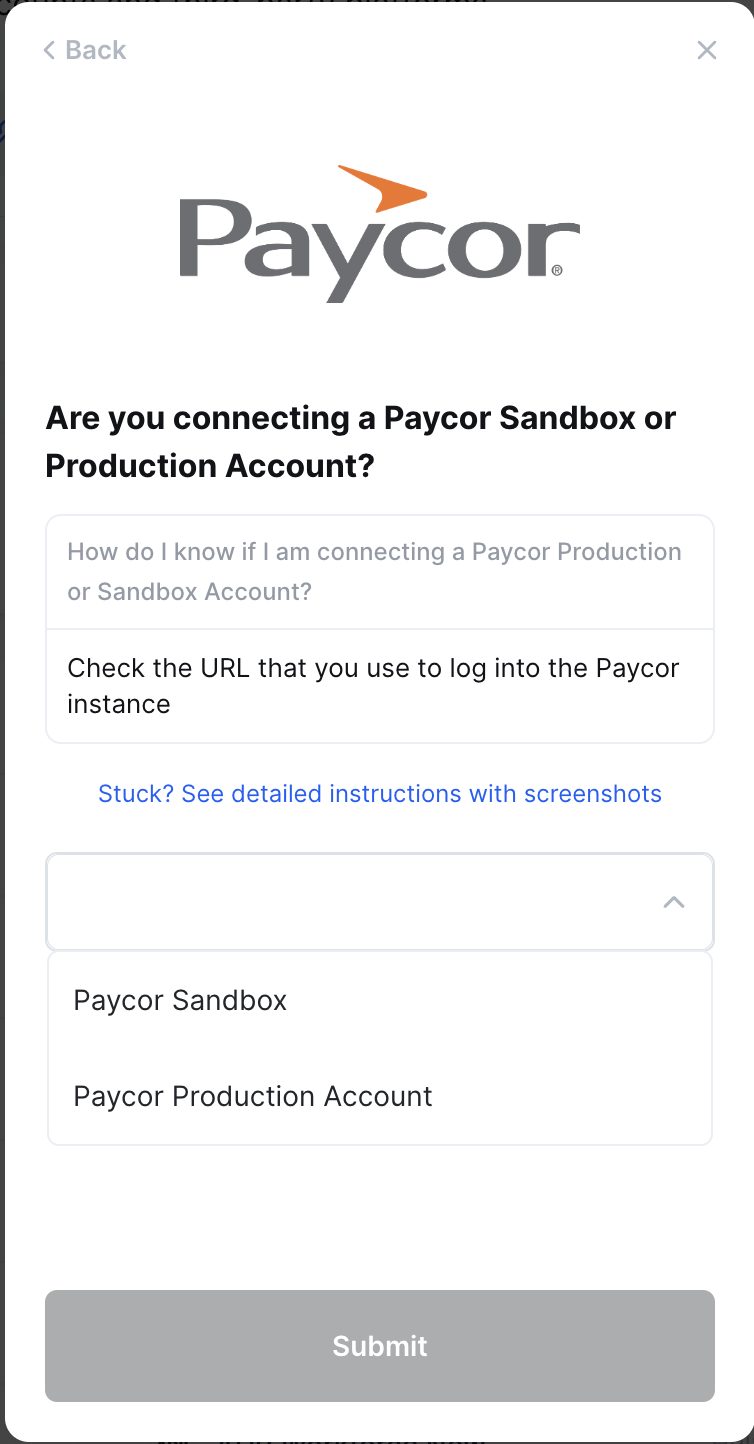
Select Paycor Sandbox or Paycor Production Account, matching the URL you use to sign in to Paycor.
Match the environment to your sign-in URLChoosing the wrong one authorizes successfully against an instance that holds none of your production people, so the connector goes healthy and collects nothing useful. Check the URL you actually sign in with before selecting.
-
Enter the company ID from Step 2.
-
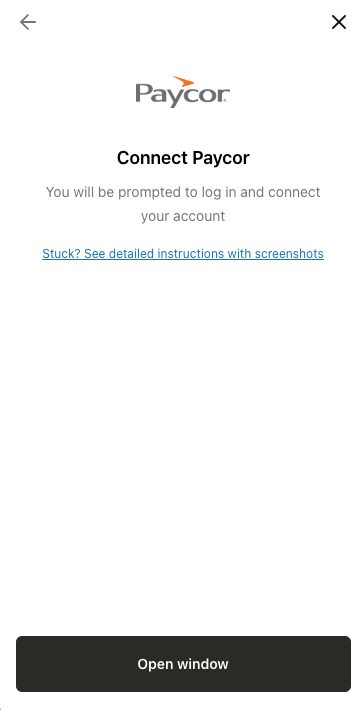
Select Open window.
-
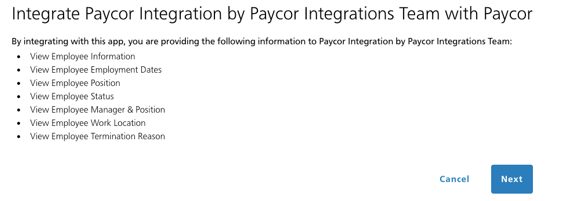
A Paycor window opens. Sign in with your Paycor username and password if you aren't already signed in, then review the access being requested and select Next.
-
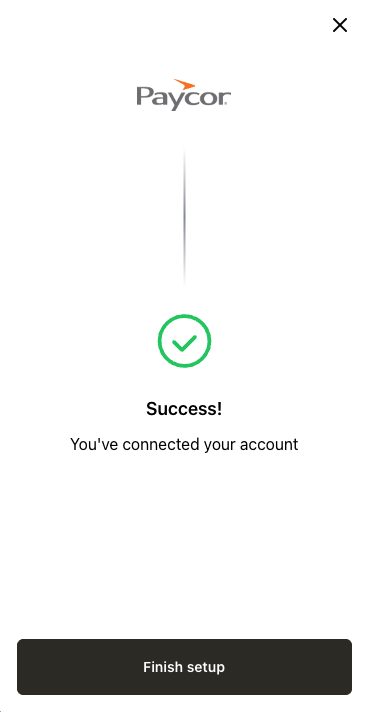
Confirm the authorization to finish.
After connecting
The connector appears in your connectors list with Health: Initializing while the first collection runs, then moves to Good. Access is read-only: Mesh does not write back to Paycor.
If it doesn't come online, see Troubleshoot HR connectors.
Troubleshooting
| What you see | Likely cause | Fix |
|---|---|---|
| The developer portal won't let you create an App Creator account | The account lacks HR, payroll, or company administrator rights | Ask an administrator to create the App Creator account for you |
| Authorization succeeds but almost no people arrive | The connector points at the sandbox rather than production | Reconnect and select the environment matching your sign-in URL |
| The company ID is rejected | The ID was read from the wrong page | Take it from Company → Departments, top left |