Reach asset owners with Outreach
The people who own an asset are rarely the people who read your findings. Outreach closes that gap. When Mesh finds cryptography on an asset that is not ready for the post-quantum era, Outreach tells the asset's owner, follows up with reminders, and escalates to a fallback approver if nobody responds, so quantum-readiness work reaches the people who can act on it.
Outreach is built around post-quantum cryptography (PQC) findings, the findings that drive your migration to quantum-safe algorithms. It works with your existing Mesh data: the owner Mesh already knows for an asset is the person contacted.
How Outreach works
- Finding. Mesh identifies a PQC finding on an asset and its owner.
- First message. The owner receives a message with a link to the finding in Mesh.
- Reminders. If there is no response, Mesh sends reminders on your schedule.
- Escalation. If the profile has a fallback approver, that approver is emailed so the finding is not left unowned. Set a fallback approver on every profile so escalation always has a destination.
Each case is for one owner and one finding, and Mesh keeps track of it for you. You choose how Mesh reaches people (the channel, the number of reminders, the wait before escalation, and the wording) in an outreach profile.
Choose how owners are contacted
| Channel | Setup | Best for |
|---|---|---|
| None. Email is enabled for every tenant and is sent by Axiad. | Reaching every owner from day one, including people who are not in Slack. | |
| Slack | Connect your own Slack app with a bot token (about 10 minutes). | Meeting owners where they already work, with messages that come from an app your organization controls. |
| Microsoft Teams | Coming soon. | Use Email or Slack today. |
If the preferred channel is not set up, or Slack cannot find the owner, Outreach delivers by email instead.
What starts Outreach
- Automatically. When Mesh raises a PQC finding on an asset that has an owner, Outreach emails that owner. This is on by default; there is nothing to enable. Automatic outreach sends up to two reminders.
- By an administrator, with a profile. Choose a finding and a profile to contact one owner with your own channel, schedule and wording. You can also run a campaign to reach many owners at once. See Start outreach yourself.
Before you begin
- An administrator account in Mesh.
- Asset owners recorded in Mesh with an email address. Mesh uses that address to find the person on every channel.
- For Slack: permission to create and install an app in your Slack workspace (or an administrator who can approve one).
Email
Email needs no setup. Owners receive a message with a link to the finding in Mesh.
Outreach email comes from noreply@axiad.io. If your organization filters
inbound mail, add this address to your allow list so owners always receive their
messages.
Connect Slack
Outreach sends from a Slack app that you create and control, so messages come from your workspace and your security team decides what the app can do. The app only sends direct messages. It does not read channels or conversations.
Step 1: Create the Slack app
- Open api.slack.com/apps and select Create New App.
- Enter an App Name that owners will recognize, for example Mesh Outreach, and choose the Workspace to develop it in.
- Continue through the prompts and select Create.
- Optional: add an icon and description under Basic Information so owners trust the message.
Step 2: Add the permissions Mesh needs
- In the app, select OAuth & Permissions.
- Scroll to Scopes. Under Bot Token Scopes, select Add an OAuth Scope and add these three scopes:
| Scope | Why Mesh needs it |
|---|---|
users:read | Required by Slack alongside the email scope below. |
users:read.email | Finds the owner in Slack from the email address Mesh holds for them. |
chat:write | Sends the owner a direct message. |
Step 3: Install the app and copy the token
- At the top of the OAuth & Permissions page, select Install to Workspace, then Allow. If your workspace requires approval for new apps, a Slack administrator completes this step.
- Back on OAuth & Permissions, under OAuth Tokens, copy the Bot User
OAuth Token. It starts with
xoxb-.
If you change the scopes later, select Reinstall to Workspace so the new scopes take effect.
Anyone with the token can send messages as the app. Paste it only into Mesh. Mesh encrypts it and never shows it again.
Step 4: Add the channel in Mesh
- In Mesh, select Settings, then Outreach channels.
- Select Add channel and choose Slack.
- Enter a Channel name. This name appears in the channel list and when you choose where outreach is sent. Select Continue.
- Paste the Slack bot token and select Test connection. Mesh asks Slack whether the token is valid. No message is posted. The token must pass before you can save.
- Select Add & connect. The channel is added and enabled.
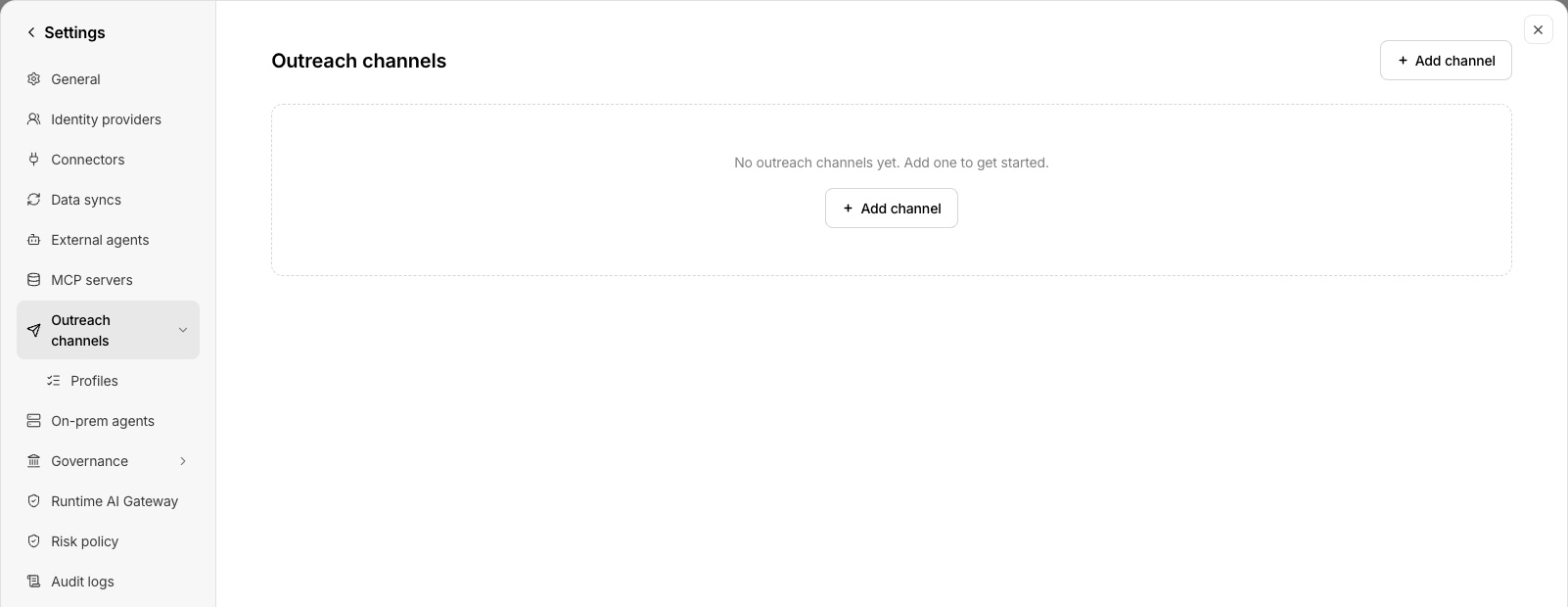
The Outreach channels page lists each channel with its status.
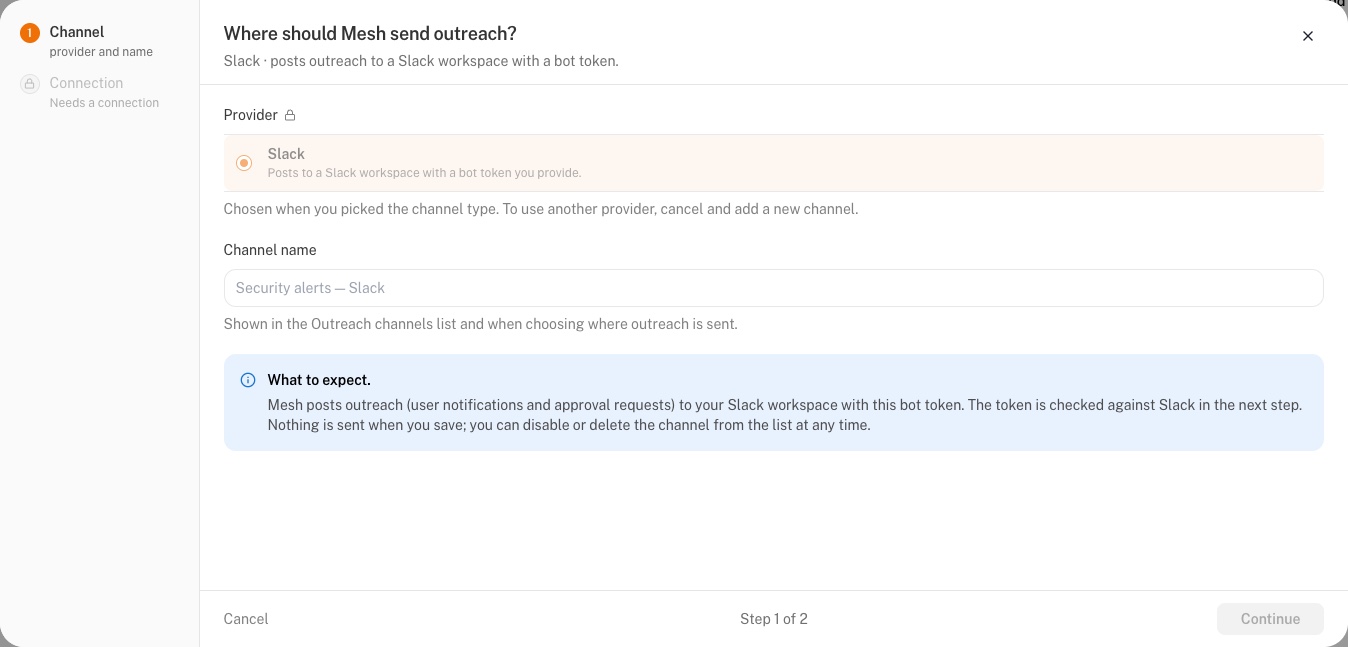
Name the channel in step 1.
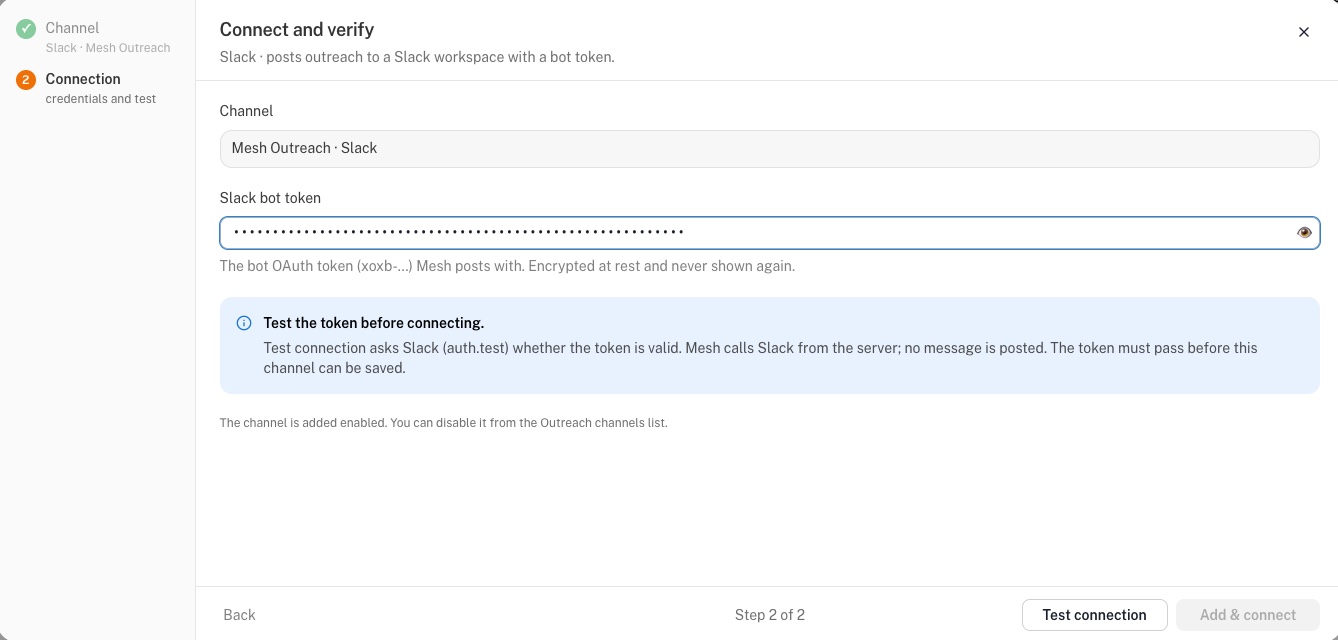
In step 2, paste the Slack bot token and select Test connection. The token is masked, and it must pass the test before the channel can be saved.
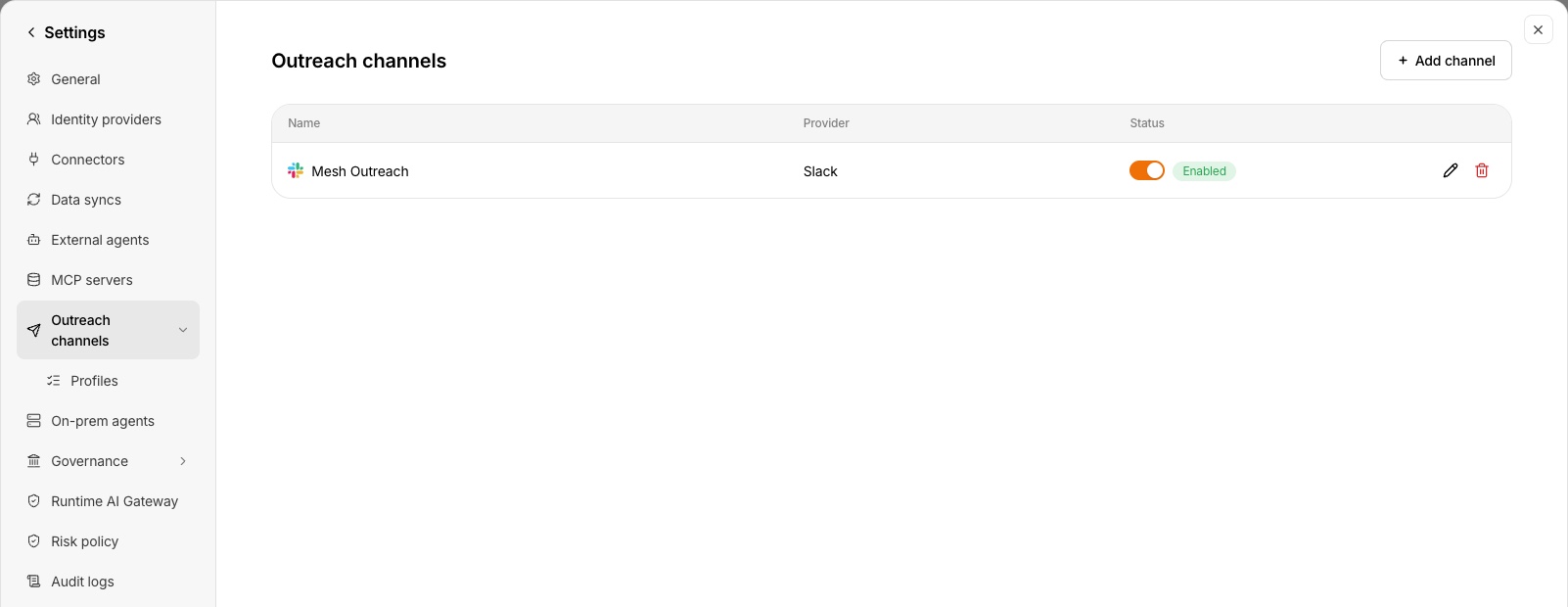
Once connected, the channel appears in the list with its status and controls.
Manage the channel
- Enable or disable a channel from the list. A disabled channel is skipped and owners are reached by email.
- Replace the token by editing the channel and pasting a new one. Leave the field empty to keep the stored token. A new token is tested before it replaces the old one.
- Delete a channel to remove it and its stored token. This cannot be undone.
Outreach uses one Slack connection per tenant. To move to a different Slack workspace, replace the token on the existing channel.
Mesh finds the Slack account whose email matches the owner's email in Mesh. Keep the two aligned. When no match is found, the owner receives the message by email.
Create an outreach profile
A profile is a saved plan for how Mesh contacts people. Create one per situation, for example PQC findings, Slack first, and reuse it.
- Select Settings, Outreach channels, then Profiles.
- Select New profile, complete the fields below, and save.
| Field | What it does |
|---|---|
| Name | How the profile appears when you start outreach. |
| Trigger match (JSON) | Names the kind of finding the profile is designed for, as a flat JSON object. Required to save. See Trigger match. |
| Channel preference | The connected channel to try first. If it is not available, Outreach uses email. |
| Reminder count | How many messages Mesh sends before escalating. |
| Escalation silence threshold | How long a case may stay unanswered before it escalates. |
| Fallback approver / queue ref | The email address that receives the escalation. Set one so every case has someone to escalate to. |
| Message to the recipient | The first message and every reminder. Starts as Mesh's standard message. |
| Escalation message | Sent to the fallback approver if the owner stays silent. |
| Requires approval | When on, an administrator approves each case before anything is sent. |
| Status | Only Active profiles can be chosen when you start outreach. |
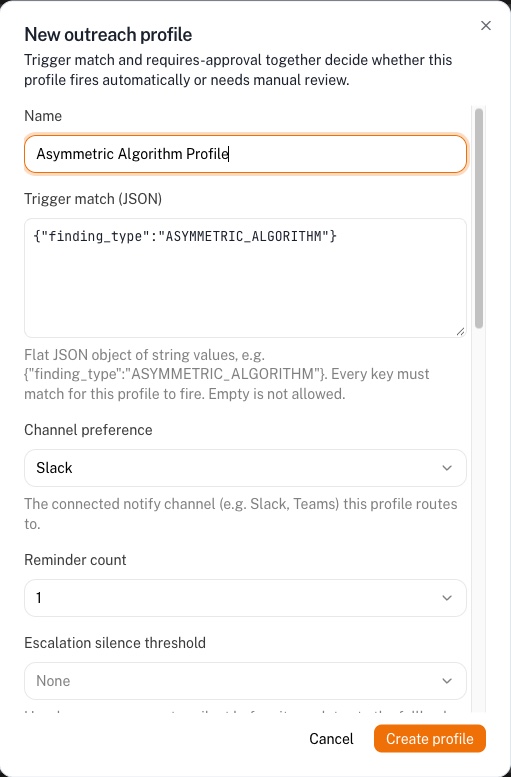
The New outreach profile dialog. Scroll down for the fallback approver, messages, approval and status settings.
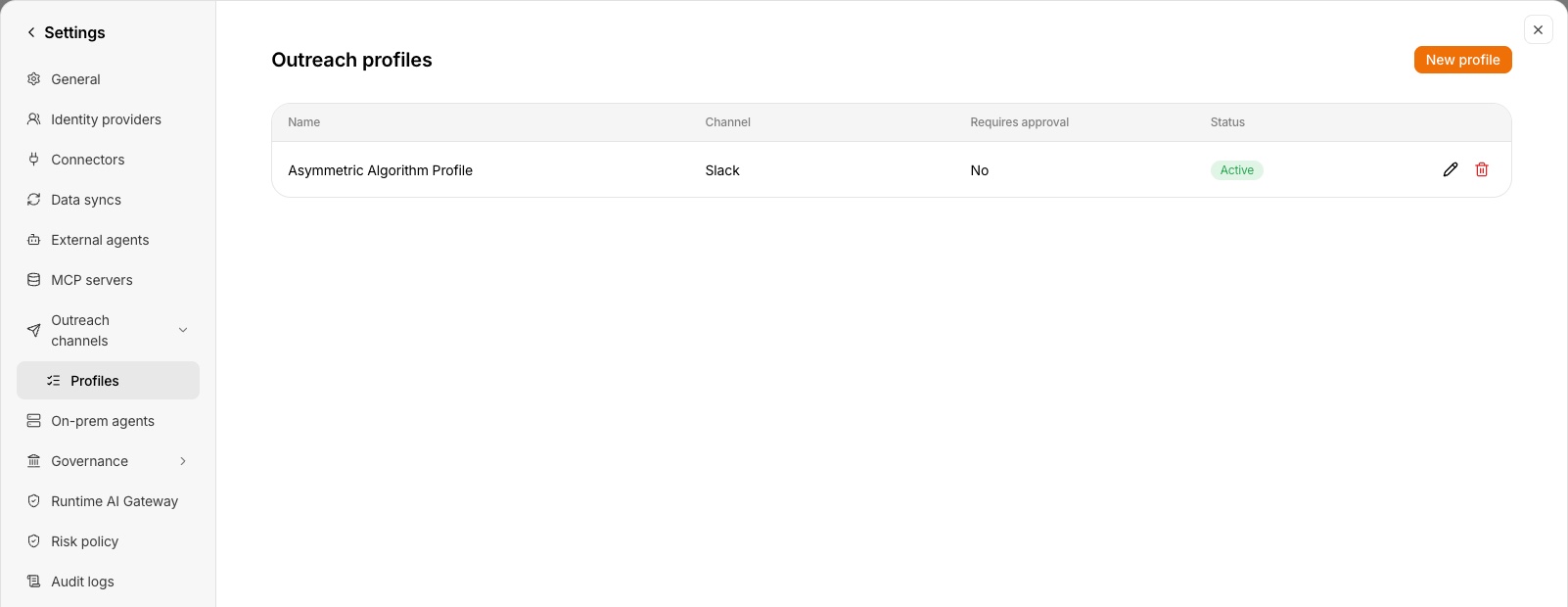
Saved profiles are listed with their channel, approval setting and status.
Trigger match
The trigger match says which findings a profile is designed for. Mesh raises Outreach for the two kinds of cryptography that quantum computers put at risk:
finding_type value | Covers |
|---|---|
ASYMMETRIC_ALGORITHM | Public-key algorithms, for example RSA |
KEY_EXCHANGE | Key-exchange algorithms |
Examples: {"finding_type":"ASYMMETRIC_ALGORITHM"} or
{"finding_type":"KEY_EXCHANGE"}
- Write a flat JSON object. Every value is text in quotes. Nested objects, lists and numbers are not accepted.
- Use the exact upper-case values above. Spelling matters.
- Every pair you add must match, so extra pairs narrow the profile. To cover both finding types, create one profile for each.
- The field cannot be empty.
- When you start outreach yourself, you choose the profile directly.
Create one profile per finding type when you want different channels, schedules or wording for each. For example:
| Profile name | Trigger match | Channel | Reminders | Fallback approver |
|---|---|---|---|---|
| PQC public-key, Slack | {"finding_type":"ASYMMETRIC_ALGORITHM"} | Slack | 2 | security-team@example.com |
| PQC key exchange, email | {"finding_type":"KEY_EXCHANGE"} | 1 | security-team@example.com |
Make the message yours
Messages can include placeholders that Mesh fills in when it sends. Select a placeholder in the dialog to insert it. A message can be up to 2,000 bytes. If you leave a message empty, Mesh uses its standard wording. Mesh rejects an unknown placeholder when you save.
| Placeholder | Becomes |
|---|---|
{greeting} | "Hi Name," when Mesh knows the recipient's display name; otherwise nothing. |
{recipient_name} | The recipient's display name. |
{reminder_prefix} | Nothing on the first message, then "This is a reminder:" and "This is a follow-up reminder:". |
{finding_summary} | A short, plain description of the finding. |
{asset_name} | The asset's name. |
{link} | The link to the case in Mesh. The standard message uses this one. |
{case_link} | The recipient's link to the case in Mesh. Used in the standard escalation message. |
{destination_link} | The link to the case in the Mesh dashboard (requires sign-in). |
{case_id} | The case reference. |
To show a literal brace, double it: {{ and }}.
The standard message reads:
{greeting}{reminder_prefix}Your asset requires attention: {finding_summary} for {asset_name}.
You are being contacted because you are the owner or steward of record for this asset.
{link}
Need more detail? Contact your Mesh administrator.
Mesh sends your message exactly as you write it, including any web address. Add only links to pages you want owners to open, such as your own remediation guide.
Start outreach yourself
Administrators can start outreach at any time, using any active profile.
- One owner. Open the Manual outreach trigger widget, choose the finding and a profile, and send. The owner receives the full profile: your channel, schedule and wording.
- Many owners. Open the Bulk outreach campaign widget, choose the finding, enter the recipients' email addresses (up to 1,000), and choose a profile. The campaign reports its cases as pending, reminded, escalated, resolved or failed. Recipients open the finding in Mesh and sign in.
- With approval. If the profile requires approval, each case waits in the Approvals queue until an administrator approves or rejects it.
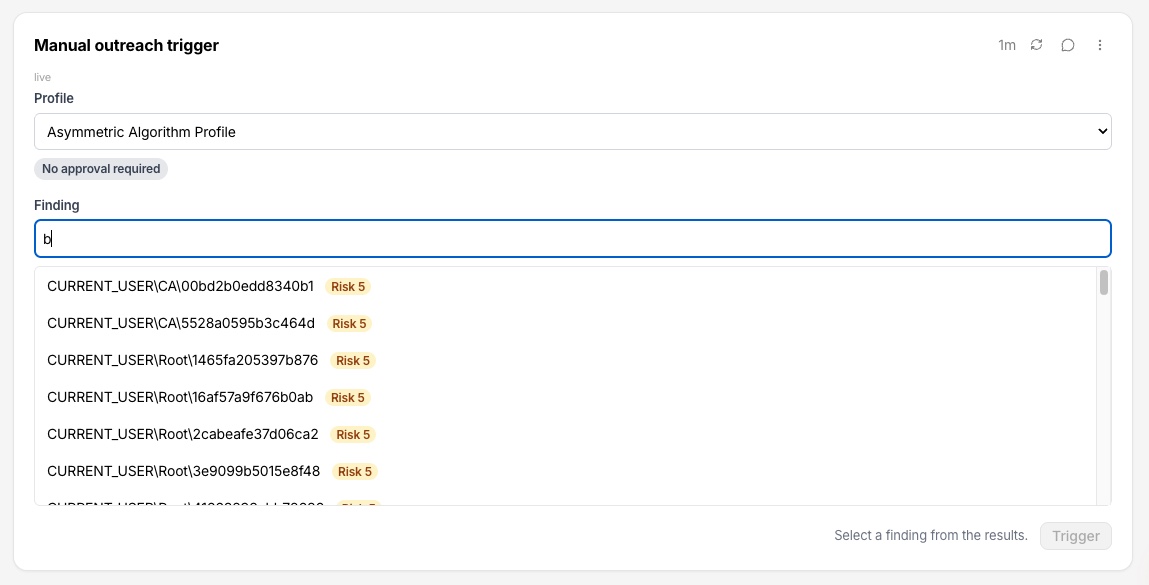
The Manual outreach trigger widget: choose a profile, search for a finding, and trigger outreach to its owner.
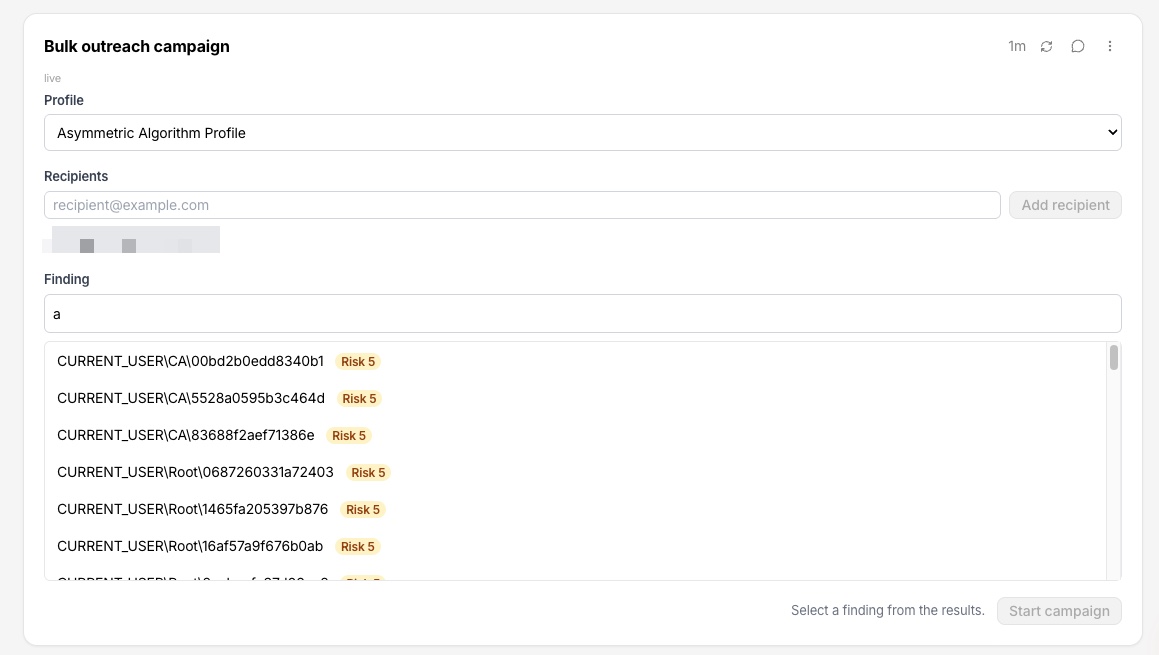
The Bulk outreach campaign widget: choose a profile, add recipients, select a finding, and start the campaign.
What the owner experiences
- A message arrives in Slack or email, naming the finding and the asset.
- The message contains a link to the finding in Mesh.
- If the owner does not respond, reminders follow, and then the fallback approver is emailed.
Outreach is a notification: recipients cannot reply or act from inside Slack or the email. They follow the link, or contact your Mesh administrator, to take action.
Timing
The silence threshold is the total time Mesh waits for an answer before it escalates, split evenly across the reminders. For example, 3 reminders with a 72-hour threshold send messages at 24, 48 and 72 hours, and the fallback approver is emailed right after the last one. The defaults (2 reminders, 96 hours) send messages at 48 and 96 hours. When a profile requires approval, the clock starts when an administrator approves the case.
Who can do what
| Task | Who |
|---|---|
| Connect, edit and delete channels | Administrators |
| Create and manage profiles | Administrators |
| Start outreach, run campaigns, approve cases | Administrators |
| Receive a message and open the finding | The asset owner |
Troubleshooting
| You see | What to do |
|---|---|
| Test connection fails | Check that you copied the Bot User OAuth Token (starts with xoxb-), not another token, and that the app is installed in the workspace. Reinstall the app if you changed its scopes. |
| An owner got an email instead of a Slack message | Slack could not find an account with the owner's email. Align the owner's email in Mesh with their Slack profile email. |
| A channel is listed as Disabled | Select the toggle to enable it. While disabled, owners are contacted by email. |
| A profile is missing from the list when you start outreach | Its status is Inactive. Edit the profile and set it to Active. |
| The case ended as Failed | No one could be reached or no fallback approver was set. Add a fallback approver to the profile so escalation always has a destination. |
| A Teams channel shows Teams bot install pending | Teams delivery is not available yet. Use Email or Slack. |
Frequently asked questions
Does Mesh read our Slack messages?
No. The app has three permissions, and Mesh uses them only to find the owner by email and send a direct message. It cannot read channels or direct messages.
Where does Mesh store the Slack token?
It is encrypted at rest and never displayed again after you save it.
Can we connect more than one Slack workspace?
Outreach uses one Slack connection per tenant. To switch workspaces, replace the token on the existing channel.
Is anything sent when I save a channel?
No. Saving a channel sends nothing. Messages go out only when a case starts.