Manage the correlation engine
Mesh pulls accounts in from every system you connect — your identity provider, HR system, cloud platforms, and infrastructure. The correlation engine is what decides when several of those accounts belong to the same person, so Mesh shows you one identity instead of a handful of disconnected accounts.
Correlation runs on a matching model. Your organization always has exactly one model active at a time, and that model is what scores every account as it arrives. This page covers how to see which model you are on, how to move to a newer one, and how to request a model trained on your organization's own data.
Before you start
- You need administrator access to System configurations.
- The correlation engine is enabled per organization by Axiad. If you do not see a Correlation Engine card under System configurations → General, contact Axiad Support.
- Tenant-specific training is being rolled out gradually and is enabled separately. If the Request Tenant-Specific Training button is absent, ask Axiad Support whether it is available for your organization.
See which model is active
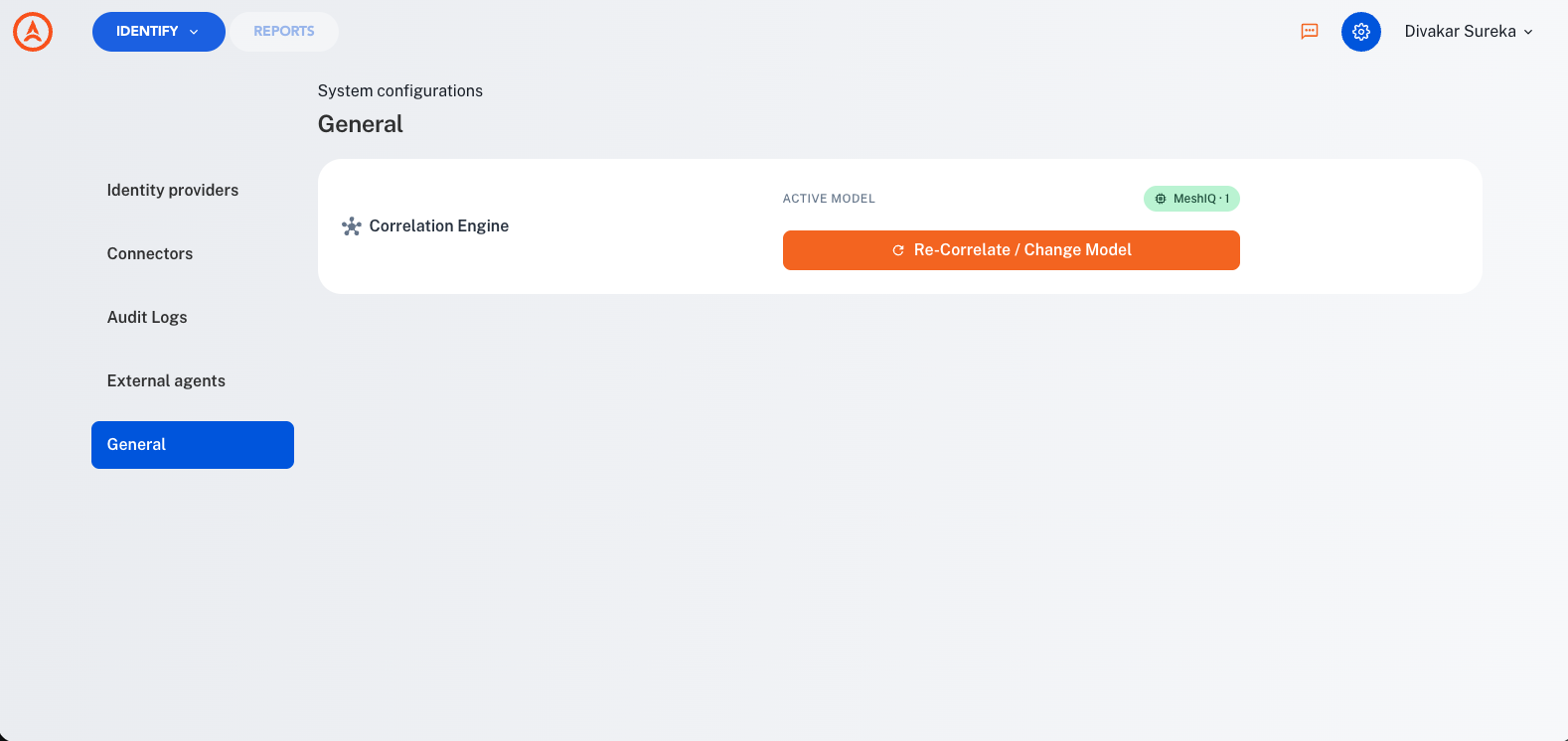
Go to System configurations → General. The Correlation Engine card shows your Active model — for example, MeshIQ · 1.
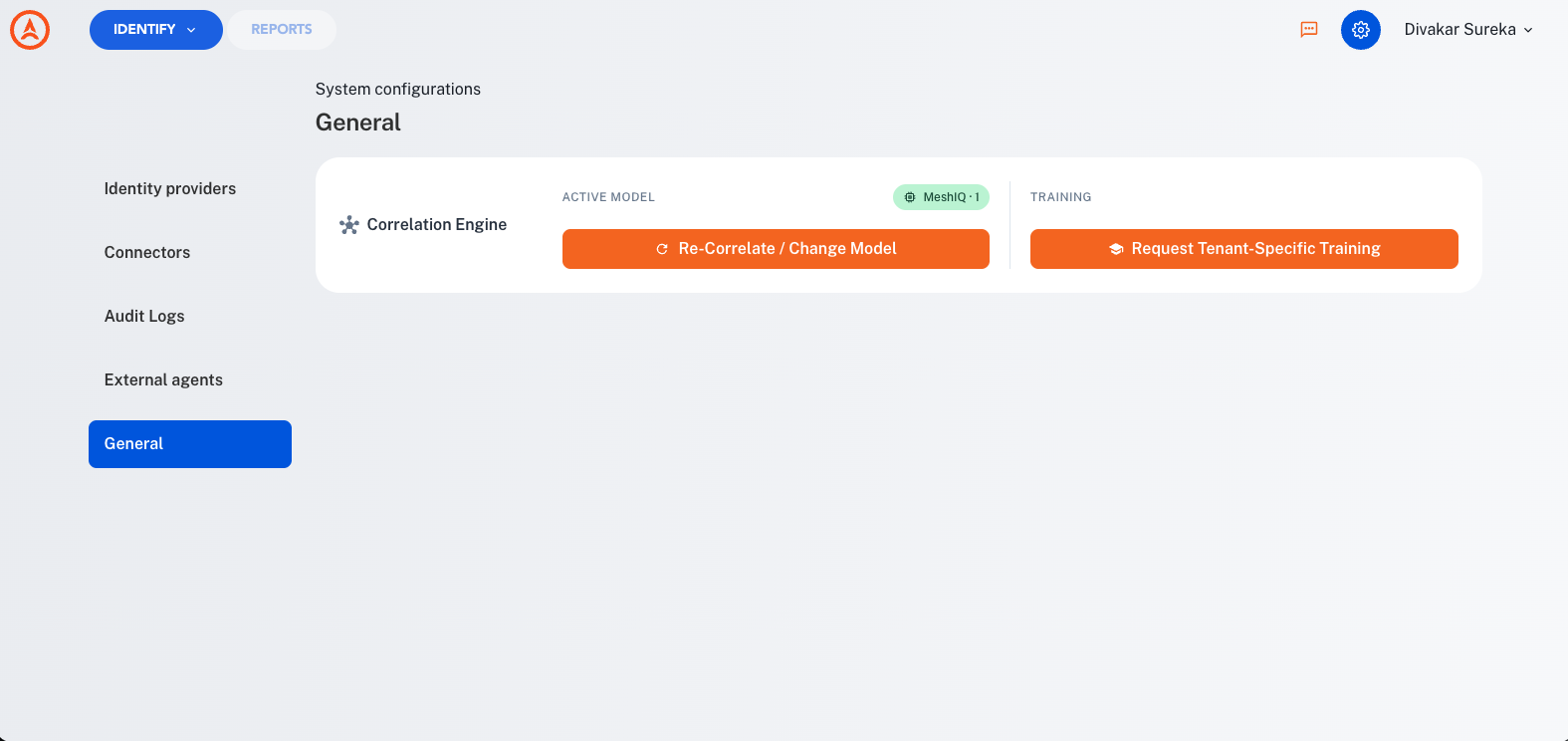
If tenant-specific training is not enabled for your organization, the card shows the active model and the re-correlate action only.
Accounts are collected continuously whether or not correlation is active. If you see a banner saying correlation is not active for your organization yet, your data is still being ingested — it is simply not being matched into identities until a model is active. That banner should clear within a day of setup. If it persists beyond that, contact Axiad Support rather than waiting, because your risk picture stays incomplete until it clears.
Re-correlate or change your model
Re-correlating rebuilds your organization's identity links using the model you select: every link the correlation engine generated that nobody has ruled on is deleted and rebuilt from scratch. Matches your team confirmed or rejected by hand are preserved — re-correlating does not throw that work away. Use it when Axiad releases a newer model you want to adopt, or when you want a clean rebuild on your current model.
- On the Correlation Engine card, select Re-Correlate / Change Model.
- Choose a model. The dropdown defaults to your current model — leaving it unchanged re-runs correlation on that same model rather than migrating you to a new one.
- Read What happens when you re-correlate, then select all four acknowledgements.
- Under When, choose Run Now or Schedule and pick a date and time.
- Select Confirm & Run.
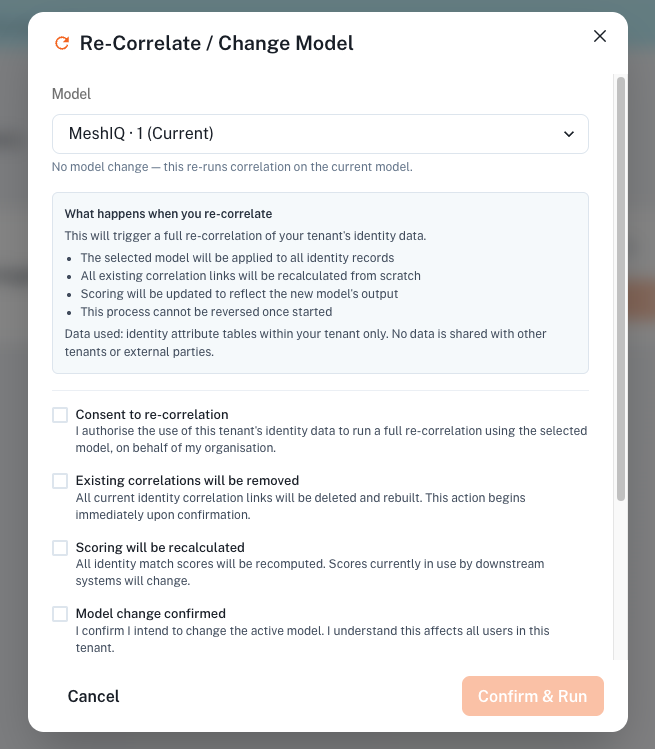
The four acknowledgements confirm that you understand:
| Acknowledgement | What it means |
|---|---|
| Consent to re-correlation | You authorize the use of this tenant's identity data to run a full re-correlation using the selected model. |
| Existing correlations will be rebuilt | Engine-generated identity correlation links your team has not ruled on are deleted and rebuilt with the selected model. Matches your team has confirmed or rejected are preserved. Run Now starts on confirmation; Schedule starts at the date and time you pick. |
| Scoring will be recalculated | All identity match scores are recomputed. Scores currently in use by downstream systems will change. |
| Model change confirmed | You intend to change the active model, and this affects all users in the tenant. |
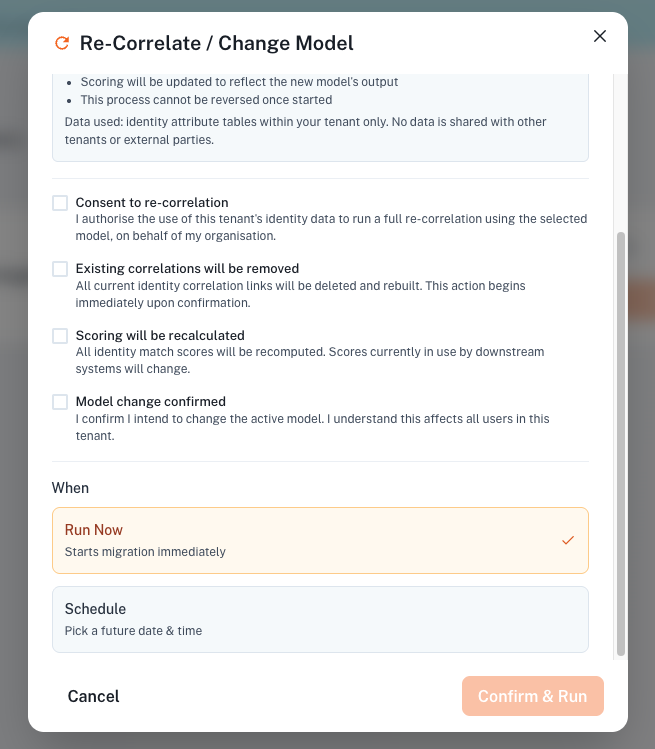
Re-correlation cannot be reversed once it starts. It re-evaluates your entire identity history, so for a large organization it can take a while. Start it at a time when you do not need to make other identity changes.
What you see while it runs
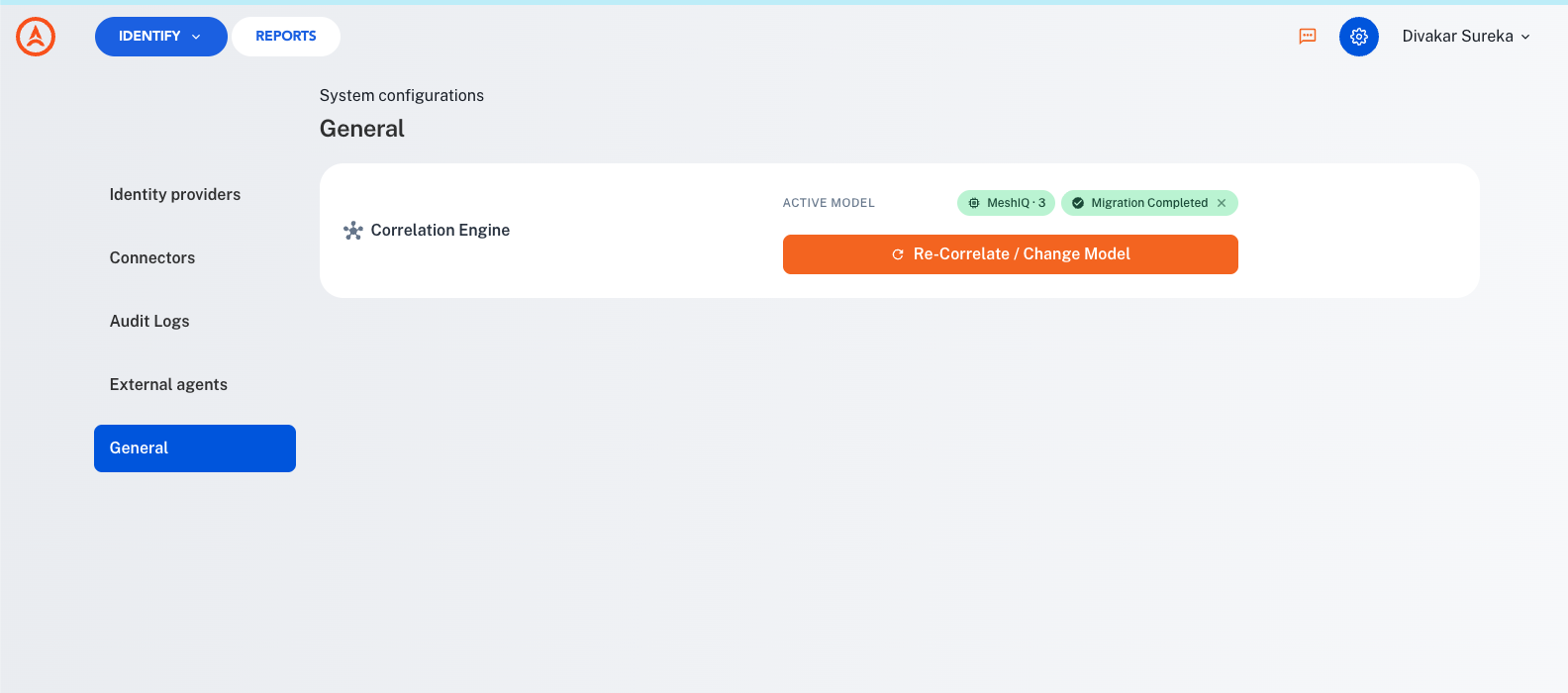
The Re-Correlate / Change Model button is unavailable while the process runs. There is no progress percentage. When it finishes, the Active model badge updates to the model you selected and a Migration Completed badge appears beside it — dismiss that badge with the × once you have seen it.
What changes afterward
- Identity counts can change. Accounts that were previously grouped together may split apart, and separate accounts may merge, as the new model re-evaluates your data.
- Risk scores are recalculated to match the new grouping. A total or aggregate risk figure moving after a re-correlation reflects more accurate grouping, not lost data. See risk scoring.
- Your team's decisions are preserved. Matches your analysts have confirmed or rejected survive the rebuild untouched — only links nobody has ruled on are recalculated, so manual correlation work never has to be redone.
Request a model trained on your data
Every organization's identity data looks different — naming conventions, employee ID formats, service account patterns. A tenant-specific model is trained on your own data so matching is tuned to those patterns.
- On the Correlation Engine card, select Request Tenant-Specific Training.
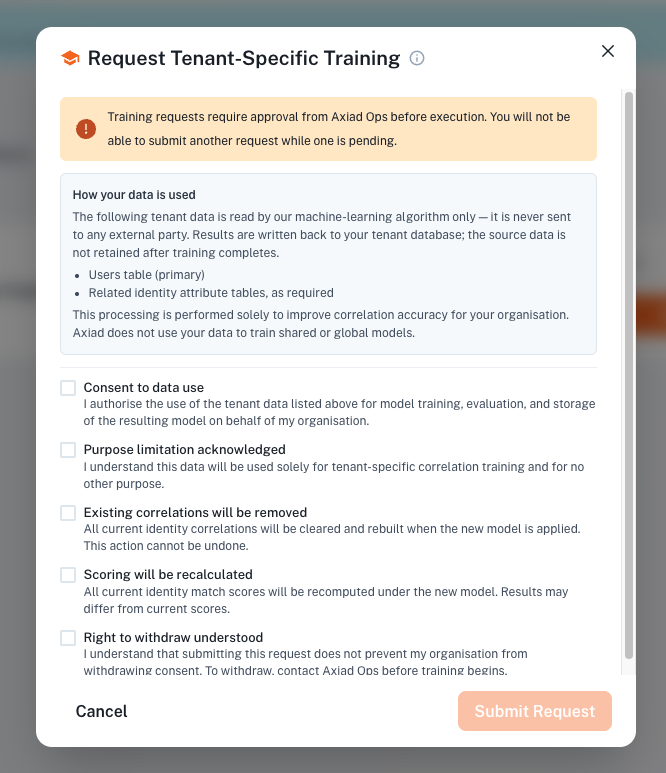
- Read How your data is used.
- Select all five acknowledgements, then select Submit Request.
How your data is used
The tenant data listed in the dialog is read by the machine-learning algorithm only. It is never sent to any external party. Results are written back to your tenant database, and the source data is not retained after training completes. The data read is:
- Users table (primary)
- Related identity attribute tables, as required
This processing is performed solely to improve correlation accuracy for your organization. Axiad does not use your data to train shared or global models.
After you submit
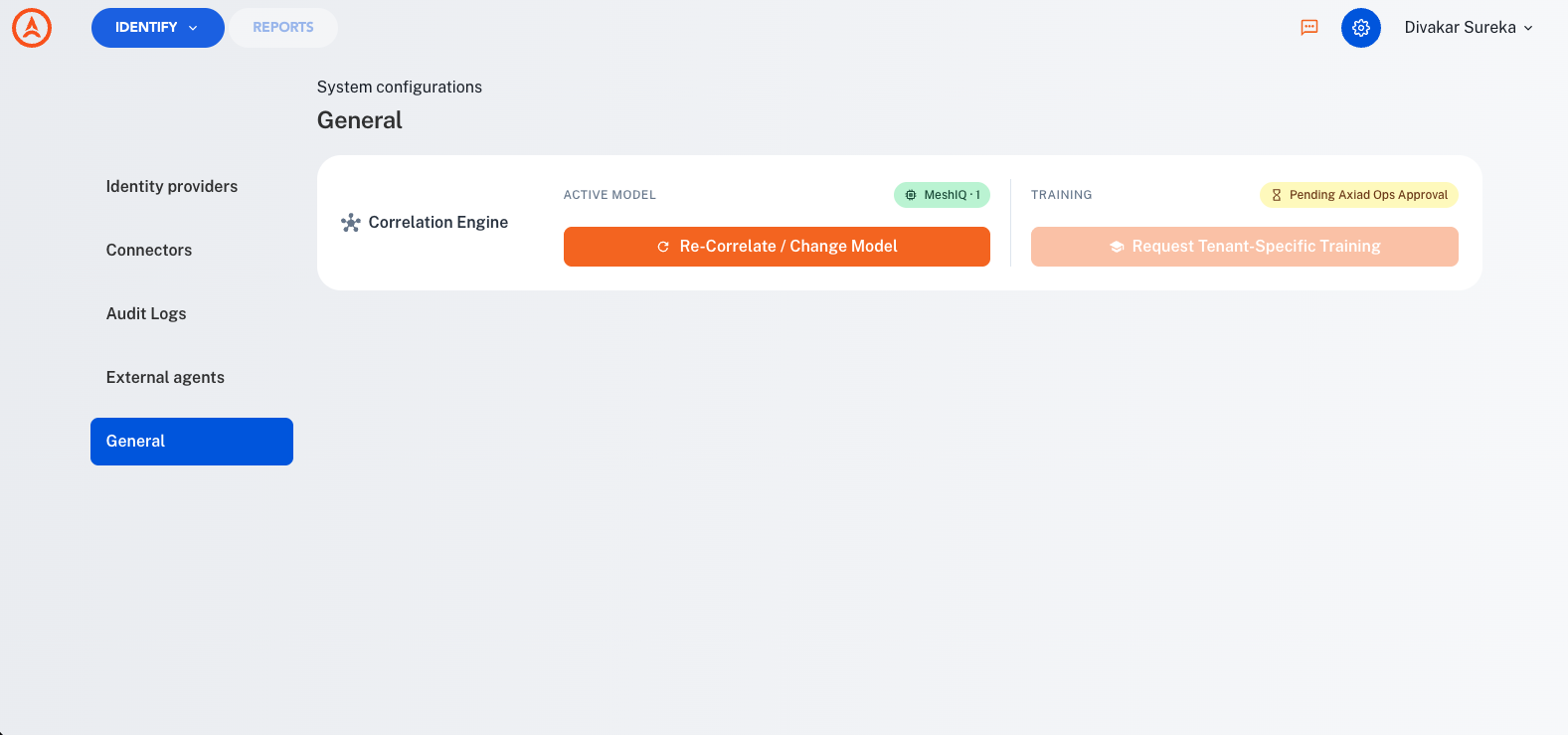
Axiad reviews every training request before it runs. While a request is pending, the button is unavailable and the card shows Pending Axiad Ops Approval. You cannot submit another request until the current one is resolved.
| Status | What it means |
|---|---|
| Pending Axiad Ops Approval | Submitted and awaiting review. |
| Training Request Rejected | Not approved. A reason is shown alongside the status. |
| Training Scheduled | Approved and queued. |
| Training Running | Your model is being trained. |
| Training Completed | Your model is ready. |
| Training Failed | Contact Axiad Support. |
Most trainings complete within a few business days of approval.
Training completing does not switch your organization onto the new model. Once it is ready, run a Re-Correlate / Change Model and select the new model to start using it.
To withdraw consent, contact Axiad Support before training begins. Once training has started it runs to completion.
How it works
Models are versioned. Axiad trains and publishes matching models in a numbered series — MeshIQ · 1, MeshIQ · 2, and later versions. Newer versions are made available to your organization as they are released, but you are never moved onto one automatically.
Exactly one model is active at a time. That active model scores every account as it is ingested, and it keeps doing so regardless of whether you have ever run a re-correlation. Adopting a newer model is always an explicit action.
Organizations move independently. Your organization can stay on an older model while another moves to a newer one. There is no requirement to stay in step with anyone else.
MeshIQ (AI-based correlation engine) supersedes the previous engine. All new ingestion — new accounts and new data on existing accounts — is already scored by the newer engine. Your existing correlations stay as the previous engine produced them until you re-correlate onto a MeshIQ model. Every organization moves onto a MeshIQ model eventually.
For the underlying concepts, see identities and entities.
Troubleshooting
| Symptom | Cause | Resolution |
|---|---|---|
| No Correlation Engine card under System configurations → General | The correlation engine is not enabled for your organization. | Contact Axiad Support. |
| Banner says correlation is not active, still showing after a day | Setup did not complete for your organization. | Contact Axiad Support — accounts are being collected but not matched until this clears. |
| No Request Tenant-Specific Training button | Tenant-specific training is not yet enabled for your organization. | Contact Axiad Support to ask about availability. |
| Active model unchanged long after starting a re-correlation | Large organizations take longer, and there is no progress indicator to distinguish running from stalled. | Contact Axiad Support, who can check the actual status. |
| Training shows completed but matching looks unchanged | A completed model is not active until you re-correlate onto it. | Run Re-Correlate / Change Model and select the new model. |
| Identity counts or risk scores moved after re-correlating | Expected — the new model regrouped accounts and scores were recomputed. | Review the affected identities. Confirmed and rejected matches are preserved. |