Identities
Within an entity or group of entities, you can view all of the associated identities to determine and remediate risk, and to fill profiling gaps for a more accurate analysis.
Identities and risks
To view an identity and its specific details, select View identities within an entity to open the table of associated identities.
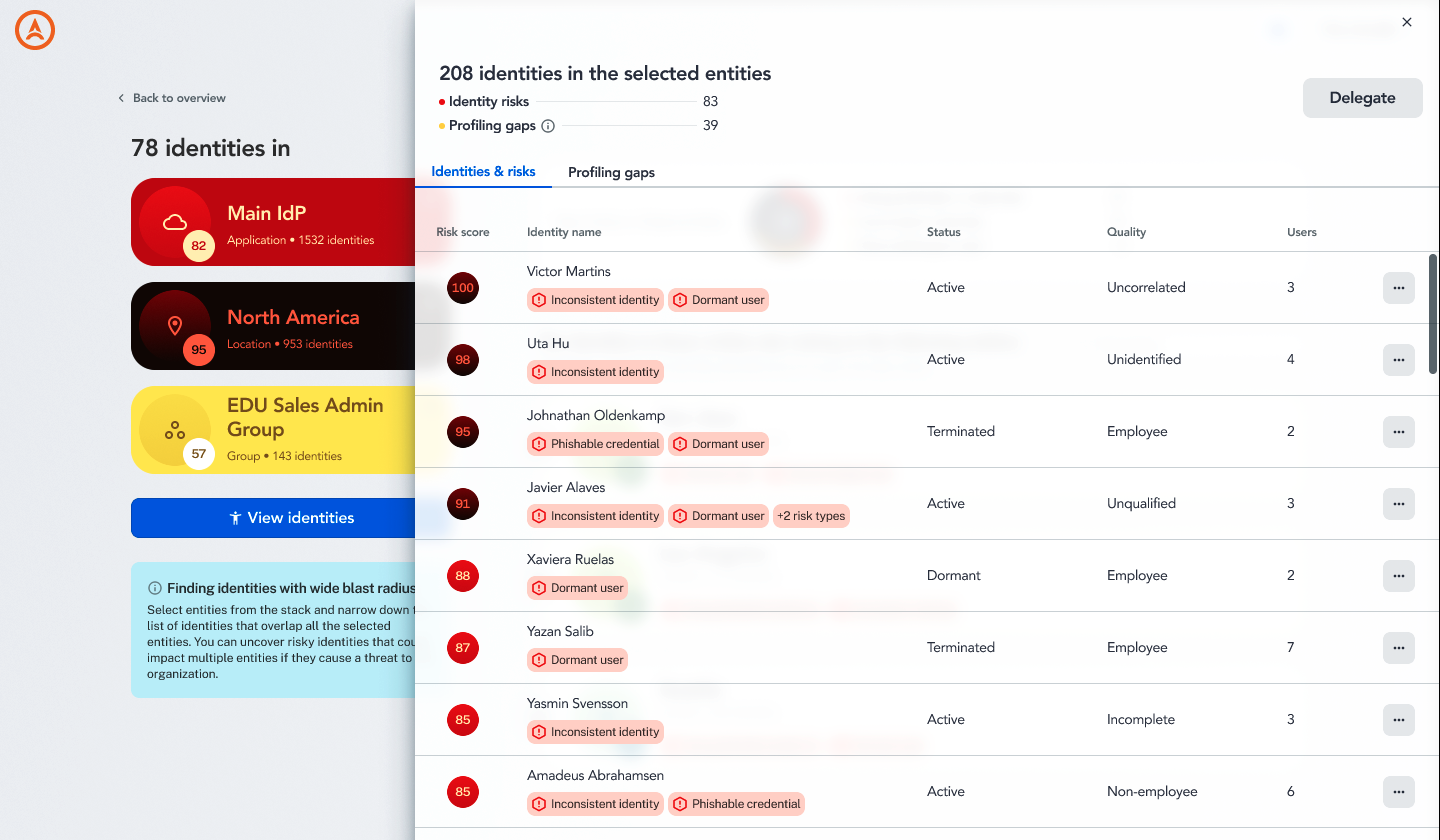
In the Identities & risks table, select the row that you'd like to explore. From there, the Identity details display.
You can also select the three dots menu on a row to quickly view and delegate actions.
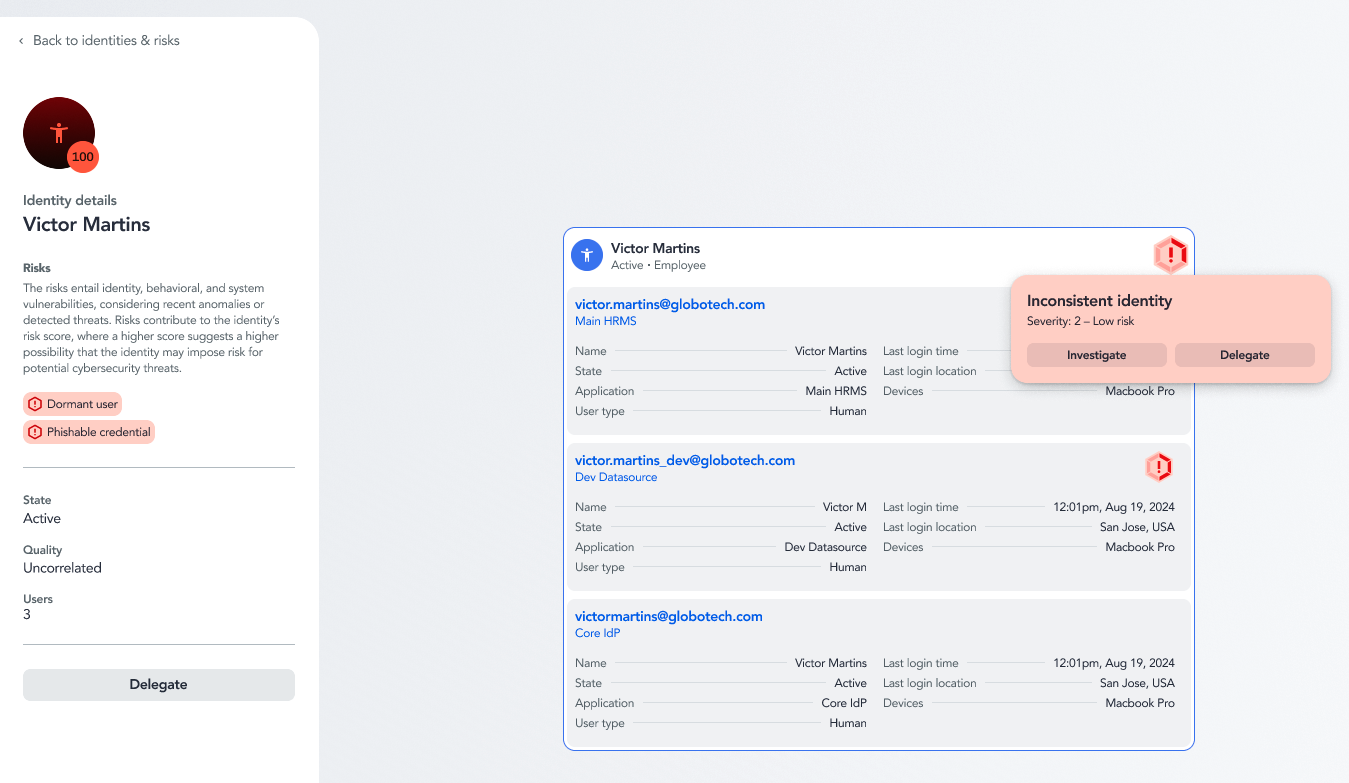
On the Identity details page, you can view the identity's:
- Risk score — the overall potential risk for this identity (1–100).
- Main risks — the cause of the risk score.
- Status — the current state of the account.
- Quality — the type of identity.
- Users — the number of usernames and accounts associated with the identity within the selected entities.
You can view additional details for each of the associated users to see more information and their latest activity.
If you hover over the ! icon next to a user, you get quick information and can take action. If you select the icon, Axiad Mesh provides additional details about the risk and how to remedy it.
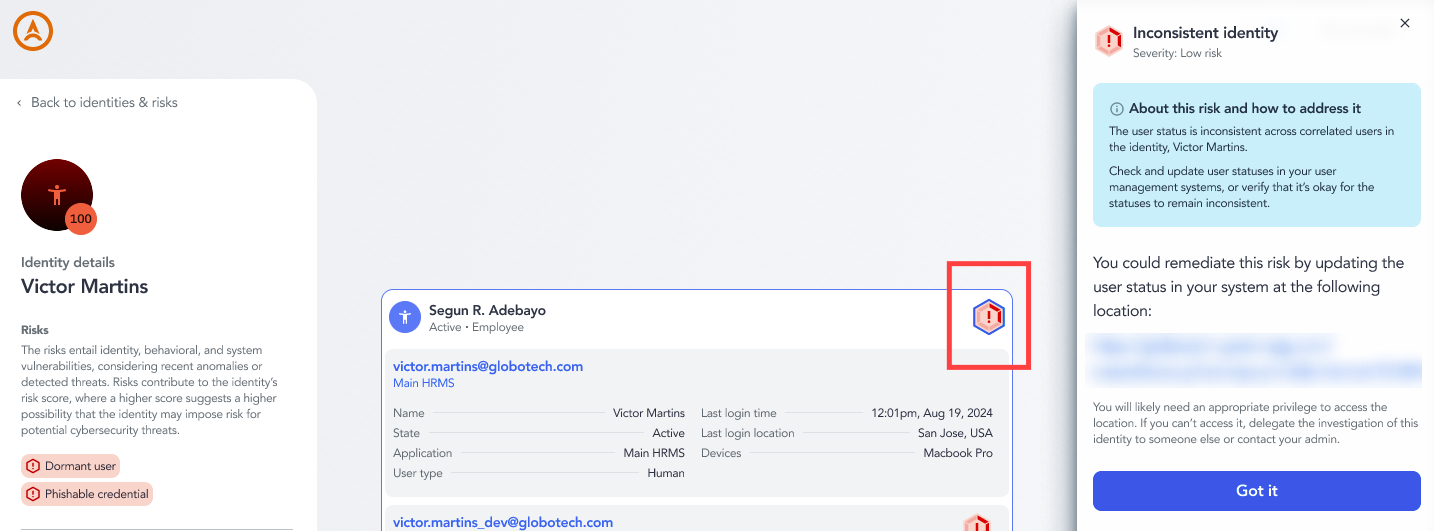
With this information, you can make changes yourself to lower the identity's risk score, or you can delegate the task to someone else in Axiad Mesh.
Profiling gaps
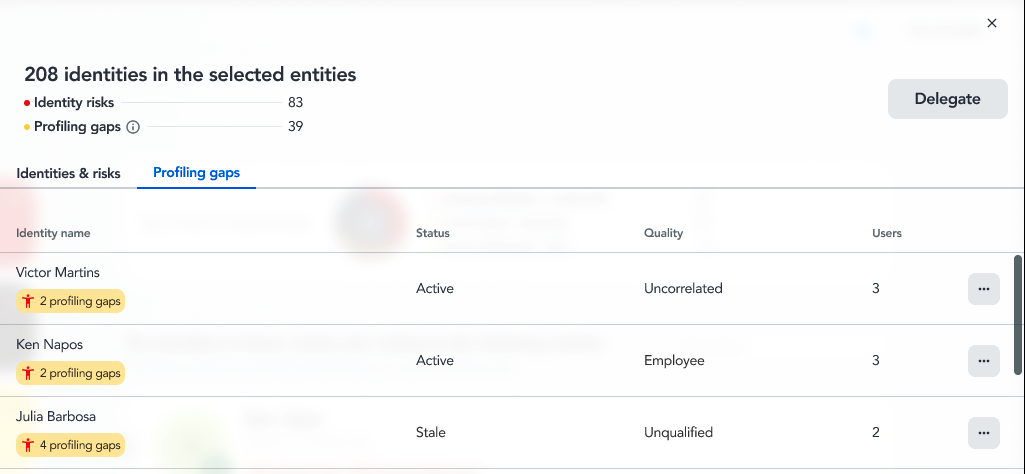
Profiling gaps occur when the correlation between user accounts may be inaccurate. Axiad Mesh does its best to associate users to the top-level identity, but sometimes it requires manual engagement to confirm the connection. Removing profiling gaps leads to a more accurate risk score for your organization.
You can access the Profiling gaps table either from the entity details page or from the homepage risk score widget. Once on the table, select the identity you'd like to investigate.
On the profiling gap side, Mesh provides a powerful correlation diagram showing the relationships between different identity profiles. On the right, strong correlations are displayed, with the arc thickness representing the level of confidence in the connection. On the left, weak correlations that need to be resolved are clearly marked.
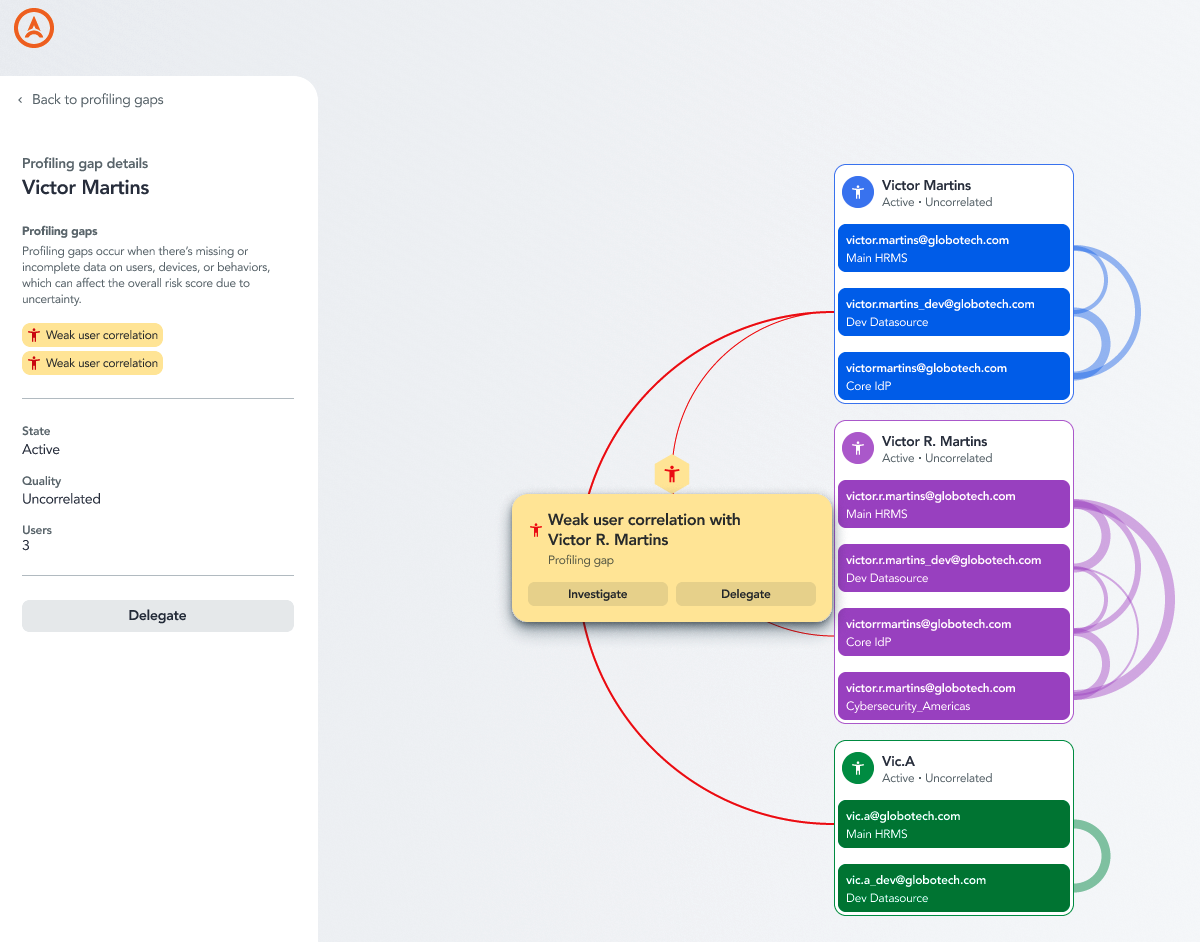
If you select a weak user correlation, you can view more information about the profiling gap to determine whether these users should be associated. In the UI, you can confirm that they're part of the same identity, or reject the correlation and keep the identities separate.
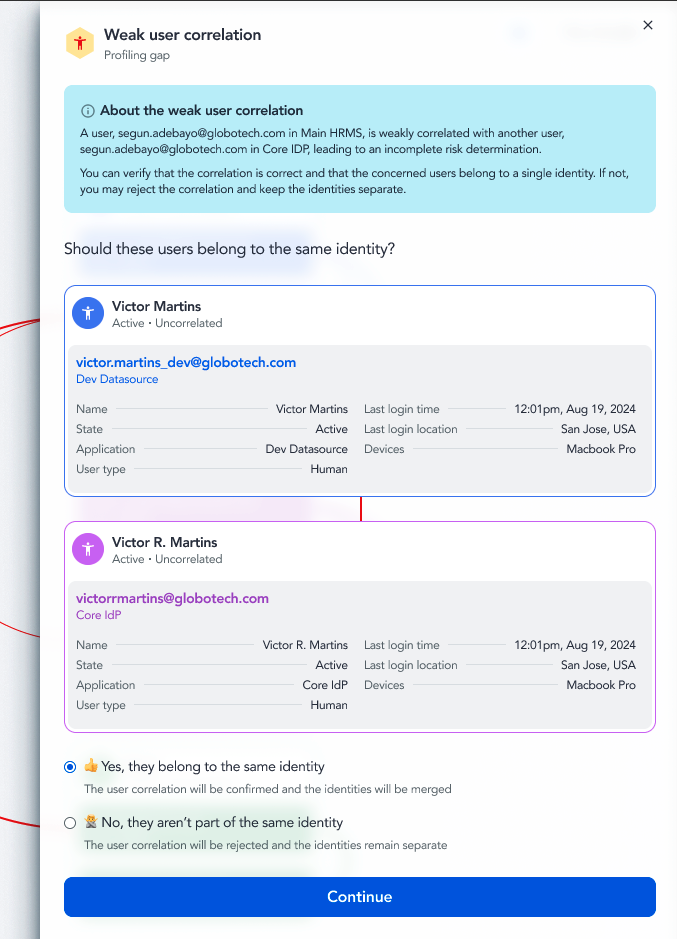
Once the gap is remedied, the correlation moves to the right side of the user map.
You can also choose to delegate this action to another Mesh user if it requires additional investigation.