Signing in, roles, and access
You sign in to Axiad Mesh through your organization's identity provider (IdP) by using single sign-on (SSO). This page explains how signing in works, what the Admin and User roles can do, how admin access is granted through your IdP groups, and what happens when you sign out.
How signing in works
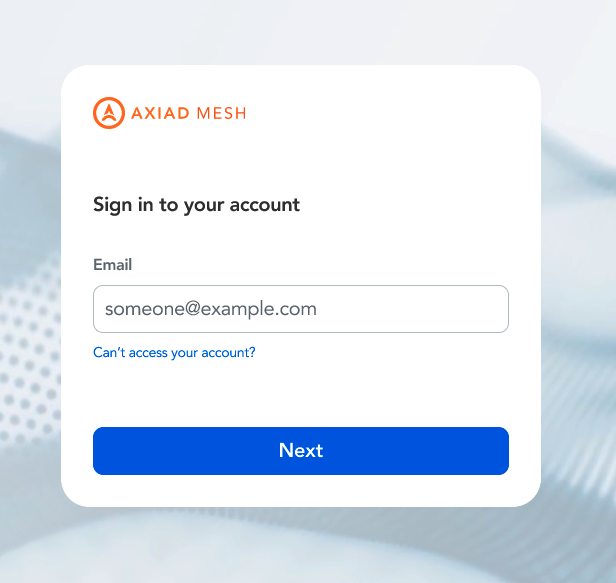
On the Mesh sign-in page, enter your work email address and continue. Mesh redirects you to your organization's IdP sign-in page, and after you authenticate, you land on the Mesh homepage.
Dedicated sign-in URLs
Your organization can also have its own dedicated sign-in URL, in the form
{tenant}.mesh.axiad.io. With a dedicated URL, you don't need to enter your
organization's domain when signing in, and the URL always takes you to your
own organization's tenant.
Here's what to expect when you use a dedicated URL:
- If you already have an active session with your IdP, opening the URL signs you in silently, with no interaction.
- If you don't have an active session, you're taken to your organization's IdP sign-in page and returned to Mesh after you authenticate.
- If you have more than one active IdP session, you see the standard account selection screen and sign in with the account you choose.
- Bookmarks to the URL keep working after sign-out, session timeout, and later visits.
- If your organization's sign-in configuration is incomplete, you see a clear authentication failure message instead of a partial sign-in.
When your organization has a dedicated URL, all sign-ins route through it: entering your work email on the generic Mesh URL redirects you to your organization's dedicated URL to complete sign-in. If your organization can't be resolved during sign-in, you see an explicit error page. Organizations without a dedicated URL keep using the generic URL — nothing changes for them.
Get a dedicated sign-in URL
To set up a dedicated sign-in URL for your organization:
-
Contact Axiad support to have the dedicated URL configured.
-
Ask your IdP administrator to add the following redirect URL to the Mesh app registration in your IdP:
https://{tenant}.mesh.axiad.io/oauth2/callback?domain={domain}
Each dedicated URL is bound to exactly one tenant, with strict isolation between organizations.
Roles
Axiad Mesh has two levels of access:
- Admin — access to the visualization tool plus settings to manage IdPs, connectors, and users.
- User — access to the visualization tool only.
Your role is granted at sign-in, based on your IdP group membership: members of your organization's nominated admin groups sign in as admins, and everyone else signs in as a user.
To see which role was granted for each session, open Settings > Config Management > Audit Logs and check the Role column:
- Successful sign-in entries show the authenticated user's role.
- Entries where a role doesn't apply — for example, events other than sign-ins — show "-".
This gives your compliance and security teams clear visibility into the privilege level of each session.
Admin groups
Admin access is controlled by the IdP groups your organization nominates as admin groups:
- You nominate your first admin groups during onboarding. Only members of the nominated groups have admin access, so include a group that you belong to — otherwise you lose admin access once onboarding is complete.
- A nominated group must be written exactly as your identity provider reports it. Microsoft Entra ID reports group object IDs (GUIDs), not display names — see Microsoft Entra ID identity provider integration.
- You can add more admin groups at any time after onboarding. If you need to add, remove, or rename your organization's admin groups, contact your Axiad representative for the current procedure.
Because the role is granted at sign-in, changes to admin groups or to a user's group membership take effect the next time that user signs in — not in their current session.
Sign out and sessions
To sign out of Axiad Mesh, select your name in the top-right corner and select Sign out.
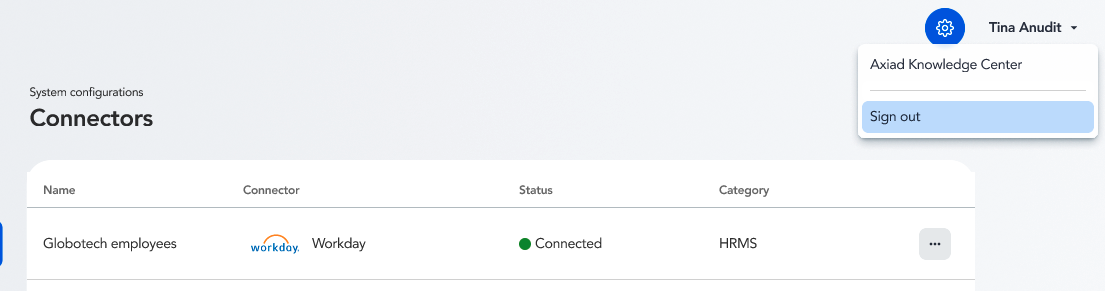
Signing out of Mesh also ends your IdP session. This works with Microsoft Entra ID, Okta, and other OpenID Connect-compliant IdPs.
- After you sign out, you're returned to the Mesh sign-in page.
- Opening Mesh again requires you to sign in — either by selecting an account or by entering credentials. Silent re-authentication after sign-out isn't possible.
- Silent sign-in for normal visits is unchanged; only signing out ends the IdP session.
Always sign out when you finish working on a shared or public computer. Because signing out ends both your Mesh session and your IdP session, the next person to open Mesh can't be silently signed back in as you.
If you're locked out
If you can't sign in to Axiad Mesh — for example, after a change to your IdP configuration or your admin groups — contact Axiad support.
Axiad personnel access to your tenant
Axiad limits its own personnel's access to your data through the access management controls documented in the Axiad Trust Center:
- Axiad personnel are provisioned with access to Customer Data based on need-to-know criteria and the least-privilege principle.
- User identifiers are unique and readily identifiable to the Axiad personnel they're assigned to; Axiad personnel never use shared or group user IDs to access Customer Data.
- Axiad personnel use phishing-resistant, hardware-based multi-factor authentication.
- Axiad periodically reviews whether personnel who have access to Customer Data still require it.