Connect an external MCP server
An external Model Context Protocol (MCP) server is hosted by your organization or by a vendor. You can register the server in Mesh, verify its connection, and choose the tools that the Mesh assistant may use.
External MCP results are returned to the assistant for the current request. They are not added to your Mesh inventory, risk scores, compliance views, or exports.
This guide is intended for three roles:
- Customer administrators configure servers, approve tools, and review connection health and activity.
- Customer Success Managers use the workflow to guide administrators and interpret the status and activity labels.
- Sales representatives can share the guide as an overview; server setup and credential entry should be completed by the customer's administrator.
Connect only a server that your organization trusts. The assistant can send requests to the server using the credentials you provide, and the server's responses can influence the assistant's answer.
Before you begin
Prepare the following:
- A Mesh administrator account.
- The server's HTTPS base URL.
- The credentials required by the server.
- The tools you want the assistant to use.
Mesh supports these authentication options in the connection form:
- API key
- Bearer token
- OAuth 2.0
- Multiple headers
Client certificates and mutual TLS (mTLS) are not available in this version.
Add a server
Open the External MCP servers page from the dashboard:
- Select Settings.
- Select Config Management.
- Select External MCP servers.
On the External MCP servers page:
- Select Add MCP server.
- Enter the server name, base URL, optional description, authentication details, safety settings, and per-server limits.
- Select Discover tools to test the connection and load the tools and resources advertised by the server.
- Choose the tools Mesh may invoke.
- Select Add MCP server to save the configuration.
Discovery must succeed before the server can be saved.
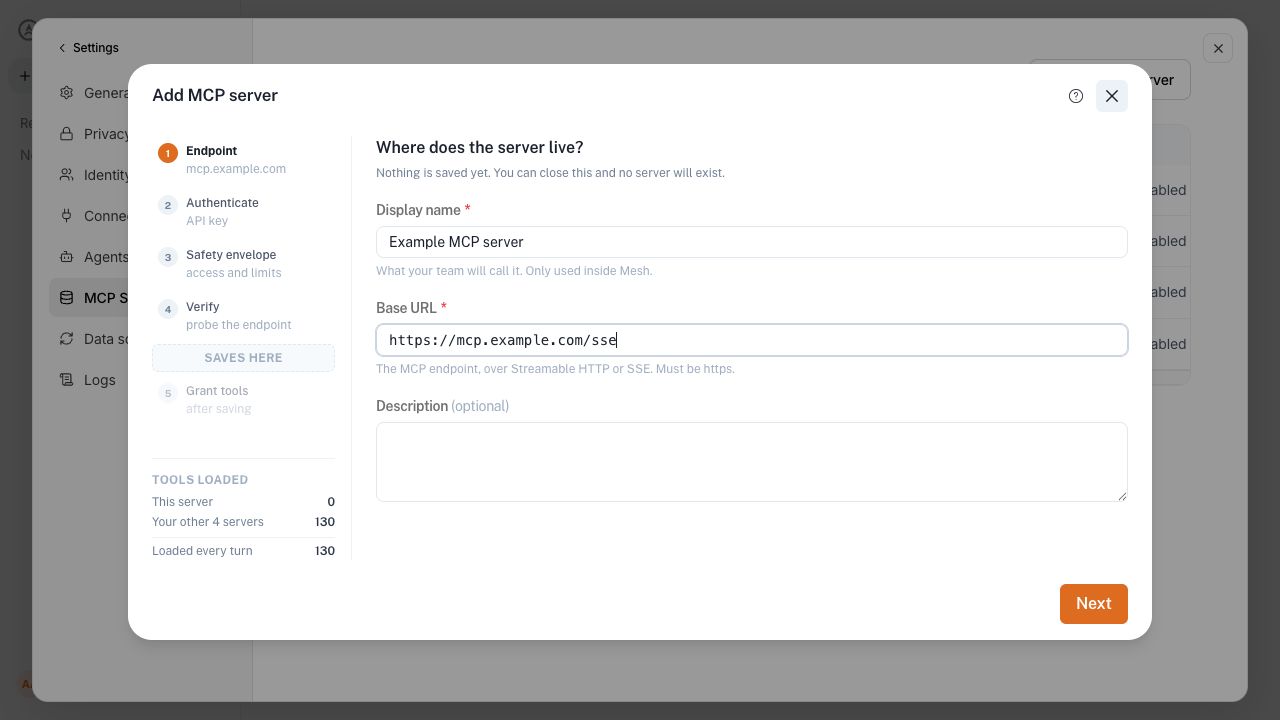
The External MCP setup wizard in the Mesh dashboard. The numbered steps guide you from the endpoint and authentication details through safety, verification, and tool selection.
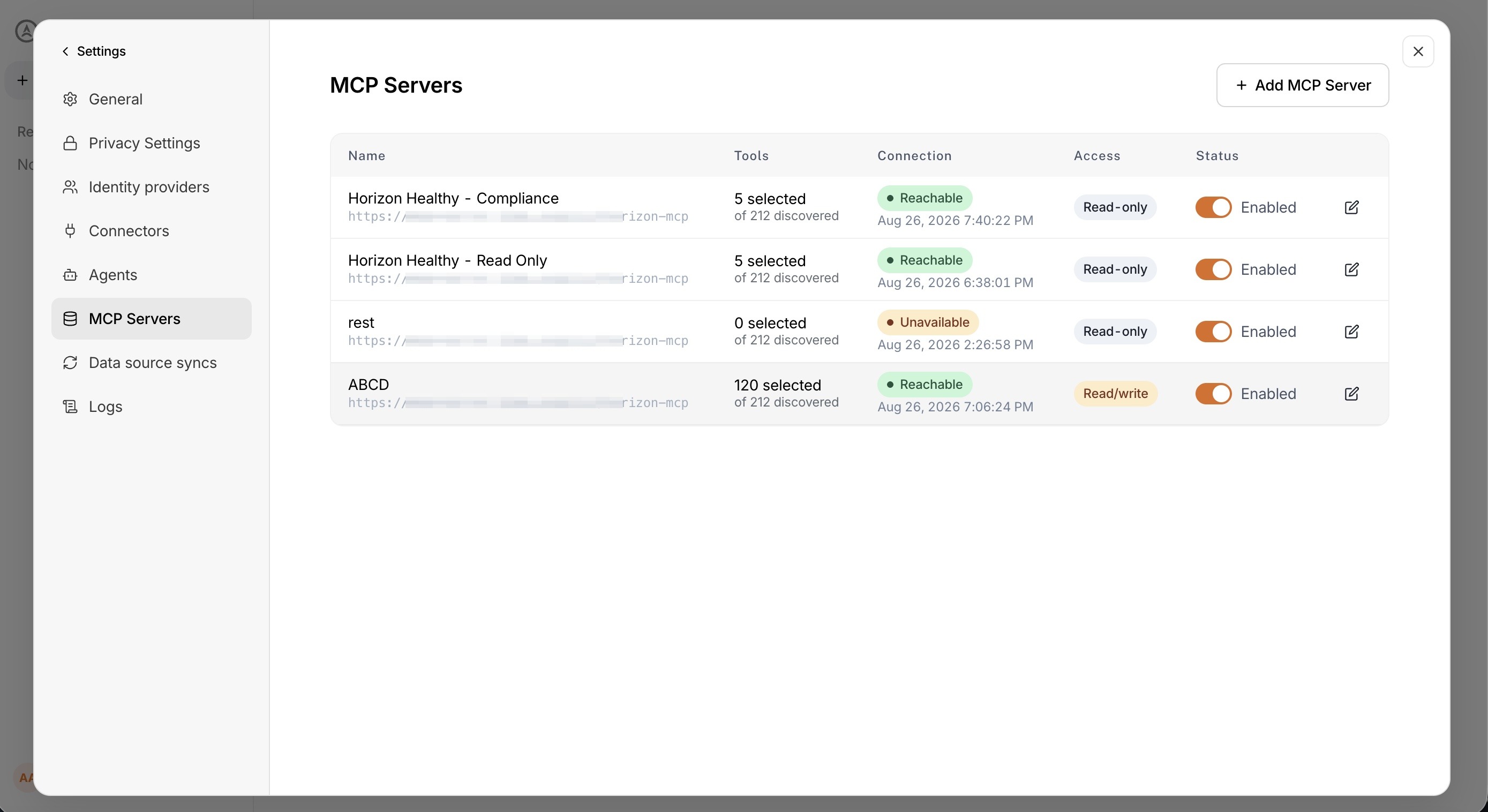
The server list shows configured entries, selected-tool counts, connection health, access mode, and whether each server is enabled. Review these labels before relying on a server.
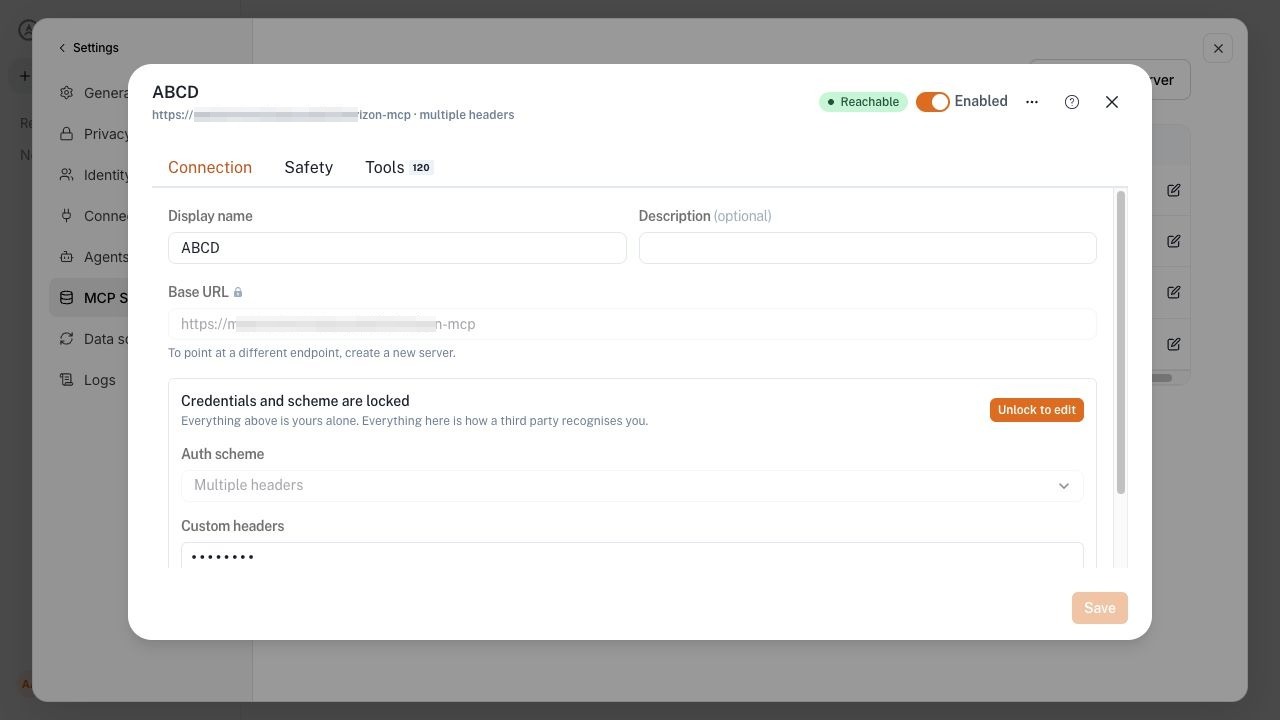
The edit view exposes connection, safety, and tool-selection settings while keeping stored credentials masked. Re-probe the server after changing its connection details, then review the available tools before saving.
Mesh does not display stored credential values when you reopen a server. To replace a credential, enter a new value while editing the server. Do not paste secrets into descriptions, screenshots, support tickets, or chat messages.
Choose tools
The tool picker lists tools returned by the latest discovery. You can search by tool name or description, expand groups, and select or clear all tools that are currently listed. Searching changes only what is visible; tools selected before the search remain selected.
When the server is read-only, Mesh hides tools that the server identifies as able to change data. If you enable read/write access, those tools can be selected. Treat read/write access as a deliberate exception: Mesh cannot undo an action performed by a data-changing tool.
Edit an existing server
From Settings > Config Management > External MCP servers, select the server row to open its activity view, then select Edit server. You can also use the row's action menu to open the available actions.
The edit form lets you change the display name and description, safety settings, limits, and selected tools. The existing server's base URL is locked; create a new server to use a different endpoint. Credentials and the authentication scheme remain masked until you explicitly unlock them. Select Re-probe now after changing connection details, review the returned tools, and select Save. Tool selection is submitted with the server form; there is no separate autosaving Tools tab.
Understand connection and status labels
The server list uses separate labels for configuration state and connection health:
| Label | Meaning |
|---|---|
| Enabled | Mesh is allowed to use the server when its connection and tool selection are usable. |
| Disabled | The server is suspended. You can enable it again. |
| Reachable | The most recent discovery reached the server successfully. |
| Failed | The most recent discovery failed. Correct the connection details or credentials, then run discovery again. |
| Unavailable | The server is enabled but cannot currently provide a usable tool selection, such as when no tools are granted. |
| Not probed | Mesh has no discovery result for the server yet. |
During Verify, Mesh reports the individual checks using labels such as Connected, Authenticated, Passed, Not offered by this server, and Not reached. A failed check stops the remaining checks; correct the reported issue and select Discover tools again.
Review usage
To review recorded activity, open Settings > Config Management > External MCP servers, open the server's action menu, and select Activity. The activity shows observed tool calls, including their outcome, duration, response size, and reason when a call fails or is blocked. It does not store tool arguments or response bodies. The activity view reflects observed calls; it is not a guarantee that every attempted call has a durable record.
Disable or remove a server
- Select the Enabled control to disable a server without deleting its configuration. Enable it again when the assistant should use it.
- Use the server's action menu to disable or suspend a server when it is no longer trusted or needed. The configuration remains available to enable again later.
If discovery fails, check the HTTPS URL and credentials, then run discovery again. If a previously selected tool is no longer returned, remove it from the selection before saving.
The controls described here are from the current External MCP implementation. Availability and exact labels can still depend on the version deployed in your environment; verify the target environment before relying on this workflow.
Next steps
- Review AI features and data handling to understand how Mesh handles data sent to AI features.
- Register an agent instead of tools with External A2A agents.
- See Roles and access for administrator permissions.