Identity providers
To securely access Axiad Mesh, add the identity providers (IdPs) that contain your users' login and group role information.
Your first IdP is typically added during initial onboarding, so the steps below are needed only if you have multiple IdPs, or multiple domains whose user logins you need to account for.
Add an identity provider
-
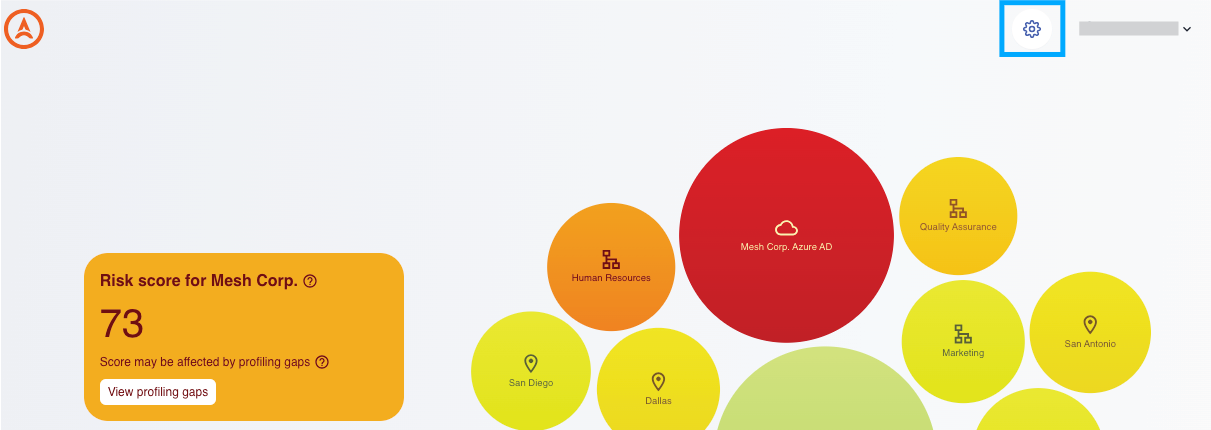
From the homepage, select the gear icon to open the Settings page.
-
Select Identity providers in the left-side menu.
-
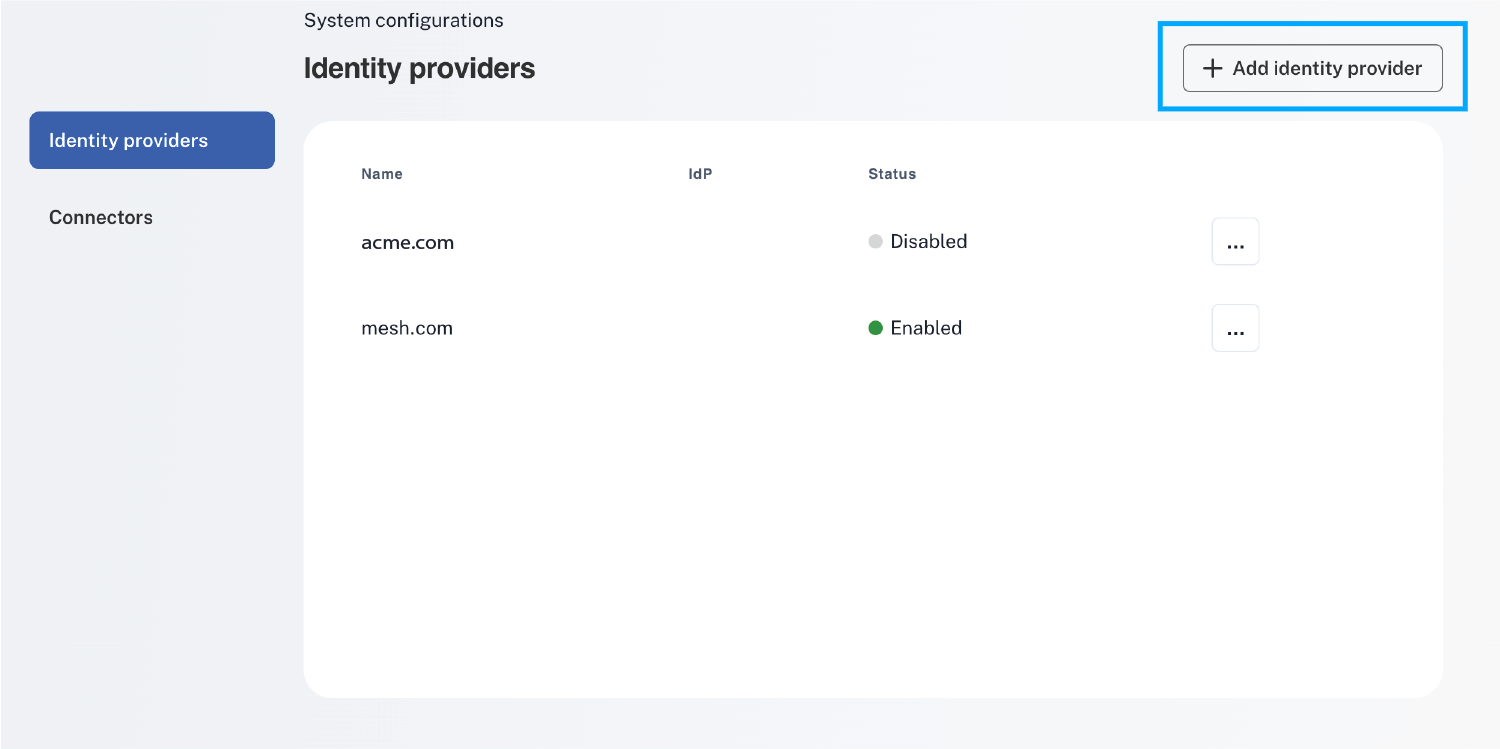
Review your existing IdPs and their status on the Identity providers page.
-
Select + Add identity provider.
-
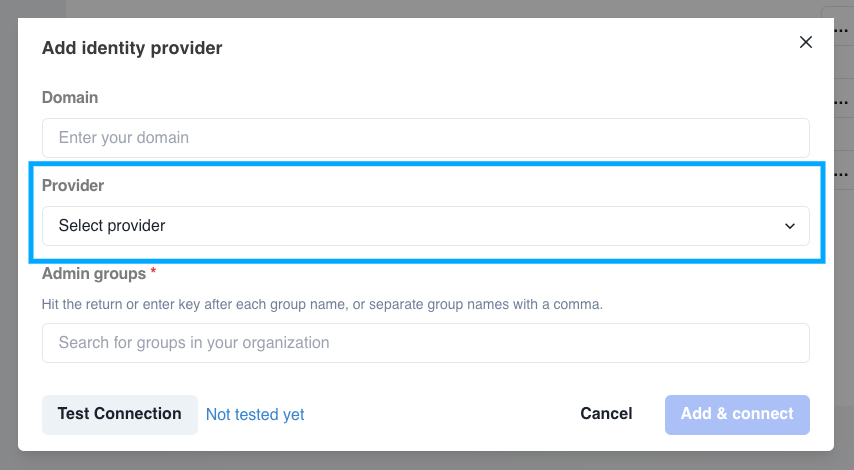
In the dialog, select the appropriate Provider to show the fields needed for the connection.
 Custom provider
If the IdP you want to add isn't listed, contact Axiad Customer Success to request it as an enhancement.
-
Fill out the required fields, then select Test Connection.
-
After the connection test succeeds, select Add & connect.
-
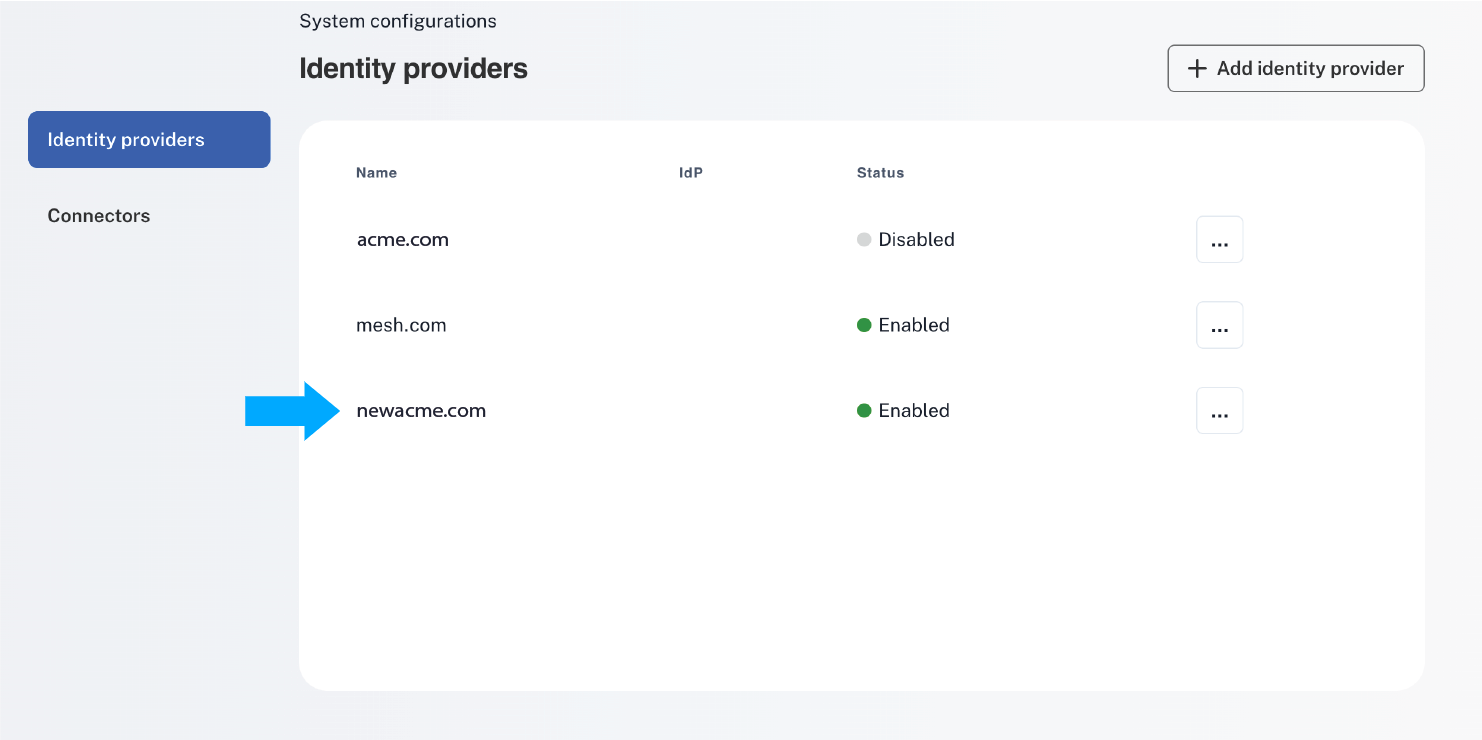
The new IdP appears on your Identity providers page.
Edit an identity provider
You can update an existing IdP connection from the Identity providers page.
-
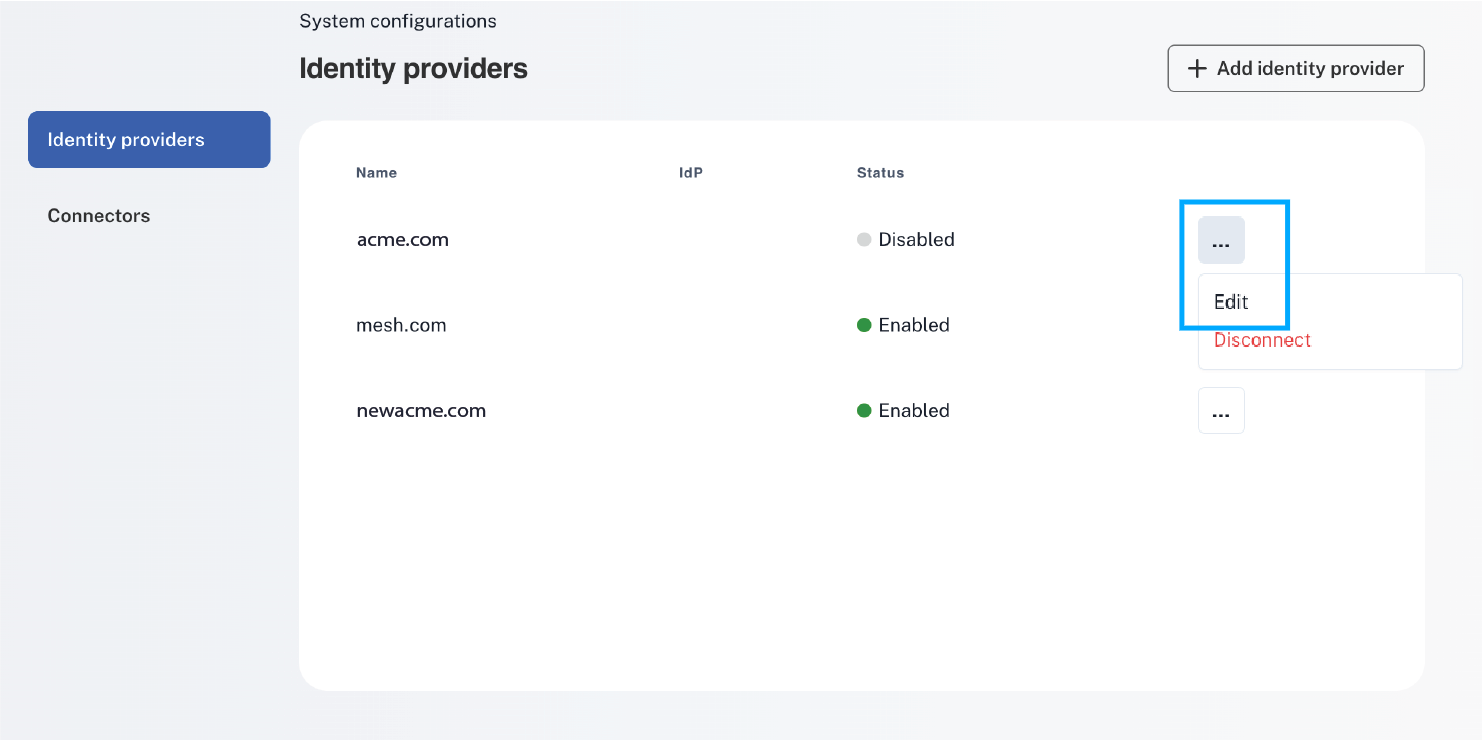
On the row of the IdP that you want to edit, select the three-dot menu, then select Edit.
-
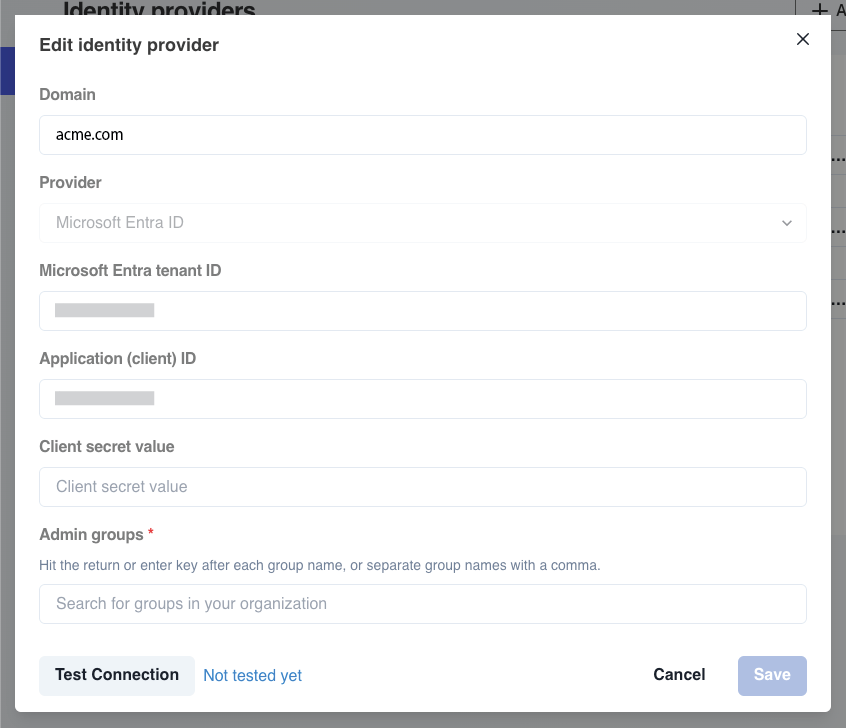
In the Edit identity provider dialog, make any changes you want, then select Test Connection.
-
After the connection test succeeds, select Save. Your IdP settings are now updated.
Disconnect an identity provider
You can remove an IdP connection from the Identity providers page.
-
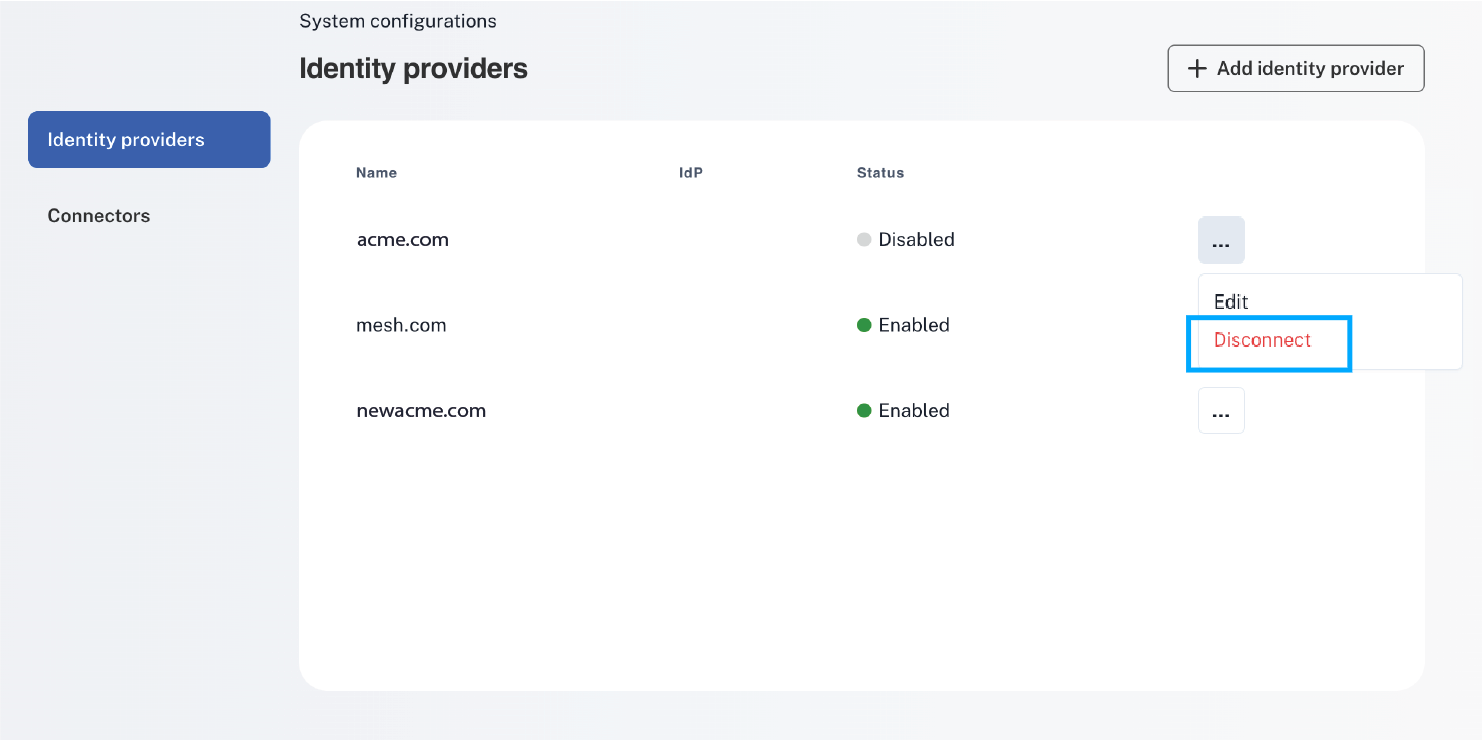
On the row of the IdP that you want to remove, select the three-dot menu, then select Disconnect.
-
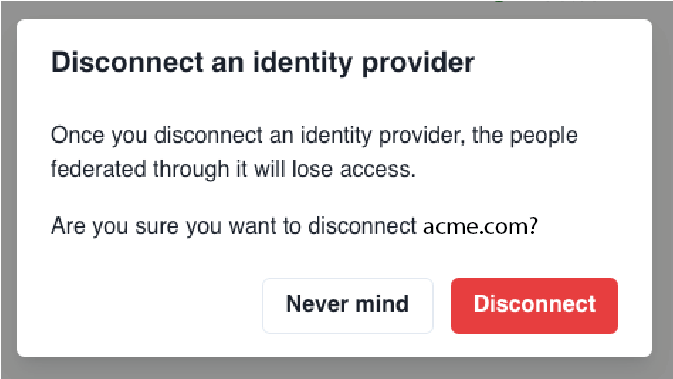
Confirm the removal by selecting Disconnect in the confirmation dialog.
noteTo cancel the removal, select Never mind in the confirmation dialog.
-
The IdP connection no longer appears on the Identity providers page.
Provider-specific configuration
The pages in this section describe configuration steps for specific IdP integrations that build on the generic processes above — for example, SailPoint, Okta, and Microsoft Entra ID.