Sharing a view or a widget
A view you compose is yours until you share it. You can share the whole view, or a single widget out of it, with named colleagues. Only the view's owner can share it, though an administrator can also manage sharing on a view that is visible to the whole organization. The people you share with can look, but not change anything, and they cannot share it on.
Share a whole view
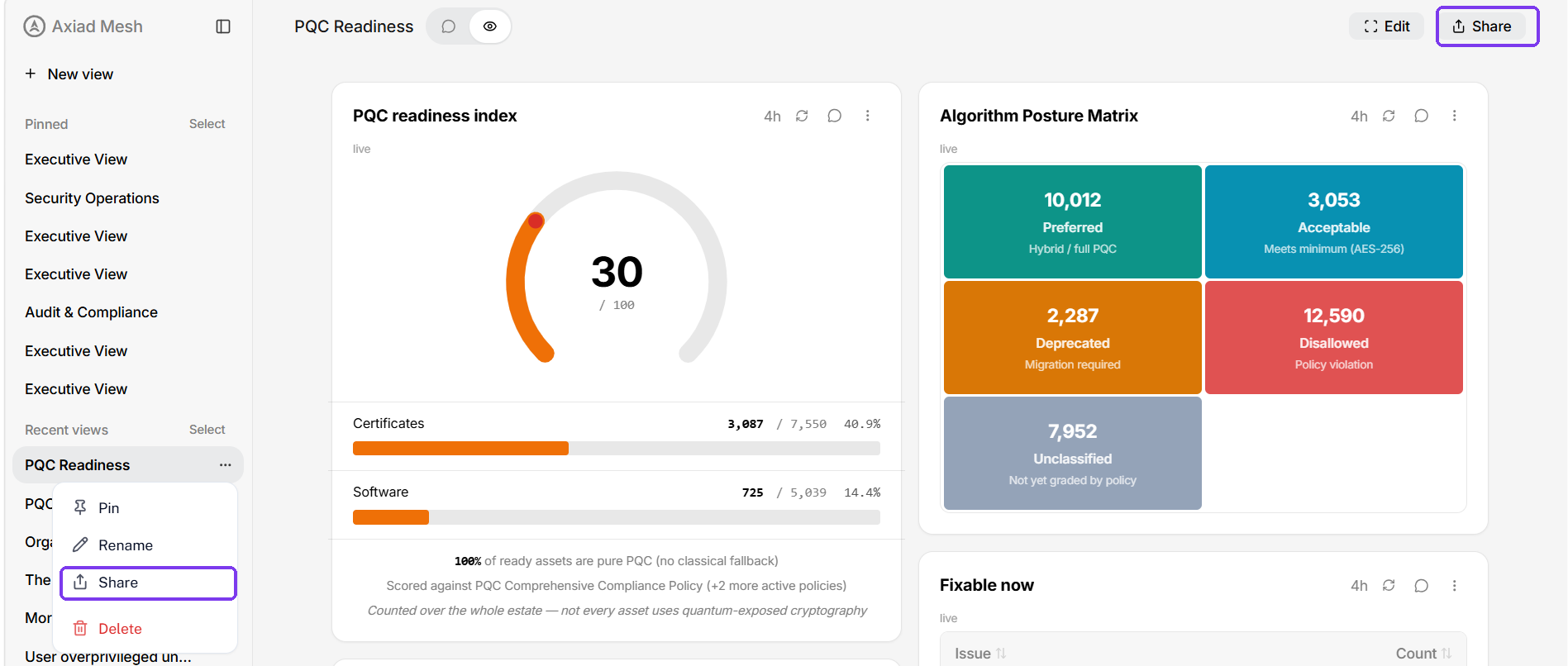
Two ways in, and they do the same thing — Share at the top right of the view you have open, or the ... beside a view's name in the left panel. Both open Share view.
Share a single widget
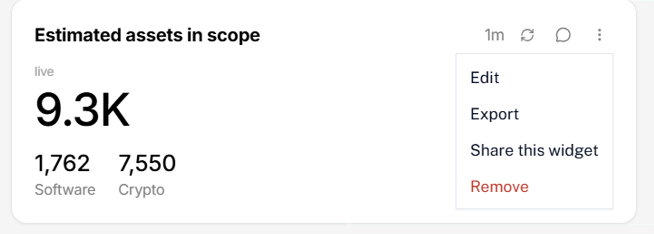
Open the widget's ⋮ menu and choose Share this widget, which opens Share widget. The person you invite gets that widget and nothing else: they see the name of the view it came from, but none of its other widgets.
Share widget lists only the people you gave that widget. Anyone who has the whole view can open it as well.
Who you can share with
Type the address the person signs in to Mesh with, then choose Invite.
It has to be a plain address such as sam@example.com, not
Sam <sam@example.com>. You cannot share a view with yourself, and inviting
somebody who already has access tells you so.
Access starts the moment you choose Invite. There is nothing for them to accept, and it does not expire: it lasts until you remove it or delete the view.
Mesh does not check what you type against your organization's directory. It accepts any well-formed address, including one outside your organization, and the invitation email goes to whatever you typed — naming you, the view, and any widget you shared. Nothing warns you that an address matches nobody, and the access stays in place, so whoever later signs in to Mesh with that address can open what you shared. If you mistype an address, choose Remove beside it.
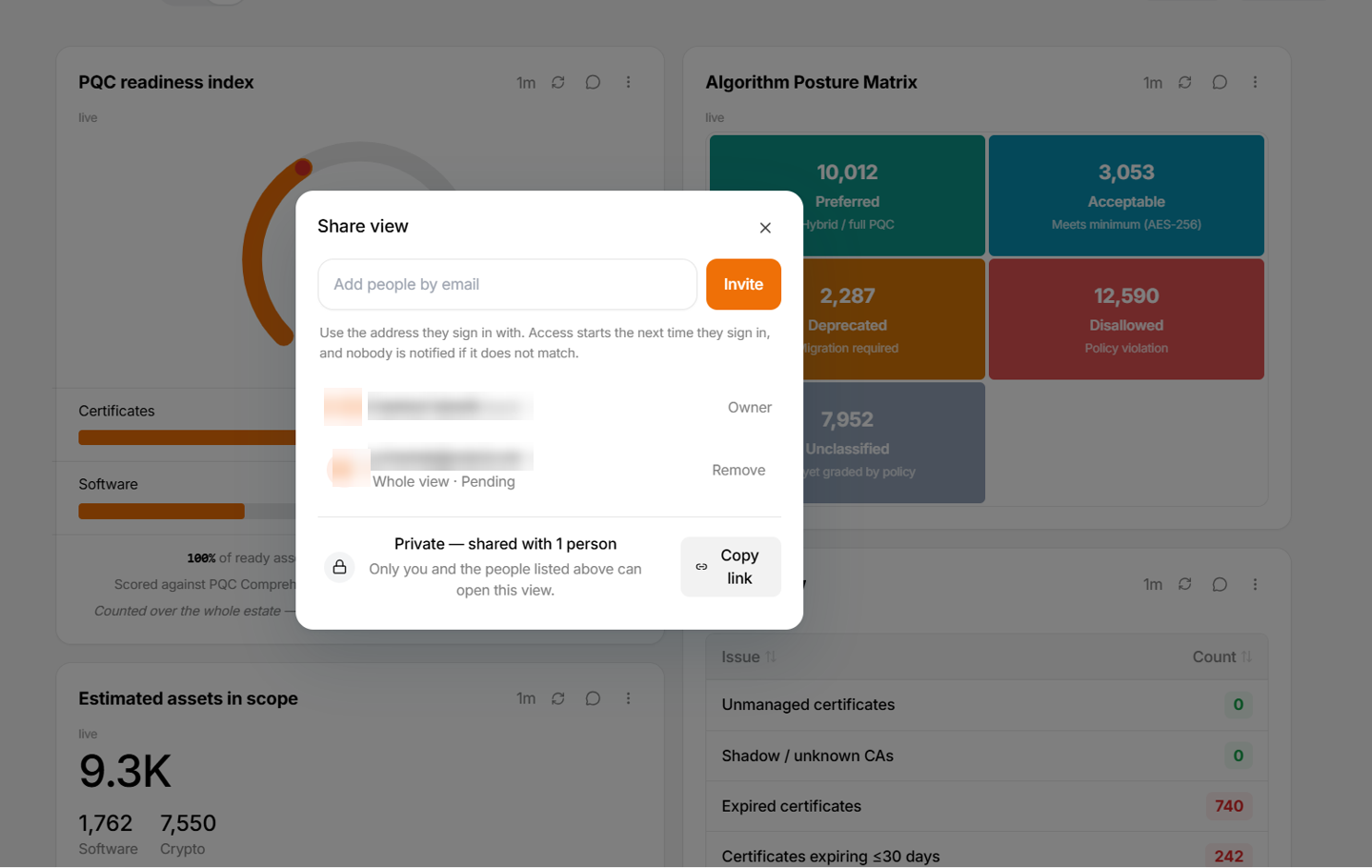
They get an email with a link, and it appears in their left panel: a whole view under Shared with me, a single widget under Shared widgets.
Copy link copies the view's address so you can send it yourself, which is worth knowing if your organization is strict about automated mail. Sending the link grants nothing and widens nothing: whoever opens it still needs access. It is always the view's link, so somebody you gave a single widget should use the link in their email, or Shared widgets.
Widgets that run a live query show each person what their own permissions allow, so the same view can look different to two people. A widget built from a fixed set of rows, such as a chart composed from chat, shows everyone the rows it was created with, and those rows came from your access. Check them before you share.
Who has access, and taking it away
The dialog lists the people you invited. You are Owner. Each person shows what you gave them — Whole view or One widget — and stays Pending until the first time they open it. Anyone you give the whole view can open Share and see who else has access.
The footer is also the view's visibility control. Private means only you and the people listed can open it, and inviting somebody never changes that. An administrator can open the footer and choose Tenant (all users), which makes the view readable by everyone in your organization, invited or not. The footer then reads Everyone in your organization, and the list is no longer everyone who can open it.
Choose Remove beside a name to end that person's access, which takes effect straight away. On a Private view that is the whole story, and the view disappears from their list. On a view set to Tenant (all users), Remove only takes back the invitation — they can still open it as a member of your organization — so set the view back to Private first.
Removing and deleting what you have shared
Removing a shared widget asks you first: Remove for everyone, and the people you gave that widget lose it too, or Remove from my view only, and they keep it, still live. Anyone holding the whole view loses it either way, because it is no longer in the view. To take it away later, open Share view and choose Remove beside their One widget entry.
Deleting a view ends access for everybody, including anyone you gave a single widget out of it.
Asking the chat instead
Inviting somebody, seeing who has access, and removing access can each be done by asking instead. The chat and the dialog do the same thing there, so it makes no difference which you use. Copy link and the visibility control are in the dialog only.
| Ask for | What Mesh does |
|---|---|
| "Share this view with sam@example.com" | Invites that person to the whole view |
| "Share this widget with sam@example.com", from that widget's own chat | Invites them to that one widget |
| "Who has access to this view?" | Lists the people you have shared it with |
| "Stop sharing this view with sam@example.com" | Removes that person's access |
| "Stop sharing this widget with sam@example.com", from its own chat | Removes their access to that widget |