Set up the SailPoint IdentityIQ on-prem connector
This guide is for Mesh administrators. It shows how to add a SailPoint IdentityIQ connector to an edge agent, so Mesh can collect from an IdentityIQ deployment that isn't reachable from the internet.
The connector reads IdentityIQ through its SCIM 2.0 interface. Every request runs on the agent, inside your network, and the agent only makes outbound connections to Mesh. Nothing in IdentityIQ is changed: the connector only reads.
You need an edge agent that shows Enrolled. If you don't have one yet, follow Set up an on-prem connector to register it, and hand Run the edge agent to your agent operator.
Before you begin
- A Mesh administrator account with permission to manage connectors.
- An edge agent that shows Enrolled, on a host that can reach your IdentityIQ
server on its port (for example
443, or8080for an application server that serves IdentityIQ over plain HTTP). - If IdentityIQ is on a private address (the usual case), the agent must run with
MESH_SSRF_ALLOW_PRIVATE=1. The standard install command already includes it — see Run the edge agent. - IdentityIQ's SCIM 2.0 API enabled on the deployment.
- One of these credentials for Mesh to sign in with:
- an IdentityIQ service account (user name and password), or
- an OAuth 2.0 client registered in IdentityIQ, with its client ID and client secret.
- The base URL of your IdentityIQ deployment, for example
https://iiq.example.com.
Step 1 — Prepare IdentityIQ
These steps reflect Axiad's current understanding of the SailPoint IdentityIQ configuration. Because IdentityIQ is a third-party product, menu names and capabilities can vary between versions and deployments. Work with your IdentityIQ administrator, and share any significant differences with Axiad support.
Give Mesh read access to SCIM
Create (or choose) the account Mesh signs in as, and give it read access to IdentityIQ's SCIM 2.0 API. Mesh reads these SCIM resources:
- Users
- Roles
- Entitlements
- Applications
- Accounts
- PolicyViolations
Mesh never writes to IdentityIQ, so the account doesn't need permission to create,
change or delete anything. Ask your IdentityIQ administrator which capability grants
SCIM read access in your deployment. A dedicated account (for example
svc-axiad-reader) makes its activity easy to tell apart in IdentityIQ's own audit
records.
To sign in with OAuth 2.0 instead of a password, register an OAuth 2.0 client in
IdentityIQ that can use the client credentials grant. IdentityIQ runs an OAuth
client's requests as the client's proxy user, so choose a proxy user with SCIM
read access — for example the dedicated account above. Without it, the client gets
a token but every SCIM request is refused. Copy the client's client ID and
client secret — you'll enter them in Mesh. Mesh requests its token from your
deployment's own token endpoint (your base URL followed by
/identityiq/oauth2/token) and doesn't request any extra scopes.
Check that the agent's host can reach IdentityIQ
Ask your agent operator to run this from the agent's host. Like Mesh's connection test, it makes one read-only request to SCIM Users — here for a single identity — using the address and service account you'll give Mesh, and prints only the HTTP status:
curl -sS -u "svc-axiad-reader" -o /dev/null -w '%{http_code}\n' \
  "https://iiq.example.com/identityiq/scim/v2/Users?count=1"
curl prompts for the password. A result of 200 means the host can reach
IdentityIQ and the account can read Users; access to the other resources is
checked when the first collection runs. 401 means the user name or password is
wrong. 403 means the account signed in but isn't allowed to read SCIM — or that a
firewall, proxy or access gateway in front of IdentityIQ refused the request.
If you'll use OAuth 2.0, run the command without -u "svc-axiad-reader". A
401 then confirms the host can reach IdentityIQ; Test connection in Step 3
checks the client ID, client secret and proxy user.
Step 2 — Add the connector
In the Mesh dashboard, go to Settings > On-prem agents, select your agent's row, open the Connectors tab, and select + Add connector.
For Connector type, choose SailPoint IdentityIQ.
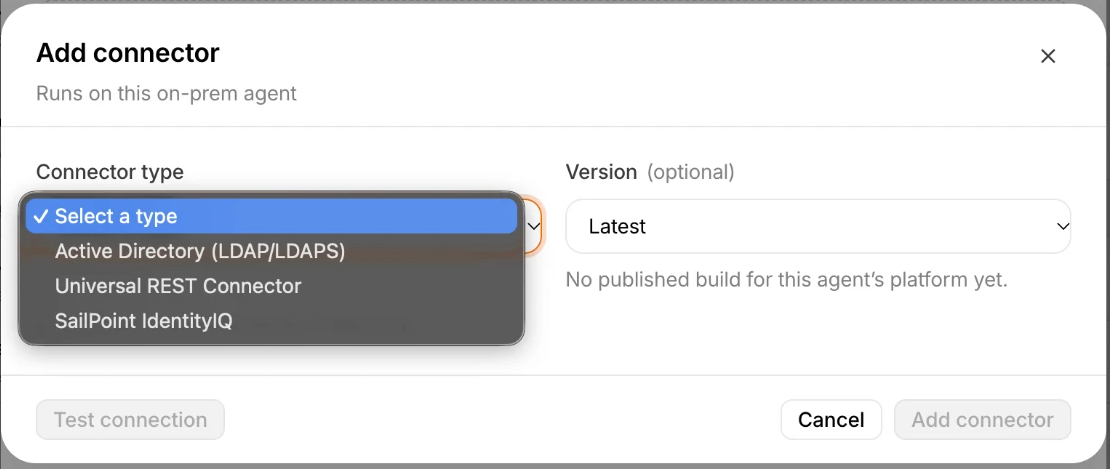
The option appears once a connector build that supports IdentityIQ (v2.14.0 or later) is published for the agent's platform. The Version list only offers those builds. Leave it at Latest unless Axiad support asks you to pin one.
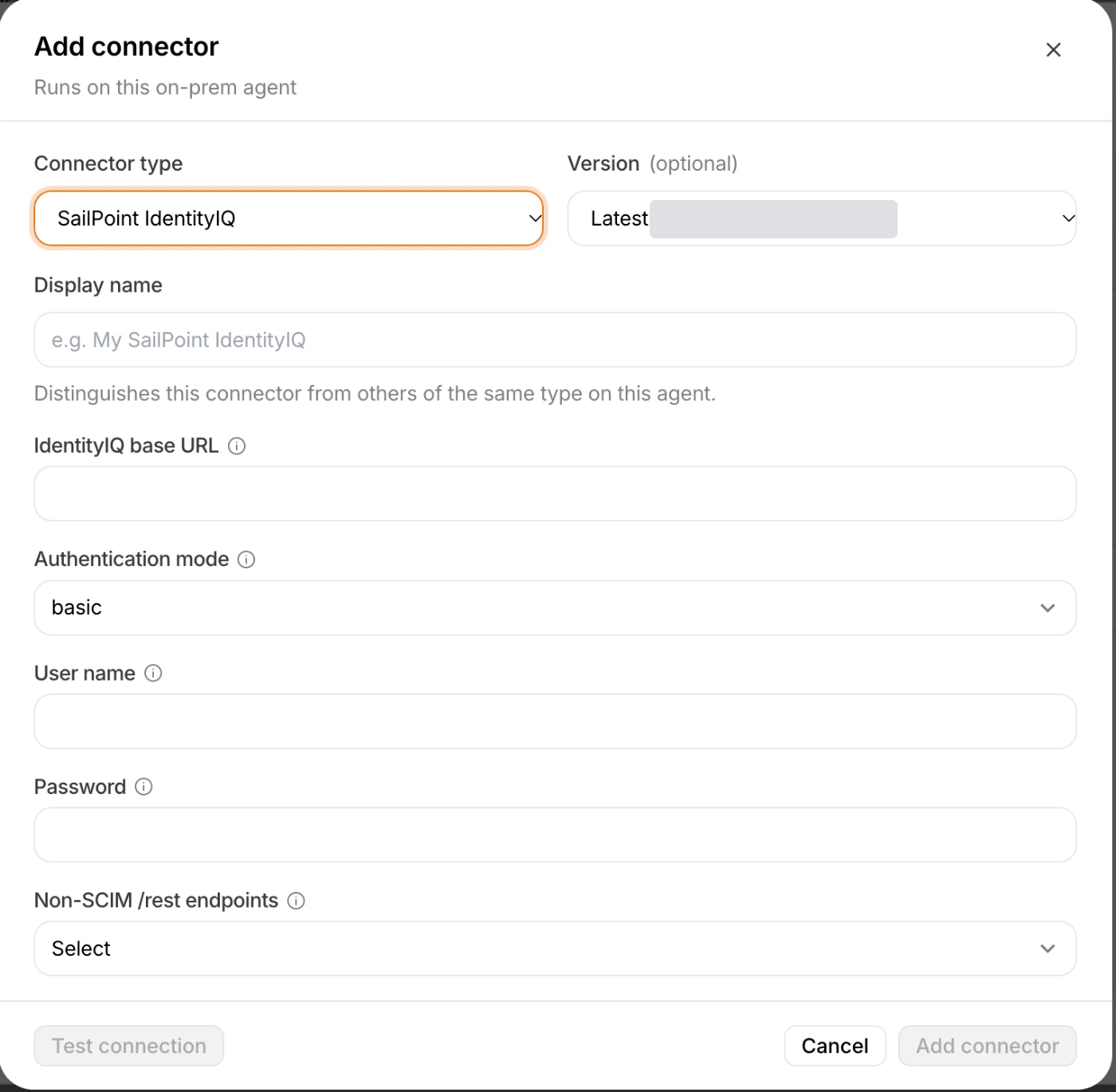
Then fill in the form:
| Field | What to enter |
|---|---|
| Display name | A name you'll recognize, for example IdentityIQ. It distinguishes this connector from others on the same agent. |
| IdentityIQ base URL | The address of the deployment, as reached from the agent — for example https://iiq.example.com, or http://iiq.corp.example.com:8080. See the rules below. |
| Authentication mode | basic to sign in as a service account, or oauth2_client_credentials to use an OAuth 2.0 client. Defaults to basic. |
| User name | (basic only) The IdentityIQ service account. It isn't a secret: it's shown again when you edit the connector. |
| Password | (basic only) The service account's password. |
| Client ID | (oauth2_client_credentials only) The OAuth 2.0 client's ID. |
| Client secret | (oauth2_client_credentials only) The OAuth 2.0 client's secret. |
| Non-SCIM /rest endpoints | Leave this at Select (not set) unless Axiad support asks you to change it. See Optional data. |
The form shows only the credential fields for the authentication mode you choose. Password, Client ID and Client secret are encrypted when you save, and are never shown again.
Base URL rules
- Use the deployment's root address, for example
https://iiq.example.com. Don't add/identityiq: the connector adds it to every request itself, sohttps://iiq.example.com/identityiqwould request/identityiq/identityiq/scim/v2/...and fail. - IdentityIQ must answer under
/identityiq. If a proxy publishes it under an extra path in front of that — for examplehttps://intranet.example.com/iiq/identityiq— include the extra path:https://intranet.example.com/iiq. Don't include a page or file name. http://andhttps://are both accepted. Prefer https: withhttp, the service account's password — or, with OAuth 2.0, the client secret and every access token — crosses your network unencrypted.- Don't put a user name or password in the URL, and don't add a query string or a
#fragment.
Test connection and Add connector stay disabled until every required field for the selected authentication mode is filled in. While they're disabled, the form names what's still missing — for example "Fill in Password to test or save this connector."
Step 3 — Test the connection
Select Test connection. The test runs on the agent, so it reaches IdentityIQ the same way collection will: it makes one read-only request to IdentityIQ's SCIM Users endpoint, signed in with the credentials you entered. The first test on a new agent can take a minute while the agent downloads the connector.
The result appears in a Connection check below the form:
- Passed — the agent reached IdentityIQ and the credentials were accepted.
- Failed — the check names the address and the reason. Common reasons:
| Result | What it means | What to do |
|---|---|---|
authentication rejected by … (HTTP 401) | The user name, password, client ID or client secret was rejected. | Re-enter the credentials. Check the account isn't locked or expired in IdentityIQ. |
refused the request (HTTP 403) | IdentityIQ accepted the sign-in but refused access — or a firewall, proxy or access gateway in front of IdentityIQ refused the request before it got there. | Confirm the account has SCIM read access. Run the curl check above from the agent's host; if it also returns 403, ask your network team whether the host is allowed through. |
has no resource at the configured endpoint path (HTTP 404) | The base URL points to the wrong place — most often it ends in /identityiq. | Remove /identityiq from the base URL, or correct the path in front of it. |
redirected the request (HTTP 3xx) instead of answering it | IdentityIQ answered with a redirect — most often an http:// address that redirects to https://, or a single sign-on page in front of IdentityIQ. | Use the address IdentityIQ actually serves, usually https://. The SCIM API must be reachable without an interactive sign-in. |
is rate-limiting this client (HTTP 429) or returned a server error (HTTP 5xx) | IdentityIQ is busy or unhealthy, so the test couldn't check the credentials. | Try again later, or ask your IdentityIQ administrator to check the server. |
could not be resolved (DNS) | The agent's host can't resolve the IdentityIQ hostname. | Use a name the agent's host can resolve, or an IP address. |
is not an allowed target: the agent blocks private and internal addresses unless it runs with MESH_SSRF_ALLOW_PRIVATE=1 | IdentityIQ is on a private address and the agent wasn't started with that setting. | Ask your agent operator to recreate the agent with -e MESH_SSRF_ALLOW_PRIVATE=1 — see Run the edge agent. |
is not an allowed target (with no mention of the setting) | The address is in a range the agent never connects to, such as link-local (169.254.x.x) or carrier-grade NAT (100.64.0.0/10). The setting above doesn't change this. | Reach IdentityIQ through a routable private or public address instead. |
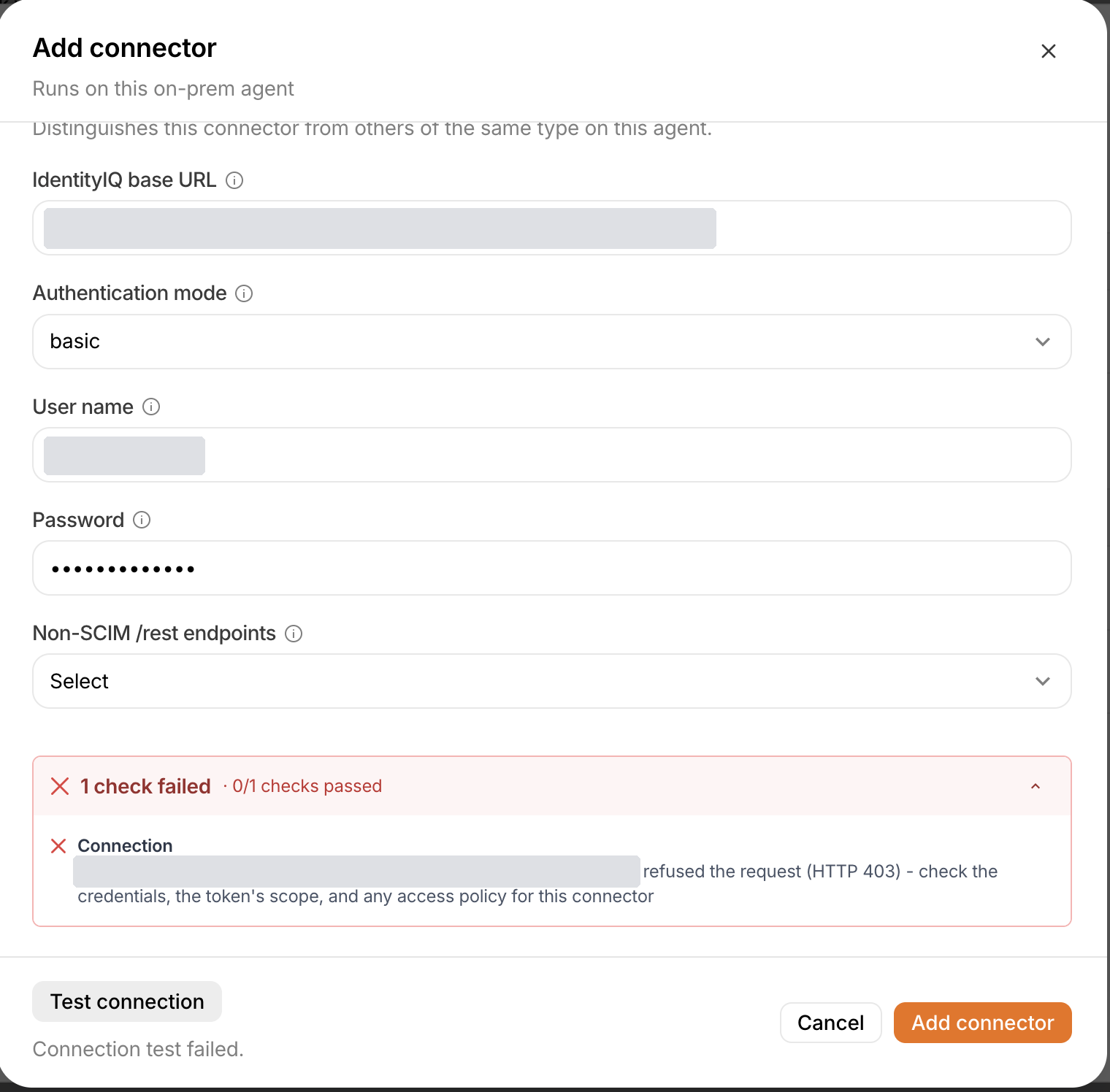
When the test passes, select Add connector. The first collection starts straight away.
What gets collected
The connector reads six SCIM resources. The fields are fixed by the connector and aren't customizable per connector.
- Identities (SCIM Users) — user name, display name and full name, email, whether the identity is active, employee ID, job title, manager, and the roles and entitlements each identity holds. Entitlements that are permissions on a target (such as a file share or a database right) are recorded with that target and the rights granted.
- Roles — name, whether the role is active, its activation and deactivation dates, and how roles relate to each other (inherited, required and permitted roles).
- Entitlements — name, the attribute and value they grant, the application they belong to, whether they're active and requestable, and their classifications.
- Applications — the applications IdentityIQ governs, with their name and owner.
- Accounts — each identity's accounts on governed applications: account name, native identity, the application it's on, the identity it belongs to, and whether it's active or locked.
- Policy violations — the identity in violation, the policy and constraint breached, status, description, and owner.
The connector doesn't read IdentityIQ's other SCIM resources, such as CheckedPolicyViolations, Workflows, TaskResults or Alerts.
Optional data
Two more kinds of data are available from IdentityIQ's own /rest API rather than SCIM:
- OAuth clients registered in IdentityIQ, collected as non-human identities.
- Workgroups.
Many deployments restrict that API, so they're off by default. Set Non-SCIM /rest
endpoints to enabled only after your IdentityIQ administrator confirms the
account can read your base URL followed by /identityiq/rest/oauth2/clients. If it can't,
those requests fail the whole run rather than being skipped.
How collection runs
- Schedule — the first collection runs as soon as you add the connector, then once every 24 hours.
- Identities are read in full on every run, so changes to an identity's roles and entitlements are always picked up. Roles, entitlements, applications, accounts and policy violations are read incrementally: after the first run, each run asks only for records created or changed since the last successful run.
- All or nothing — identities, roles and memberships only make sense together, so if any resource can't be read, the whole run is reported as failed rather than partially complete. Nothing is skipped: the next run reads again from the last successful point.
- Gentle on IdentityIQ — IdentityIQ's SCIM API usually runs on the same
application server as its own tasks, so the connector currently sends at most five
requests a second, two at a time, and retries a busy or failed request with increasing delays
(honoring
Retry-After). A large page of identities can take a while to return; the connector waits up to two minutes per request.
Each run appears on the agent's Connectors tab. Expand the connector to see when it ran, how many records it collected, and whether it completed. The agent's Logs tab shows what it's doing in more detail.
Editing the connector
Select the connector on the agent's Connectors tab to edit it. It's listed as SailPoint IdentityIQ and opens the same form.
- Stored secrets show as blank. Leave them blank to keep the stored values, or type new ones to replace them.
- If you change the base URL to a different host, port or scheme, enter the credentials again. Mesh won't send stored credentials to a different deployment from the one they were entered for, and refuses the change with "stored credentials cannot be reused after changing the IdentityIQ deployment; enter them again". Changing only the path keeps them.
- If you rename the connector, enter its credentials again too. The form warns you when this applies: "Stored credentials stay with the saved name: enter them again to rename this connector."
- Switching the authentication mode needs the new mode's credentials. The other mode's values are cleared when you save.
Troubleshooting
| What you see | What to do |
|---|---|
| SailPoint IdentityIQ isn't in the connector type list | No compatible connector build (v2.14.0 or later) is published for the agent's platform yet. Contact Axiad support. |
| Saving is refused because of the connector version | The connector is pinned to a build older than v2.14.0, which can't run IdentityIQ. Choose Latest or a newer build. |
| Add connector stays disabled | A required field for the selected authentication mode is empty. The form names it. |
| The connection test fails | See the table in Step 3. |
| Runs fail after enabling Non-SCIM /rest endpoints | The account can't read IdentityIQ's /rest API. Set the field back to Select (not set). |
| A run takes much longer than usual | Large deployments take time on the first run, because every resource is read in full. Later runs read only changes, apart from identities. |
Verify
- The connector test shows Connection passed.
- The connector shows Running on the agent's Connectors tab, and its first collection completed.
- IdentityIQ identities, roles, entitlements, applications, accounts and policy violations appear in Mesh after that collection.