Add the Okta connector in Axiad Mesh
This is the second half of the Okta integration. Complete Set up Okta for Axiad Mesh first — you need the credential from it before you start here.
Before you begin
Have these ready:
- Your Okta org URL, over HTTPS — for example
https://acme.okta.com. - A Mesh administrator account with permission to manage connectors.
- The credential for the method you chose in Okta:
| If you set up | Have ready |
|---|---|
| An API token | The token value |
| An OAuth service app | The Client ID and the private key |
The setup wizard below authenticates with an Okta API token. If you created an OAuth service app instead, contact Axiad — wizard support for it is being added.
Open the wizard
In the Mesh portal, go to Settings → Connectors and select Add connector.

Choose Okta Workforce Identity under Guided setup.
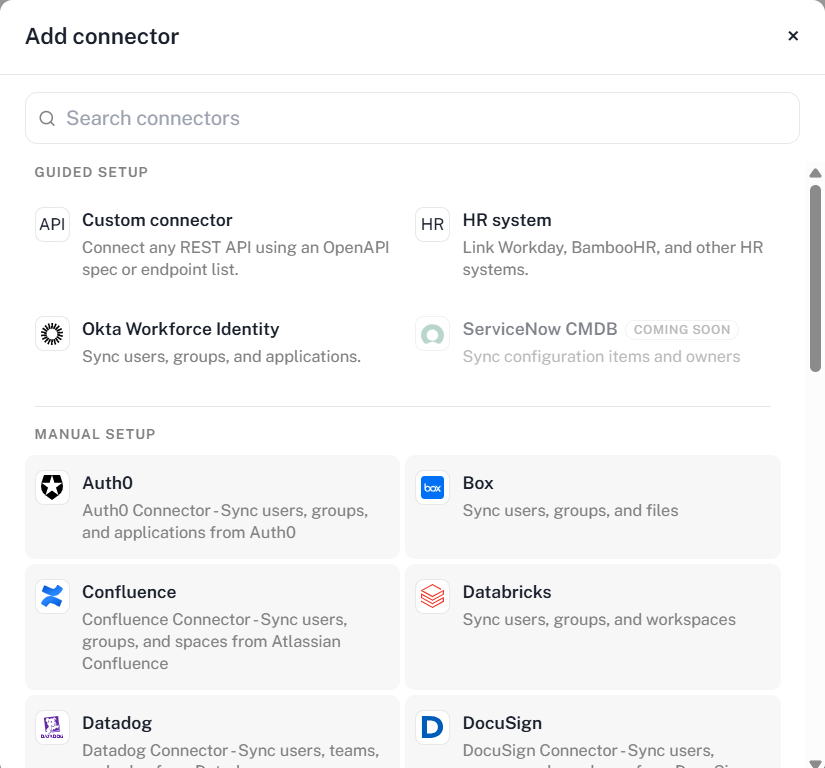
Mesh lists more than one Okta connector, and they are not interchangeable.
| Entry | Use it? |
|---|---|
| Okta Workforce Identity | Yes — this guide, under Guided setup |
| Okta | No. A different, earlier connector |
| Okta Single-sign-on | No. A different, earlier connector |
| Okta Single-sign-on (Legacy) | No. An earlier connector kept for existing setups |
Choosing any of the others gives you a different form and a different set of fields.
Set up with AI assistant does not cover Okta Workforce Identity today. Use Guided setup.
The wizard has five steps — Identify, Authenticate, Collect, Tuning and Review. The rail on the left tracks where you are and summarizes each finished step. Steps ahead of an incomplete one stay locked until you can reach them.
Step 1 — Identify
Enter a display name for the connector and your Okta org URL.
The URL must be HTTPS on an Okta domain: .okta.com, .oktapreview.com,
.okta-emea.com, or .okta-gov.com. No path, no query string.
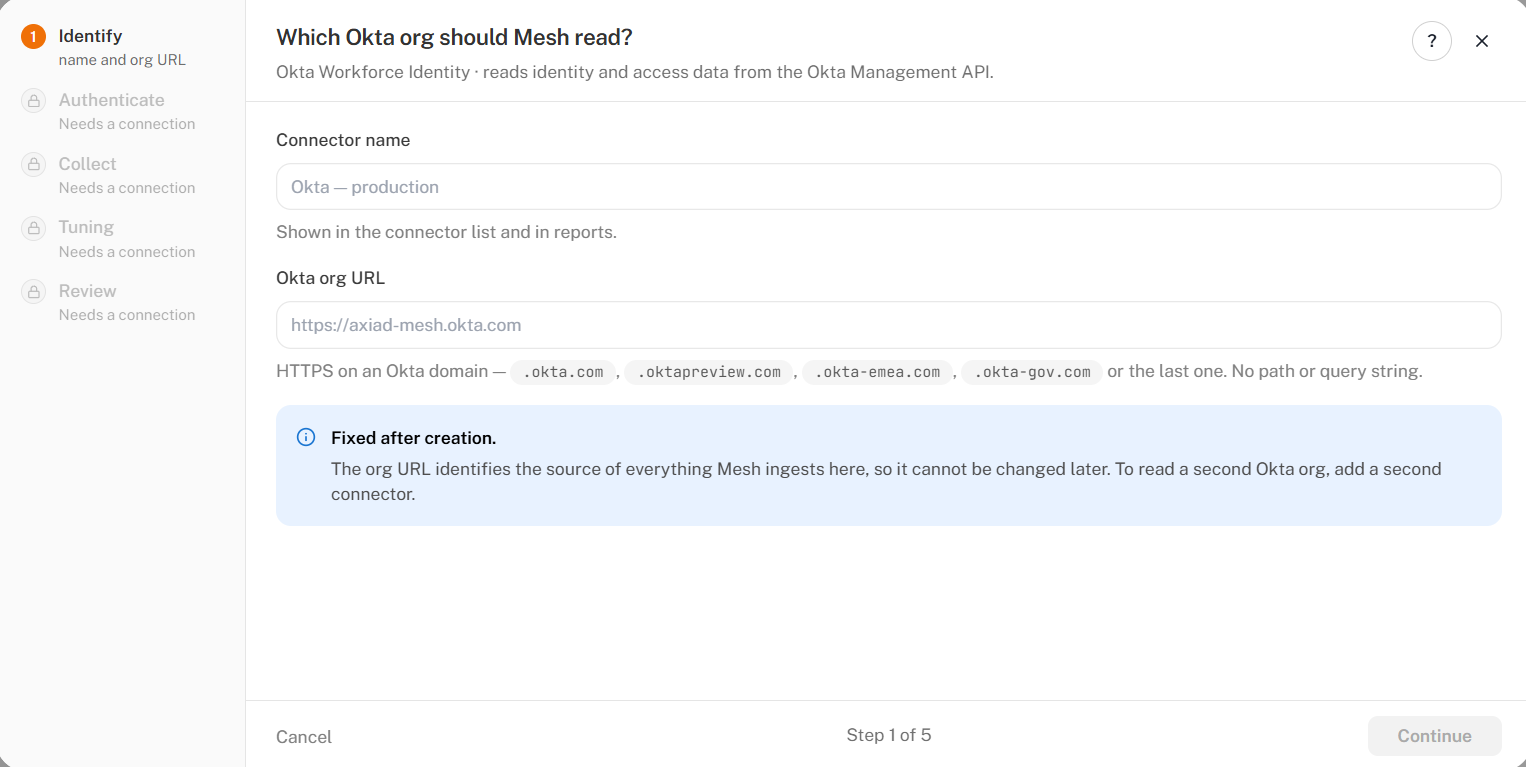
The org URL identifies the source of everything Mesh ingests through this connector, so it cannot be changed later. Check it before you continue. To read a second Okta org, add a second connector.
The display name is only a label — it appears in the connector list and in reports, and you can change it whenever you like.
Step 2 — Authenticate
Paste the API token into Okta API token.
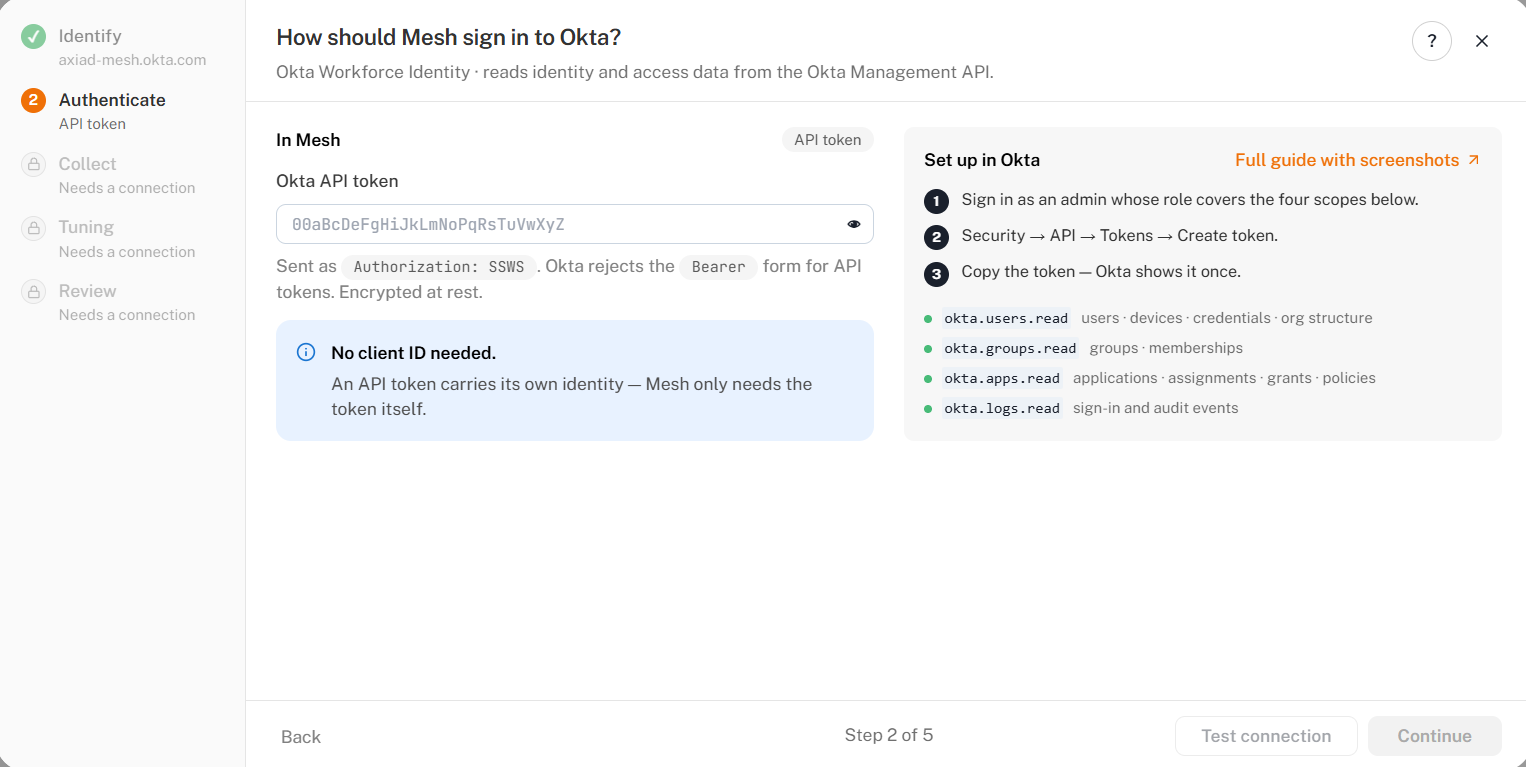
Paste the token exactly as Okta issued it. Mesh sends it as
Authorization: SSWS, the scheme Okta's Management API requires, so the value
needs no prefix of its own. There is no client ID to enter: an API token
carries its own identity. Mesh encrypts the token at rest and never shows it
again — after saving, only a short fingerprint of it is displayed.
Select Test connection. You cannot continue until the test passes. Changing the token clears a previous pass, and you have to test again.
A pass shows a green Connected banner and unlocks Continue. It means Okta accepted the credential — it does not mean every endpoint returns data. That is checked by the sample read on step 5.
If the test fails, the wizard says which kind of failure it was:
| Error | Meaning | What to do |
|---|---|---|
| Authentication | Okta rejected the credentials | Check the value, and confirm the token has not been revoked or expired |
| Authorization | The token is valid, but the account that created it cannot read what Mesh needs | An API token inherits its creator's permissions, so confirm that account has the Read-only Administrator role in Okta, then test again. Nothing on this step is wrong |
| Communication | Mesh could not reach the Okta org | Re-check the org URL on step 1 |
| Configuration | The org slug is not valid yet | Enter a valid Okta org slug before testing |
| System | The test could not be completed | Nothing you entered is wrong. Try again, and contact Axiad if it keeps happening |
Step 3 — Collect
Choose what Mesh reads. Endpoints are grouped by domain — Directory, Applications, Security — and each row shows the Okta API path it calls, so you can see exactly what a selection means. The checkbox on a domain header selects or clears that whole domain.
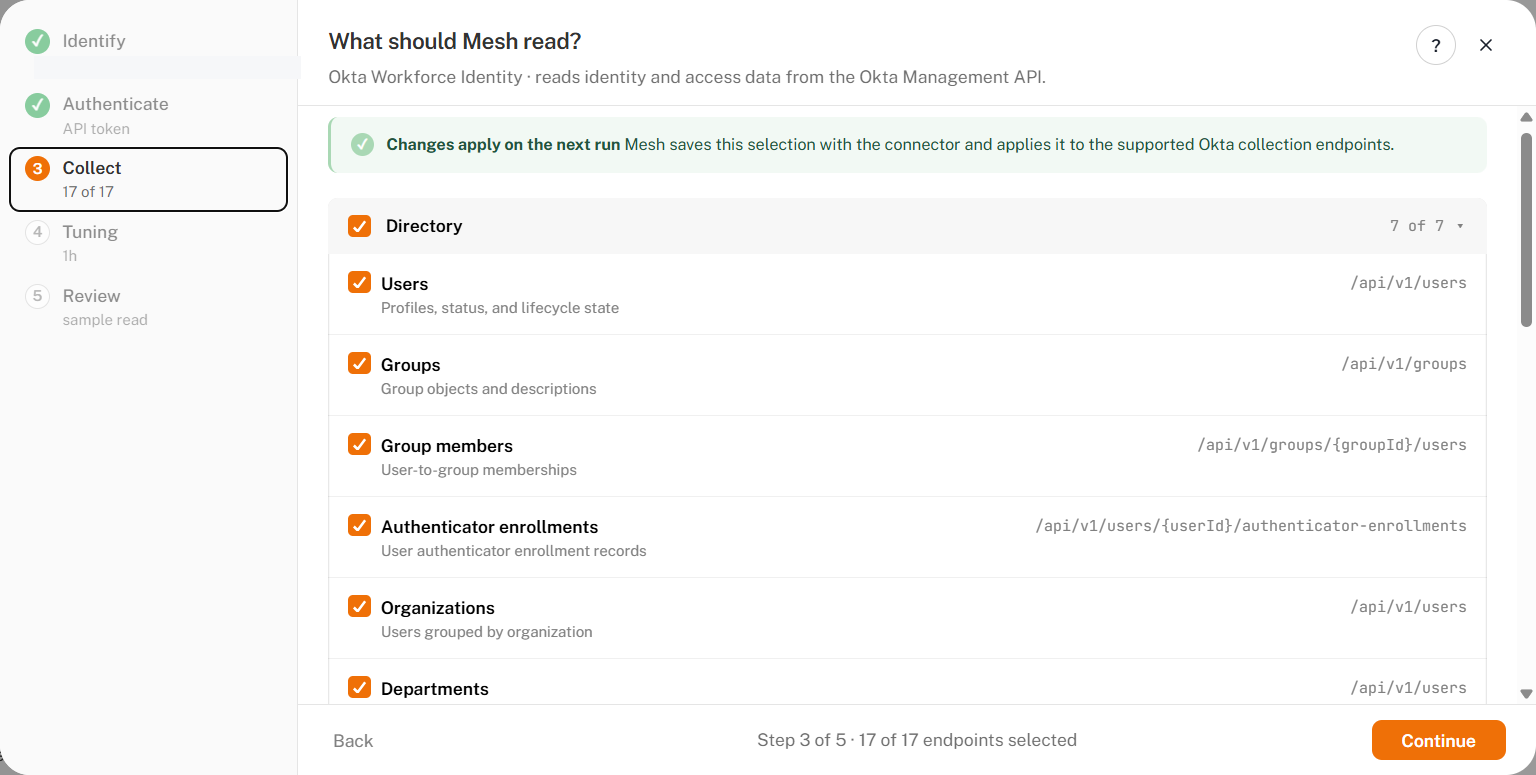
Your selection is saved with the connector and applied on its next run — endpoints you clear are not called. Leave everything selected unless you have a reason not to; clearing an endpoint removes the data it feeds, and anything Mesh derives from that data goes with it.
The seventeen endpoints
Directory — 7 endpoints
| Endpoint | What it reads | Okta API path |
|---|---|---|
| Users | Profiles, status, and lifecycle state | /api/v1/users |
| Groups | Group objects and descriptions | /api/v1/groups |
| Group members | User-to-group memberships | /api/v1/groups/{groupId}/users |
| Authenticator enrollments | User authenticator enrollment records | /api/v1/users/{userId}/authenticator-enrollments |
| Organizations | Users grouped by organization | /api/v1/users |
| Departments | Users grouped by department | /api/v1/users |
| Divisions | Users grouped by division | /api/v1/users |
Applications — 5 endpoints
| Endpoint | What it reads | Okta API path |
|---|---|---|
| Applications | App integrations in the org | /api/v1/apps |
| Policies | Application policy records | /api/v1/apps |
| Services | Application service records | /api/v1/apps |
| Resources | Application resource records | /api/v1/apps |
| User policies | Application user policy links | /api/v1/apps/{appId}/users |
Security — 5 endpoints
| Endpoint | What it reads | Okta API path |
|---|---|---|
| System log | Org-wide security and audit events | /api/v1/logs |
| Group membership changes | Group membership change events | /api/v1/logs |
| Application membership changes | Application membership change events | /api/v1/logs |
| User lifecycle changes | User deletion and deactivation events | /api/v1/logs |
| Group lifecycle changes | Group creation and deletion events | /api/v1/logs |
Several endpoints read the same Okta path with a different query — the three
Directory groupings all read /api/v1/users, and the five Security endpoints
all read /api/v1/logs. That is why
Set up Okta lists seven
paths and four scopes while this step lists seventeen endpoints. Both are
describing the same thing.
Step 4 — Tuning
Optional. Every setting on this step has a default that works, so you can accept them all and move on.
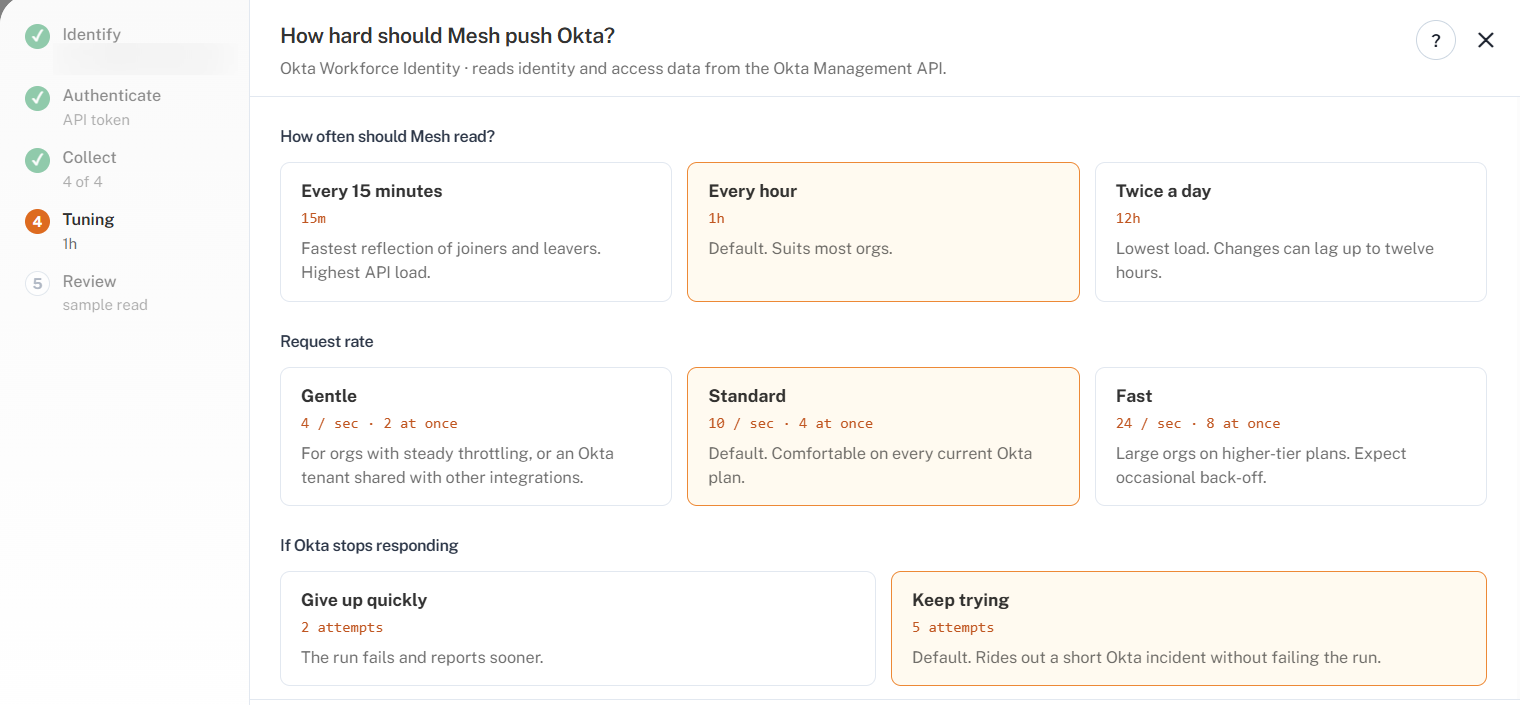
| Setting | Default | When to change it |
|---|---|---|
| How often should Mesh read? | Every hour | Every 15 minutes to see joiners and leavers sooner; twice a day to keep API load low |
| Request rate | Standard — 10 requests a second, 4 at once | Gentle if your Okta org already throttles, or if other integrations share the tenant; Fast only on a higher-tier Okta plan |
| If Okta stops responding | Keep trying — 5 attempts | Give up quickly if you would rather see a failure reported sooner than have the run ride out an Okta incident |
| Records per request | 100 | Smaller pages on slow links, larger pages for a big org |
This is also where the sync frequency lives — not on the Collect step.
Step 5 — Review
The wizard runs a sample read against your org and reports what it found for each category, then summarizes the configuration you are about to create.
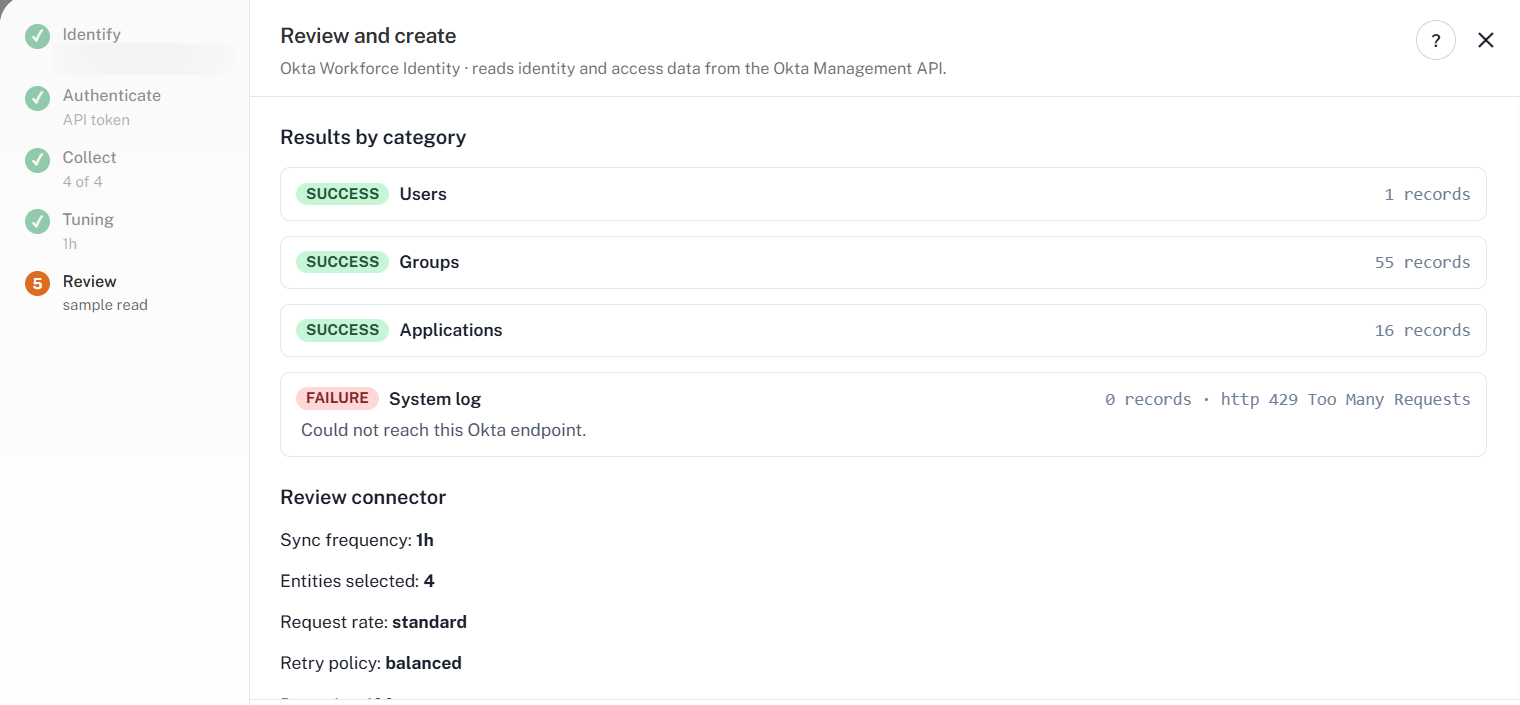
Read the per-category results before you create the connector. A SUCCESS
row with a record count means Mesh reached that endpoint and Okta returned
data. A FAILURE row names the reason — in the frame above the System log
read came back http 429 Too Many Requests, which is Okta rate-limiting the
org rather than anything wrong with the configuration.
Select Run sample again to retry after fixing something, or Create connector to finish. Creating the connector closes the wizard.
This is almost always the Okta admin role, not the connector. A token can hold the right scopes and still see only part of the org. Go back to Set up Okta and confirm the account behind the token has the Read-only Administrator role, with resource sets set to All.
Managing the connector
Back on the connector list, each row shows the provider, health and sync status — see Read the Connectors page. The Status toggle enables or disables scheduled collection.
The row menu holds the rest:

| Action | What it does |
|---|---|
| View collections | Last and next run, sync stage, and record counts per data type. See Collected data |
| Logs | Collection run history |
| Edit | Change the configuration — everything except the org URL |
Okta Workforce Identity collects on the schedule you set on the Tuning step. To collect sooner, set a shorter frequency in Edit.
Once saved, the token is displayed only as a fingerprint. If you lose the original value, create a new token in Okta and update the connector.
Verify the collection
- Open View collections and confirm the first collection completed.
- Compare the collected user and group counts against your Okta org.
A collection that finishes but returns noticeably fewer records than your org holds is usually a permission problem rather than a connection problem — see the next section.
Troubleshooting
| Symptom | Likely cause | What to do |
|---|---|---|
| Test connection fails with an authentication error | The token is wrong, revoked, or expired | Issue a fresh token in Okta and paste it again |
| Test connection fails with a communication error | The org URL is wrong or not reachable | Re-check the URL on step 1 |
A category on step 5 reports http 429 Too Many Requests | Okta is rate-limiting the org | Re-run the sample, or set Request rate to Gentle on step 4 |
| Collection completes, but far fewer records than expected | The token's account has the right scopes but no admin role, or a custom role bound to a narrowed resource set | Assign Read-only Administrator, and set every resource set to All |
| Users and groups arrive, but no sign-in events | okta.logs.read was not granted, or a custom admin role is in use and cannot read the System Log | Grant the scope, and switch to the standard Read-only Administrator role |
| Authentication fails from a token that worked before | The token is IP-restricted and Mesh's addresses changed, or the token expired | Confirm the IP zone with Axiad support, or issue a new token |
| Collection is slower than expected | Okta is rate-limiting your org | No action needed. Mesh reads Okta's rate-limit headers and slows itself before hitting a limit, then retries. |
| The org URL is wrong and Edit will not let you change it | The org URL is fixed once the connector exists | Create a new connector with the correct URL, then disable the old one |
If a problem persists, contact Axiad support with the connector name, the time of the failed collection, and the step the wizard stopped on.