Amazon Web Services
The AWS collector reads the certificates and encryption keys already in your AWS account, so they count toward your post-quantum readiness alongside everything else Mesh knows about.
They are easy to lose track of, because they are spread across separate services. A certificate issued by one team sits in ACM, an older one someone uploaded by hand sits in IAM, the keys protecting your data sit in KMS, and the TLS settings your public traffic actually negotiates sit on a load balancer. Mesh reads each of them and gives you one list instead of several consoles.
What it collects
Each row is a separate switch you control on the Collect step, and each reads one AWS service.
| What Mesh reads | What it tells you | Collected by default |
|---|---|---|
| Certificates (ACM) | The certificates AWS issues and manages for your websites and services, with their key algorithm and validity | Yes |
| Older uploaded certificates (IAM) | Certificates uploaded by hand in the past, which are the easiest to forget | Yes |
| Encryption keys (KMS) | The keys protecting your data, and what kind of key each one is | Yes |
| Key rotation | Whether each key's secret is replaced on a schedule, and when it next is | Yes |
| Load balancer security settings | Which TLS versions and ciphers your public traffic is allowed to use | Yes |
| Storage encryption (S3) | How your storage buckets encrypt new files | No — switch it on if you want it |
Mesh reads certificate and key metadata — algorithm, size, validity, rotation setting. It never requests, stores or transmits a private key, and it makes no call that could export or decrypt one. Every call it makes is a read.
Before you start
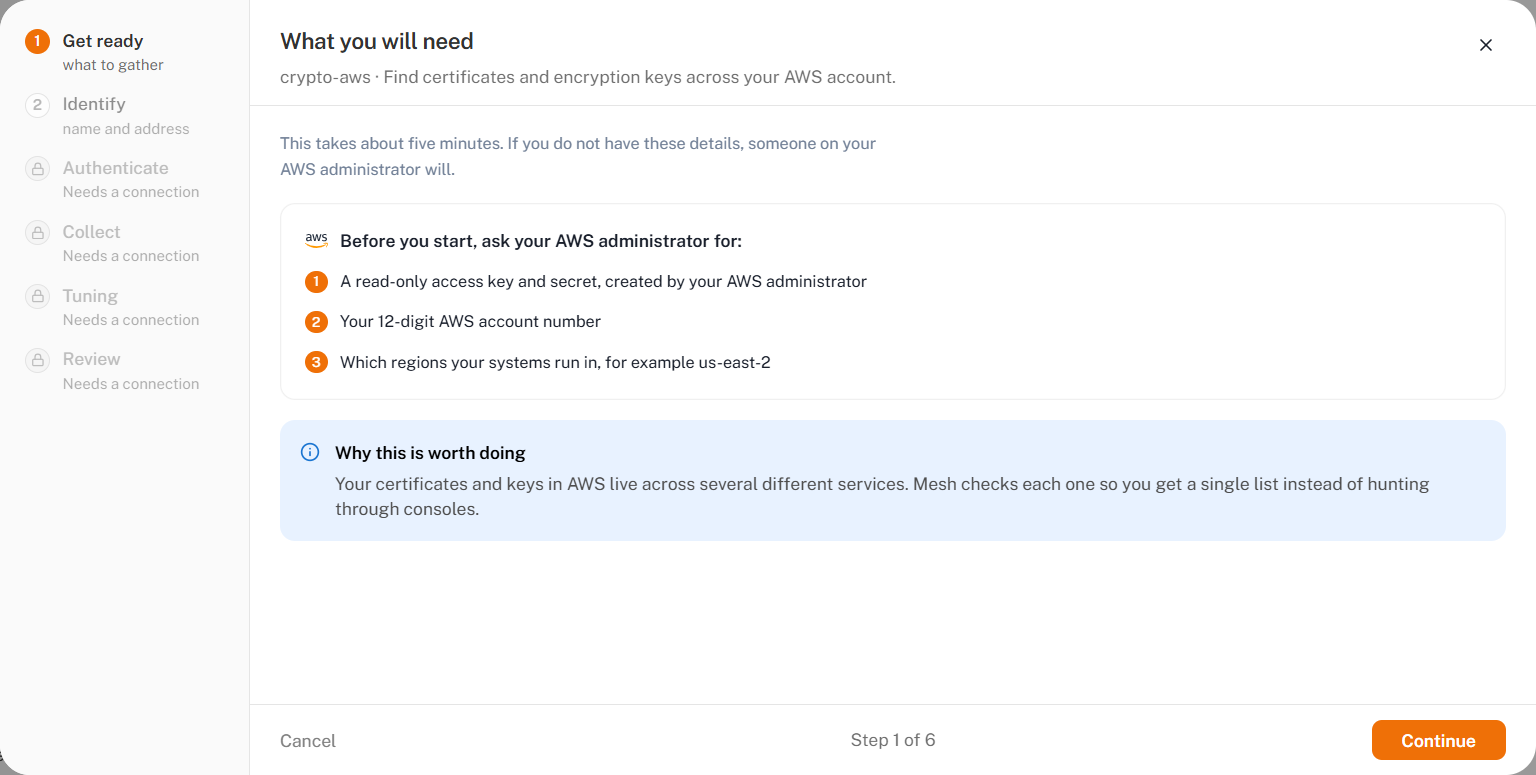
Ask your AWS administrator for three things:
- A read-only access key and secret created for Mesh. The policy to attach is below.
- Your 12-digit AWS account number. It is shown in the top-right corner of the AWS console.
- The regions your systems run in, for example
us-east-2.
You also need a Mesh administrator account that can manage connectors.
Regions decide what is found
This is the one choice that can quietly cost you coverage, so decide it before you start.
AWS keeps certificates, keys and load balancers separately in each region, and there is no single endpoint that returns all of them. Mesh reads only the regions you name.
Certificates and keys in a region you did not name are not listed, and nothing in Mesh can tell you they exist. If you are not sure, name every region your organization uses — a region with nothing in it costs one quick call.
One exception is worth knowing: older uploaded certificates (IAM) are account-wide. AWS holds them globally rather than per region, so they are collected whichever regions you name.
Create the read-only access in AWS
Do this in the AWS console, or ask your AWS administrator to.
1. Create the policy
Create a customer-managed policy with the permissions below. This is the full set for everything collected by default.
{
  "Version": "2012-10-17",
  "Statement": [
    {
      "Sid": "MeshCryptoReadOnly",
      "Effect": "Allow",
      "Action": [
        "acm:ListCertificates",
        "acm:DescribeCertificate",
        "acm:ListTagsForCertificate",
        "iam:ListServerCertificates",
        "iam:GetServerCertificate",
        "iam:ListServerCertificateTags",
        "kms:ListKeys",
        "kms:DescribeKey",
        "kms:GetKeyRotationStatus",
        "kms:ListKeyRotations",
        "kms:ListResourceTags",
        "elasticloadbalancing:DescribeLoadBalancers",
        "elasticloadbalancing:DescribeListeners",
        "elasticloadbalancing:DescribeSSLPolicies",
        "elasticloadbalancing:DescribeTags"
      ],
      "Resource": "*"
    }
  ]
}
If you want Storage encryption (S3) as well, add a second statement:
{
  "Sid": "MeshCryptoStorageEncryption",
  "Effect": "Allow",
  "Action": [
    "s3:ListAllMyBuckets",
    "s3:GetEncryptionConfiguration",
    "s3:GetBucketTagging"
  ],
  "Resource": "*"
}
Every action above is a read. None of them creates, changes or deletes anything.
What each permission is for
Grant only what you plan to collect. A permission you leave out costs you the row that needs it, and any row that builds on it, as the table shows. The rest of the collection still runs.
| Switch | Permissions it needs |
|---|---|
| Certificates (ACM) | acm:ListCertificates, acm:DescribeCertificate |
| Older uploaded certificates (IAM) | iam:ListServerCertificates, and iam:GetServerCertificate to read each certificate's algorithm |
| Encryption keys (KMS) | kms:ListKeys, kms:DescribeKey |
| Key rotation | kms:GetKeyRotationStatus, and kms:ListKeyRotations for when it last rotated. It also needs kms:ListKeys, because rotation is read for each key Mesh finds, so leaving that one out loses both rows |
| Load balancer security settings | elasticloadbalancing:DescribeLoadBalancers, DescribeListeners, DescribeSSLPolicies |
| Storage encryption (S3) | s3:ListAllMyBuckets, s3:GetEncryptionConfiguration |
| Owner names, for any of the above | acm:ListTagsForCertificate, iam:ListServerCertificateTags, kms:ListResourceTags, elasticloadbalancing:DescribeTags, and s3:GetBucketTagging when S3 is on |
Mesh reads owners by default. Without the tag permissions in the last row, a certificate or key is still collected — just with no owner against it, and without an error. If owners matter to you, grant them.
2. Create the access key
- Create an IAM user for Mesh, and attach the policy.
- Create an access key for that user, and copy both the access key ID and the secret access key.
AWS shows the secret once, at the moment it is created. If you lose it, create a new key.
If your administrator would rather Mesh assumed a role, create the role with the same policy and have its ARN ready. You enter it on the Authenticate step. Leave it empty to use the access key directly.
Mesh signs in with the access key first and then assumes the role, so two more things are needed, or the connection test fails:
- Allow the IAM user to assume the role: grant that user
sts:AssumeRoleon the role's ARN. - Set the role's trust policy so that it trusts that user.
Add the connector in Mesh
Go to Settings › Connectors and select Add connector.
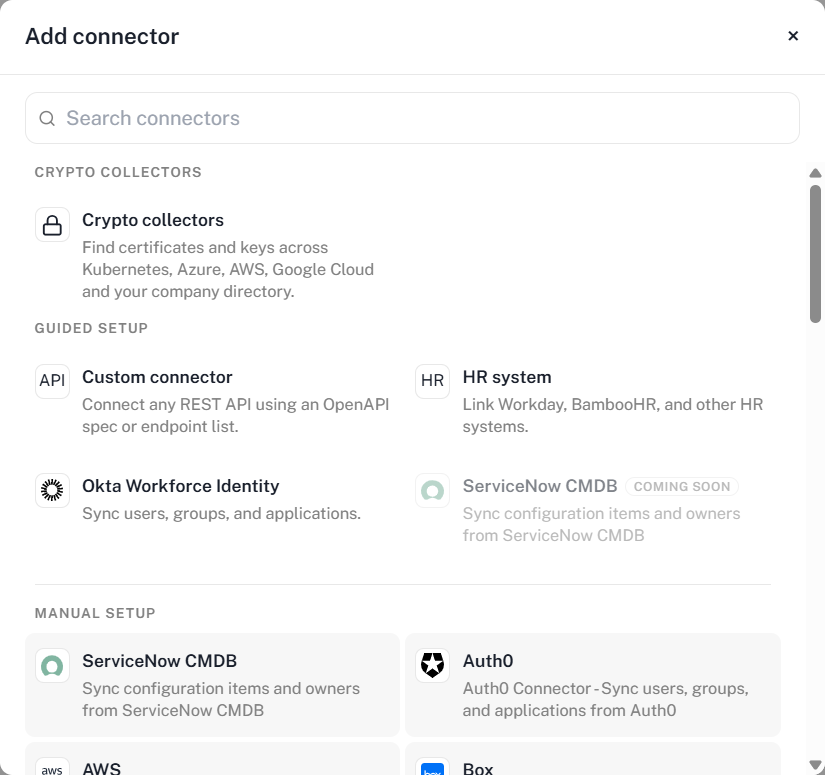
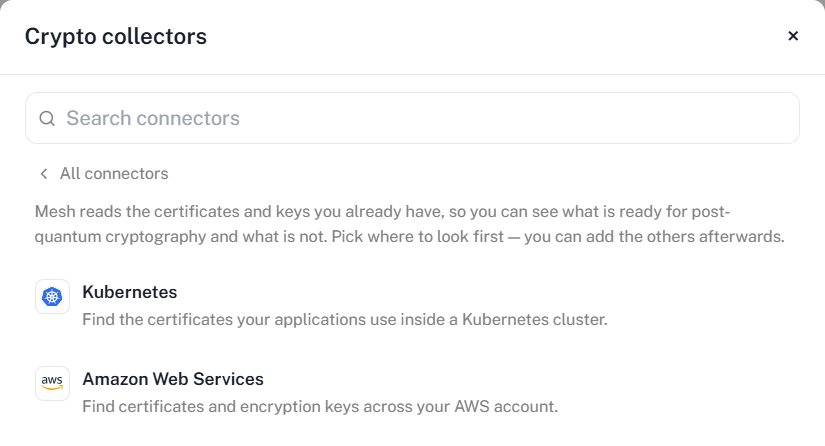
Choose Crypto collectors, then Amazon Web Services.
The wizard has six steps — Get ready, Identify, Authenticate, Collect, Tuning and Review. The rail on the left tracks where you are. Steps after Authenticate stay locked until the connection test passes.
Step 1 — Get ready
A checklist of what to have to hand. Nothing to fill in.
Step 2 — Identify
| Field | Required | What to enter |
|---|---|---|
| Connector name | Yes | A label of your choosing. It appears in the connector list and in reports |
| Account number | Yes | Your 12-digit AWS account number |
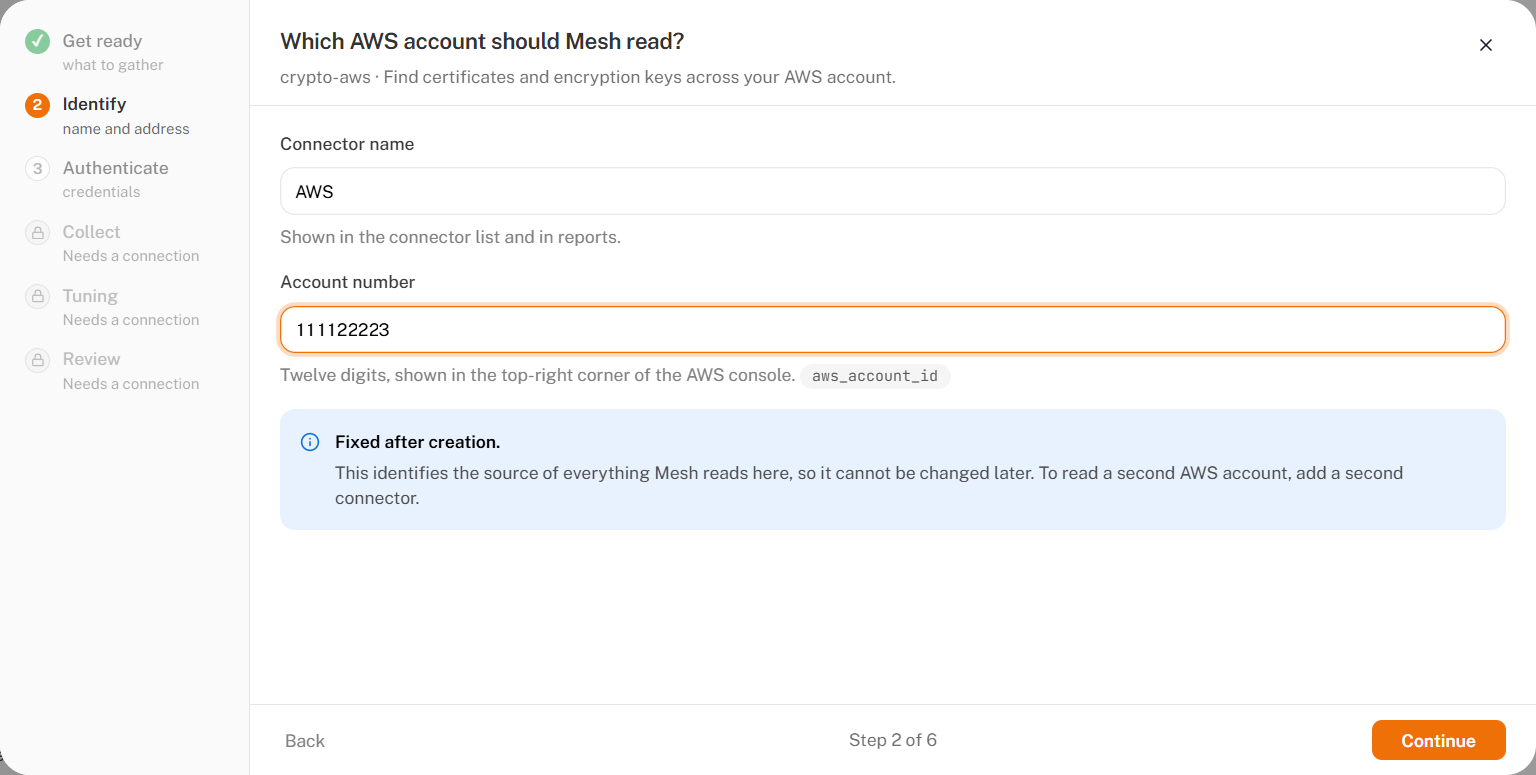
It identifies the source of everything Mesh reads through this connector, so it cannot be changed later. To read a second AWS account, add a second connector.
Step 3 — Authenticate
| Field | Required | What to enter |
|---|---|---|
| Access key | Yes | The access key ID. It starts with AKIA |
| Secret key | Yes | The secret access key. Stored encrypted, and never shown again |
| Regions | Yes | Comma-separated, for example us-east-2, eu-west-1. At least one |
| Role to use | No | A role ARN, only if your administrator asked Mesh to assume a role |
Select Test connection. You cannot continue until it passes.
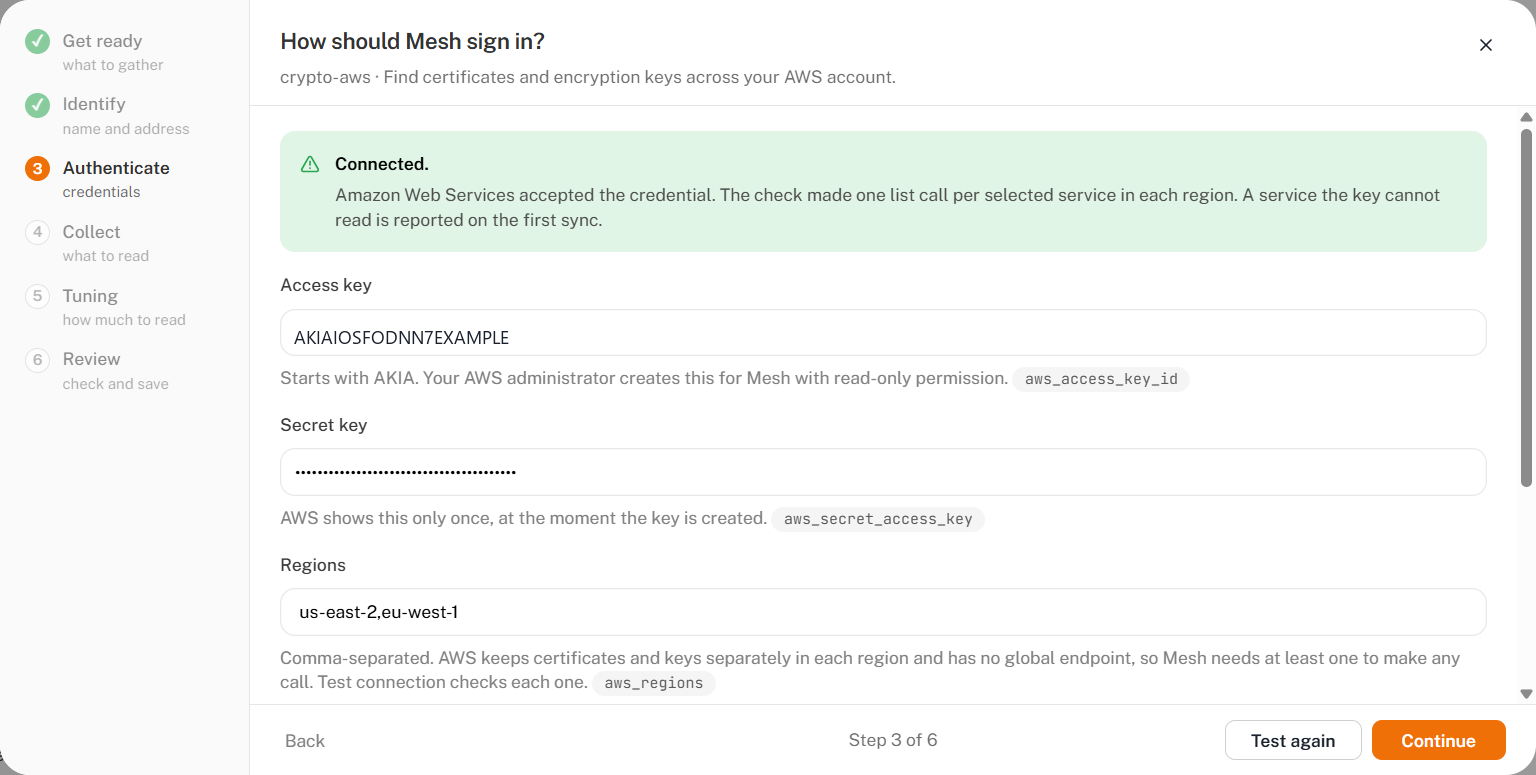
A pass means AWS accepted the credential. The test makes one list call per selected service in each region, so it also catches a region you mistyped. It does not prove every service is readable — a service the key cannot read is reported on the first collection.
If it fails, the wizard names the reason.
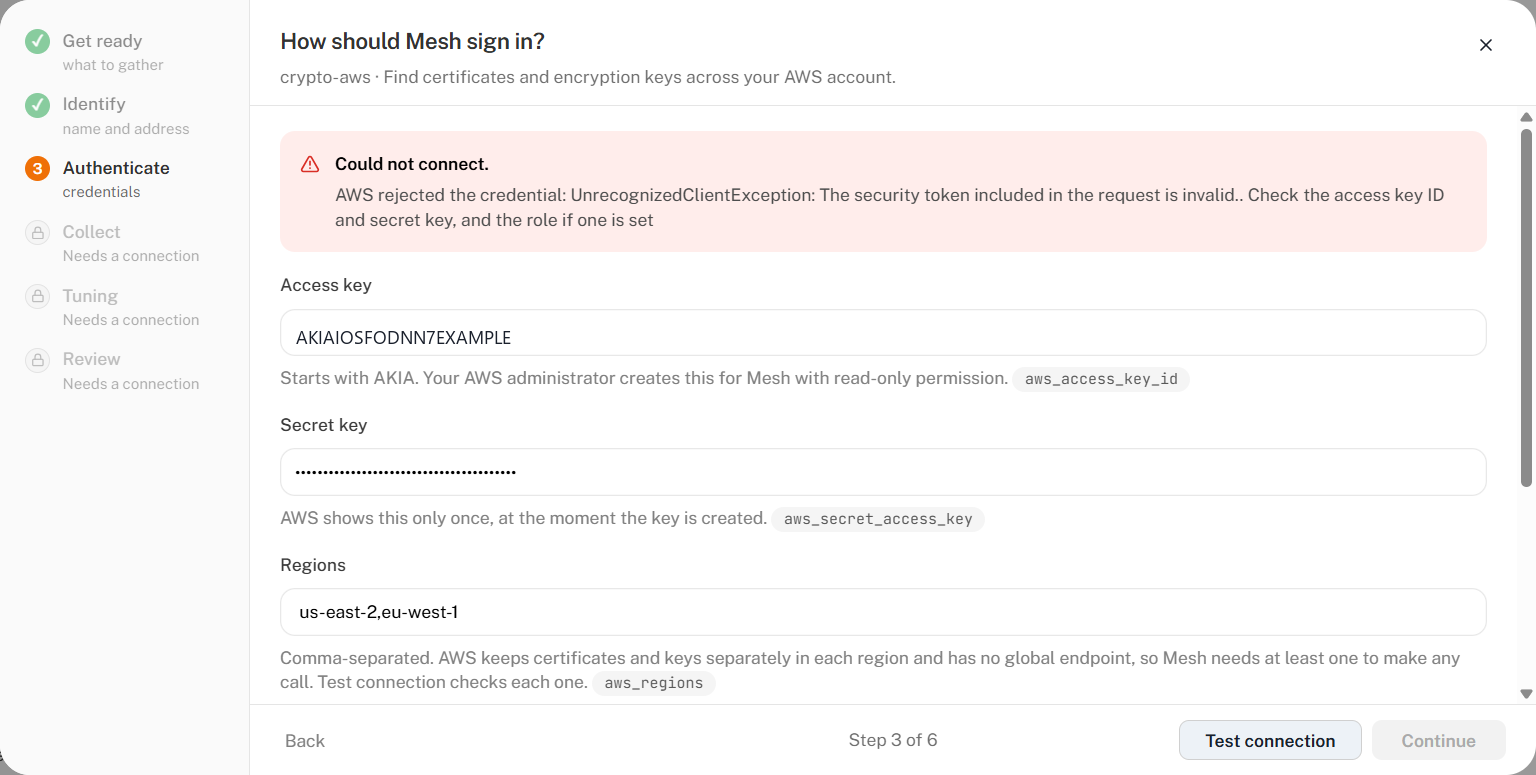
Step 4 — Collect
Choose what Mesh reads. Everything is on by default except Storage encryption (S3), which needs permissions the others do not.
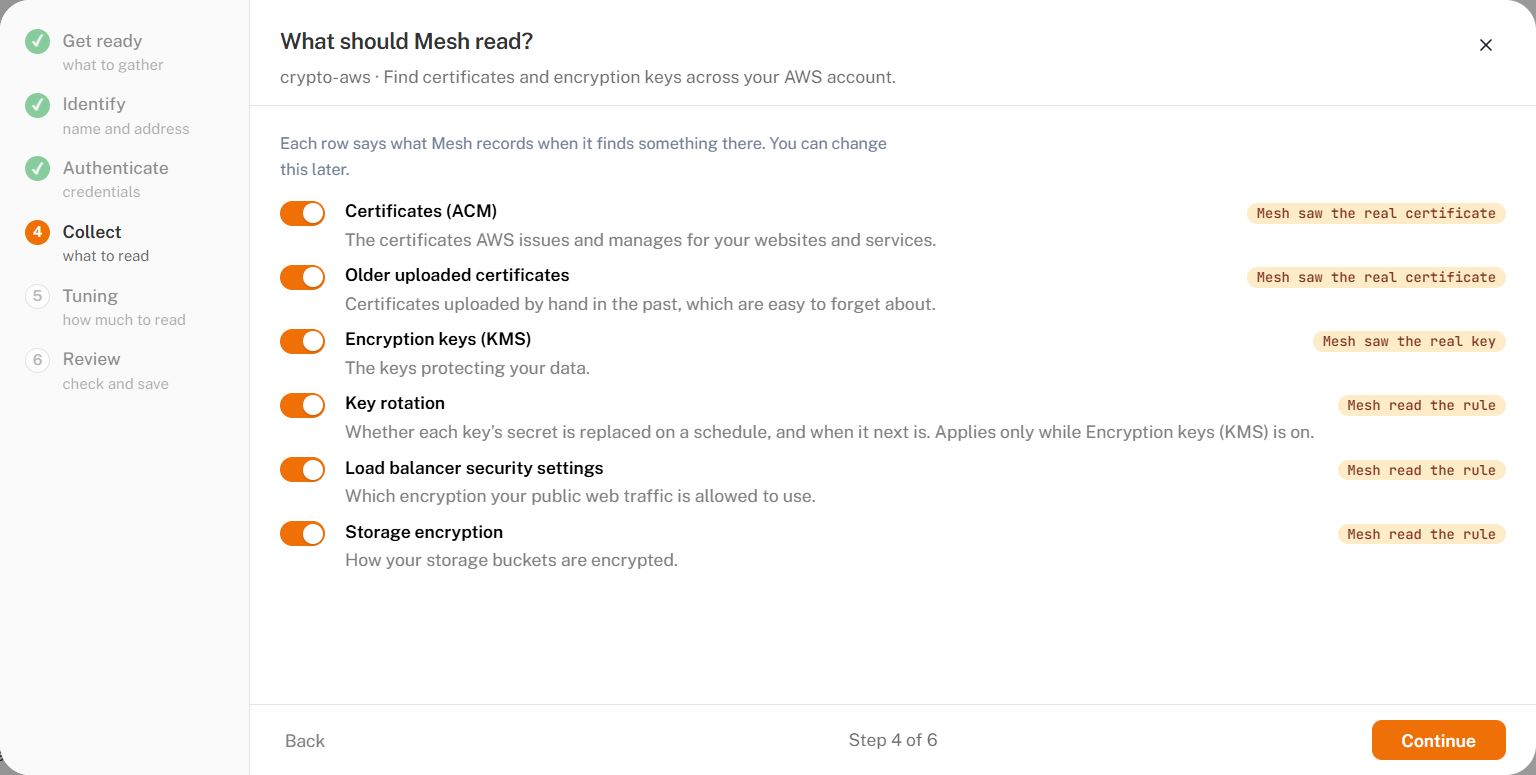
Each row also says how Mesh knows what it reports — whether it saw the real certificate or key, or read a configuration rule.
Key rotation is read onto each key's own record, so it applies only while Encryption keys (KMS) is on. Turn KMS off and the rotation row is switched off with it.
Step 5 — Tuning
Everything here is optional.
| Setting | Default | What it does |
|---|---|---|
| How often should Mesh read? | Every hour | Every 15 minutes for an account that changes often; twice a day or once a day for fewer AWS calls |
| Owner tag keys | Owner,owner | The AWS tags naming who owns each certificate and key, most authoritative first |
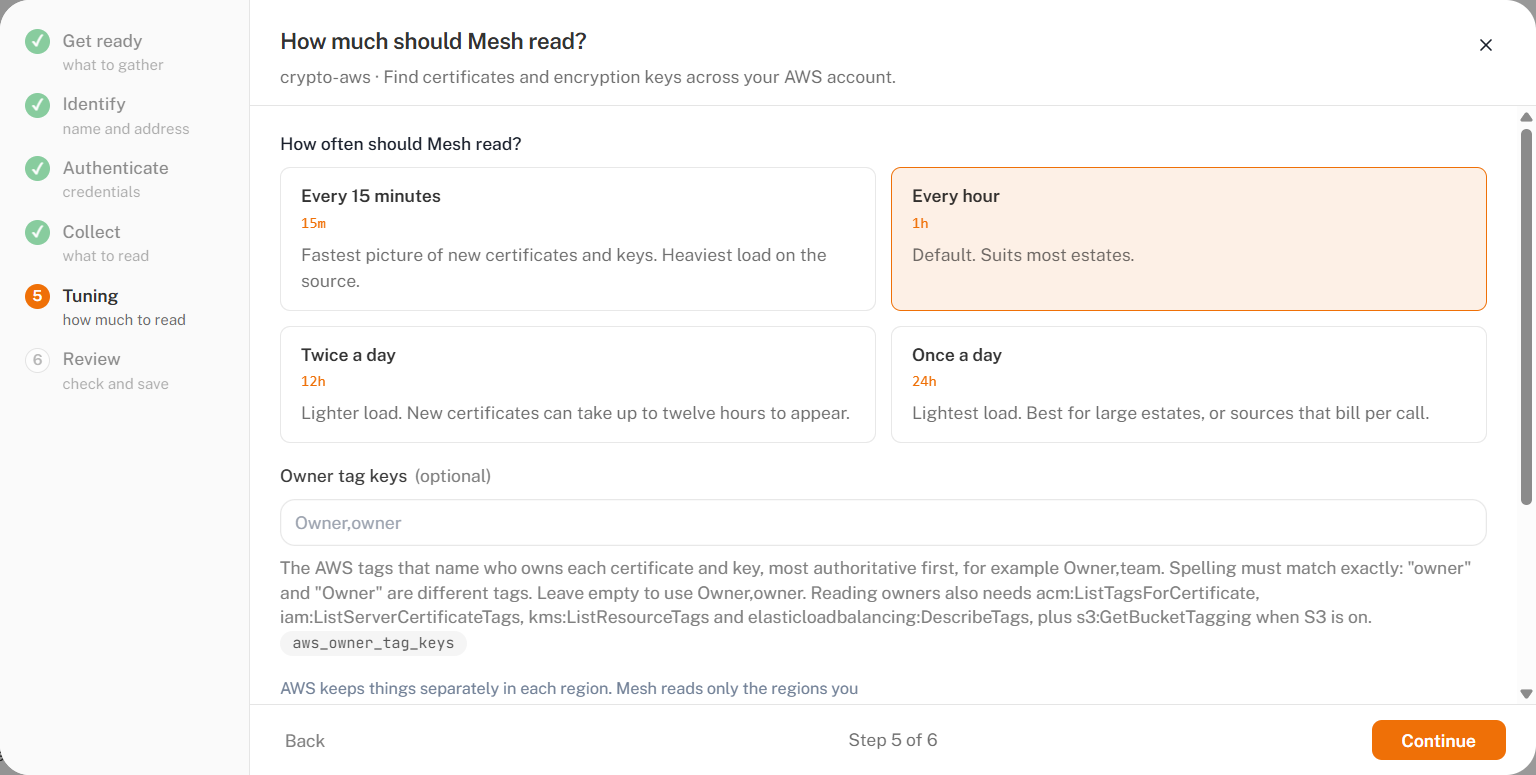
owner and Owner are different tags in AWS. Leave the field empty and Mesh
tries Owner then owner, which suits most accounts. Enter your own list only
if you tag ownership differently.
Mesh reads only the regions you entered on the Authenticate step. This step confirms that scope rather than widening it.
Step 6 — Review
Check the summary, then select Save connector.
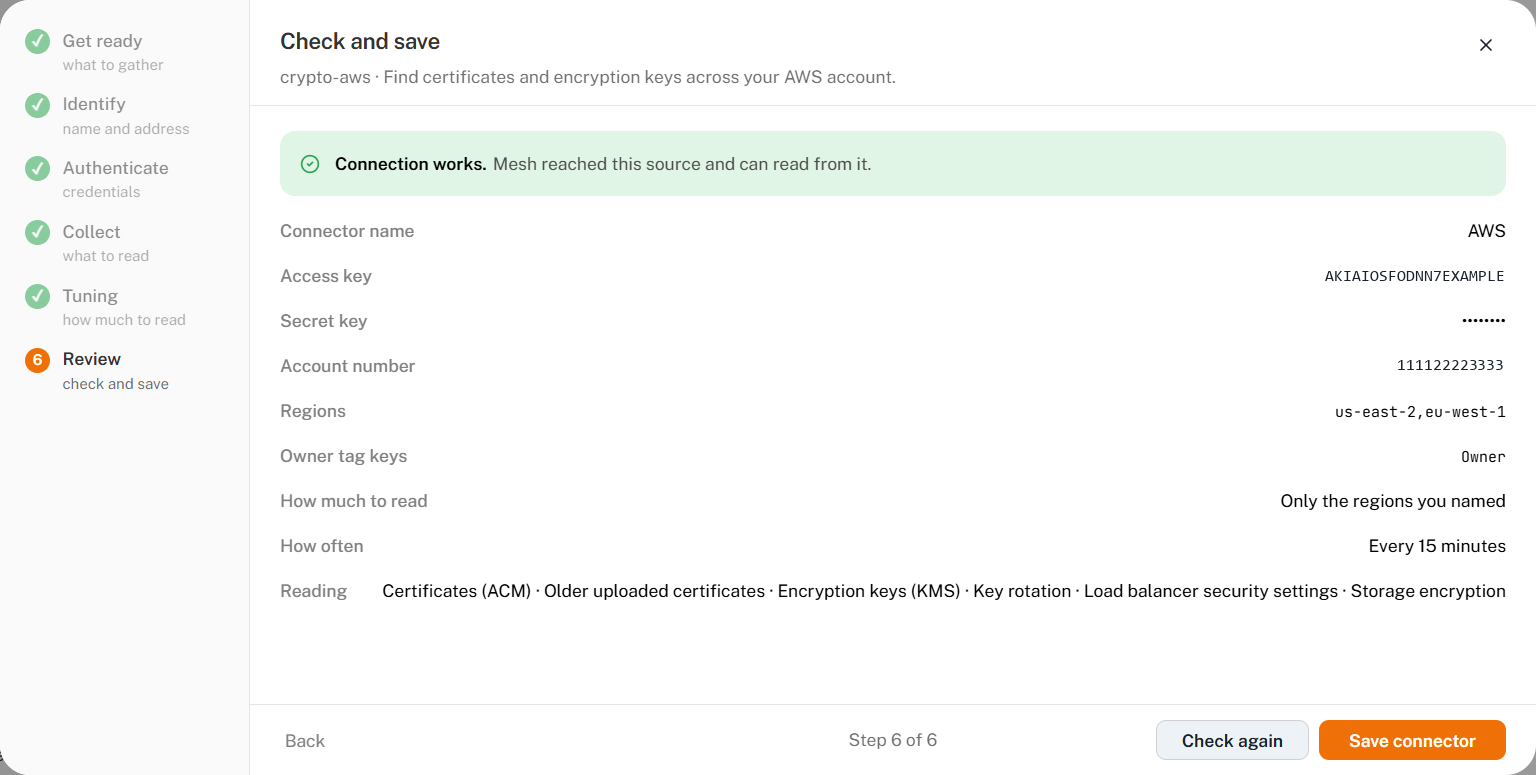
Check the first collection
The connector appears in the list and starts collecting. Health shows Unknown until the first run finishes.

Manage the connector
Everything you do to a connector after it is saved is on its row menu — the ⋯ button at the end of its row.
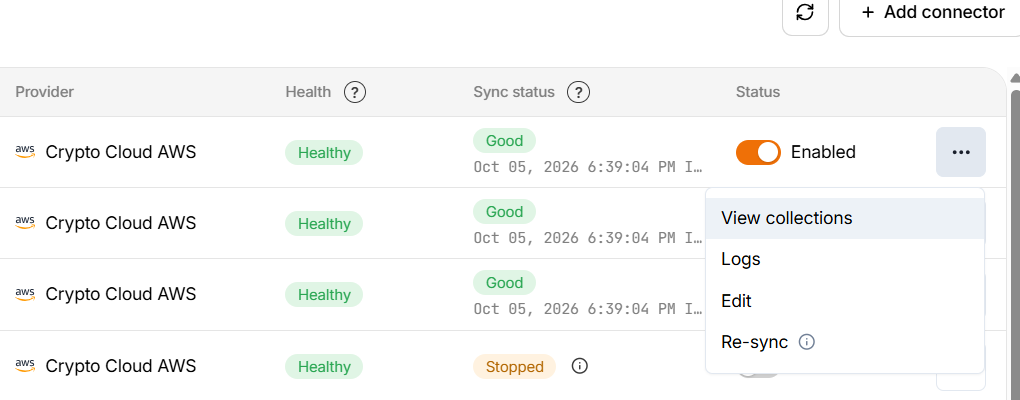
| Choose | What opens | Use it to |
|---|---|---|
| View collections | A summary of the last run and what it brought back | Check the counts against what you expect in the account |
| Logs | Every run this connector has made, newest first | Find out when collection stopped working, and why |
| Edit | The connector's settings, in three tabs | Change the credential, the regions, what is collected, or how often |
| Re-sync | Nothing to fill in — a fresh collection starts straight away | Get a result now instead of waiting for the next run |
View collections
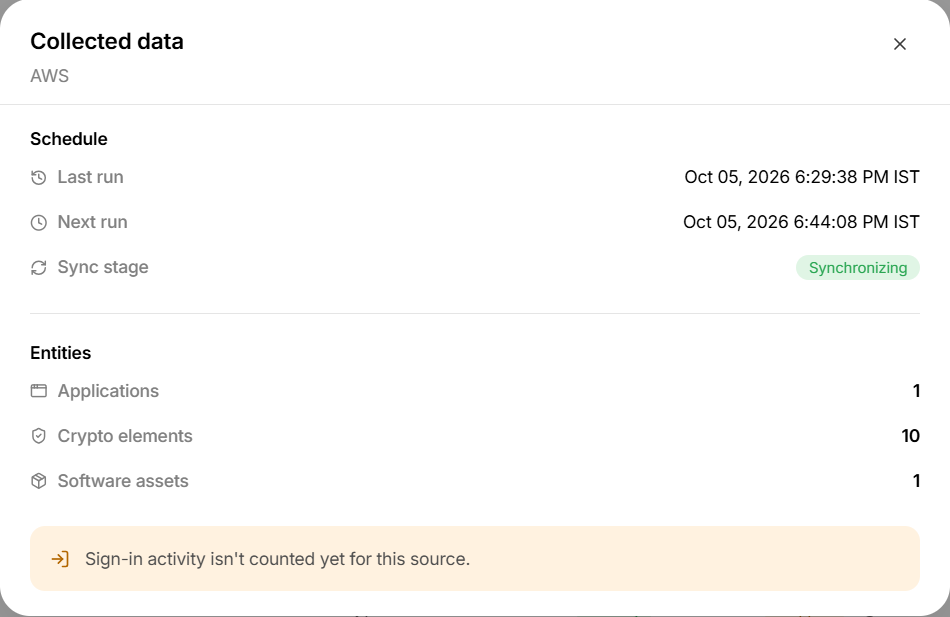
Schedule tells you when the last run finished and when the next one is due. Entities counts what this connector has put into Mesh: certificates and keys arrive as crypto elements, and a load balancer arrives as a software asset.
Compare the counts against what you expect in the account. A number lower than you expect is usually a missing permission or a region you did not name, rather than a connection problem.
Sign-in activity is not something this connector reads, and the panel says so.
Logs
One row per run, newest first: its status, what kind of run it was, when it started, what started it, how many records succeeded and how long it took. Select a row to expand it and read the detail of that run.
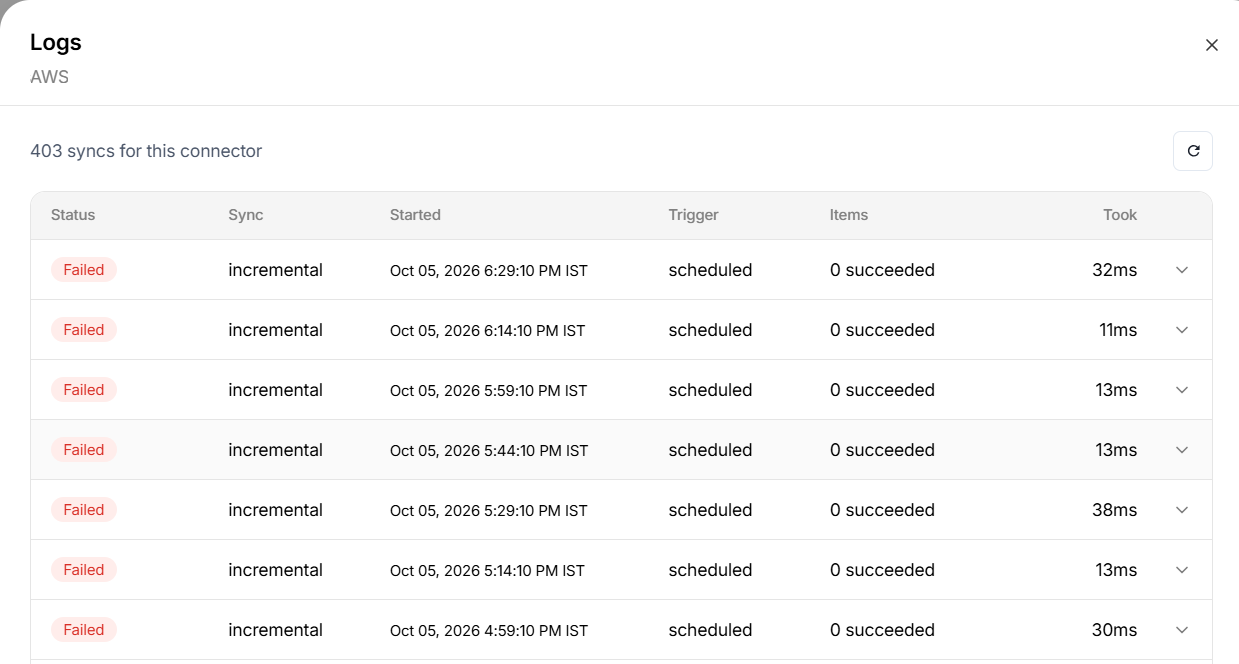
The connector above cannot reach AWS: every run is Failed with nothing collected. A working connector shows Success with a count beside it. Expand the newest failed row to read the reason, then see Troubleshooting.
Re-sync
Re-sync reconnects and collects everything again, straight away. It clears the last run's status first, so the connector works through every service and region from the beginning rather than carrying on from where it stopped.
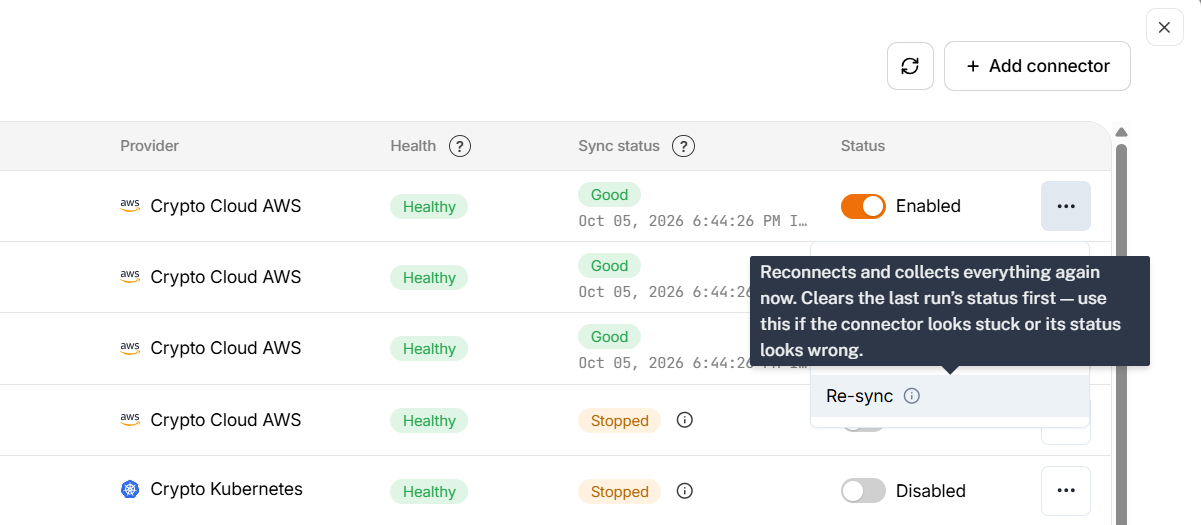
Use it when:
- The connector looks stuck, or its status looks wrong.
- You have just granted a permission in AWS and want to see the result now.
- You have just changed the regions or the credential and do not want to wait for the next scheduled run.
Two things to expect:
- The connector has to be enabled. On a disabled connector the action is unavailable and says so.
- Nothing visible happens at once. A message confirms the re-sync has started, and the result arrives when the run finishes, which can take a minute. Open View collections or Logs again to see it.
Edit a connector
Open the row menu and choose Edit. The settings are in three tabs, and nothing is kept until you select Save — the footer tells you whether there is anything to save.
Connection
Who Mesh signs in as, and where it looks.
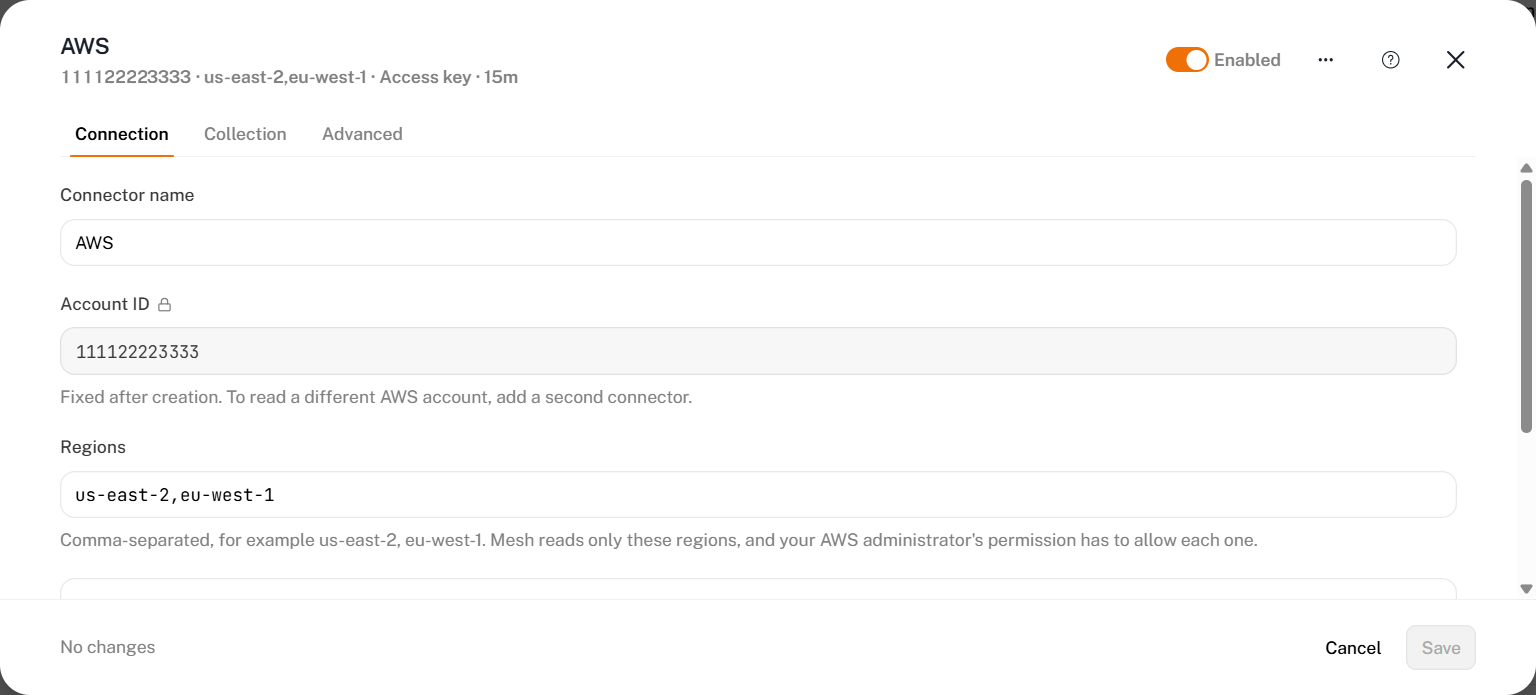
| Setting | Can you change it | What to know |
|---|---|---|
| Connector name | Yes | A label. Nothing depends on it |
| Account ID | No | It is stamped on everything already collected, so changing it would re-attribute that history. To read a second account, add a second connector |
| Regions | Yes | Adding a region widens what the next run reads; removing one narrows it |
| Authentication | The credential, yes. The method, no | Select Replace credential and enter both the new access key ID and its secret. Keep current credential backs out |
The secret access key is stored encrypted and is never shown again, so this tab shows only the access key ID.
The Edit panel does not check the credential. If you replace it, the next run is what tells you whether it works — or use Re-sync to find out now.
Collection
Which AWS services Mesh reads.
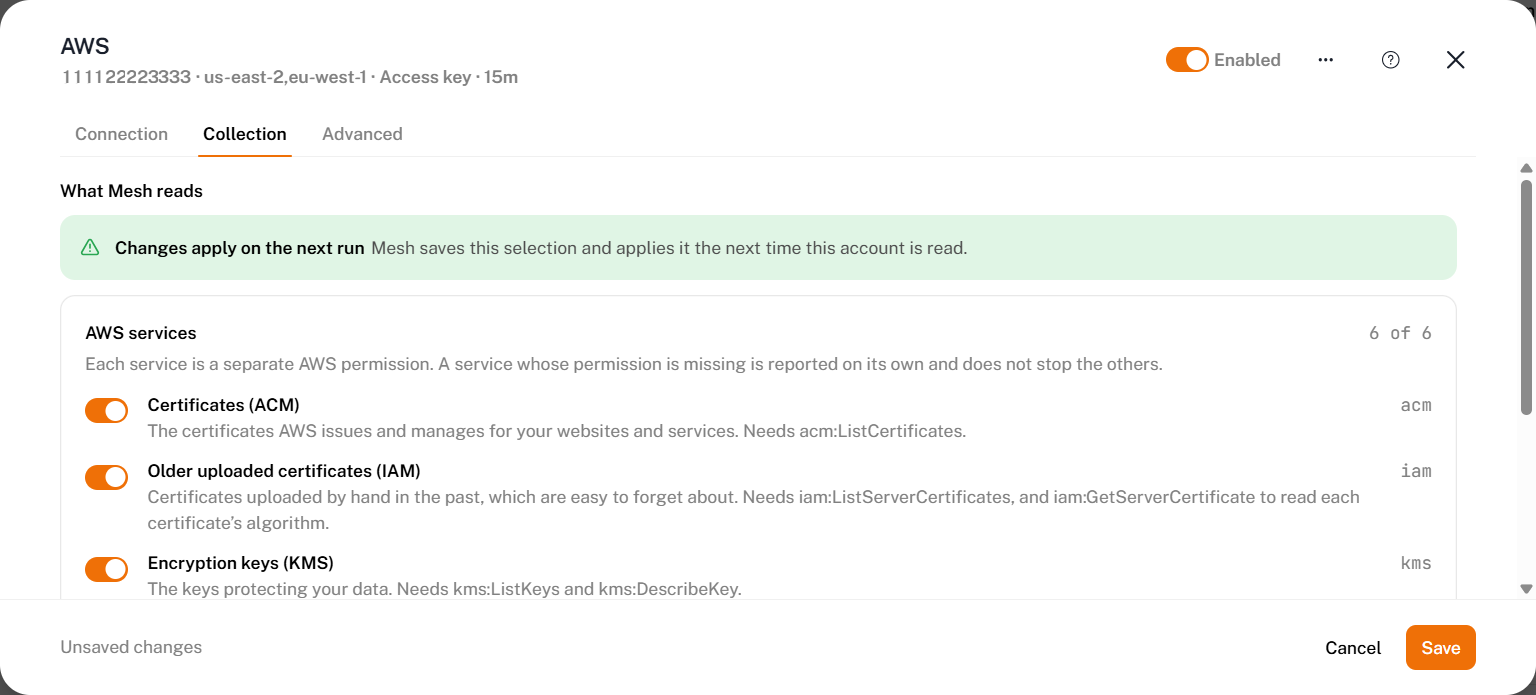
The same six switches as the Collect step, with the AWS permission each one needs written beside it. Mesh saves the selection and applies it the next time the account is read.
Advanced
How often Mesh reads, and how it names owners.
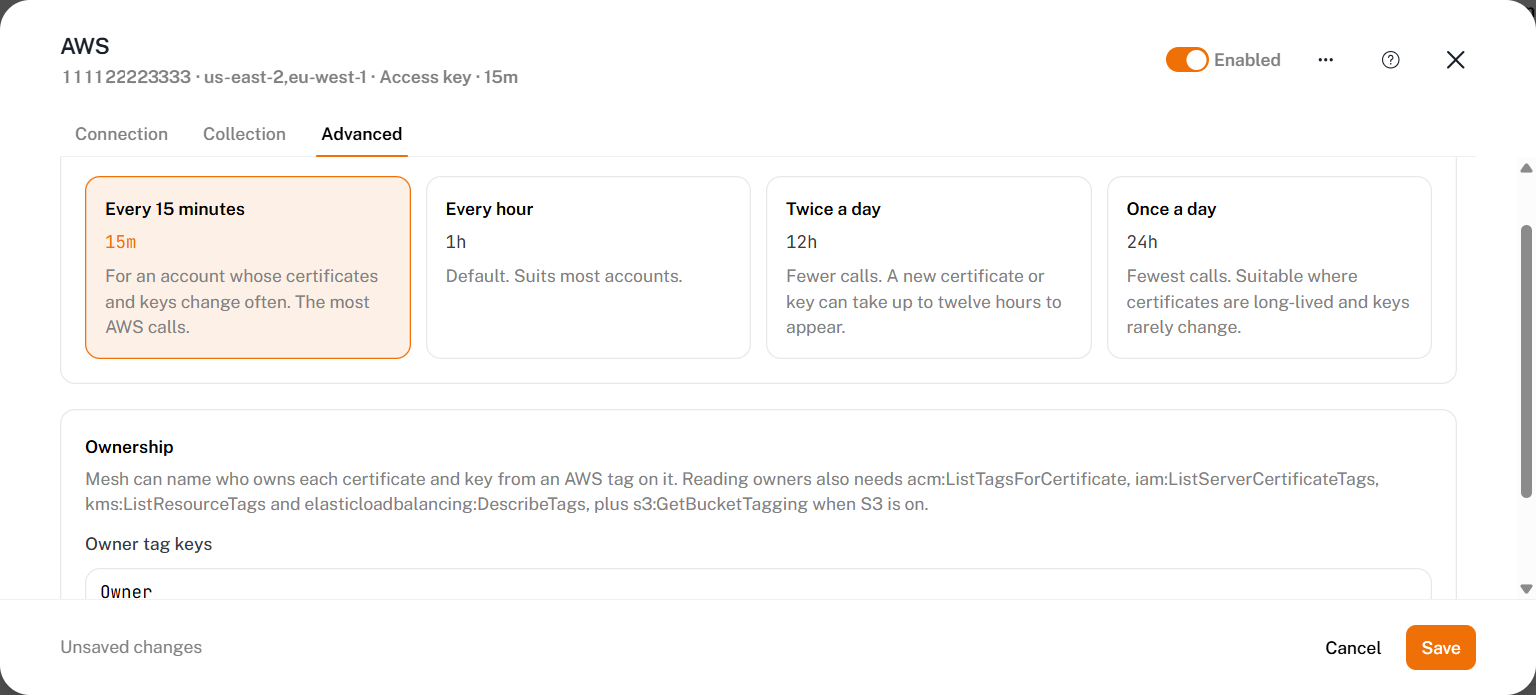
The same four frequency choices and the same owner tag field as the Tuning step, so this is where to change either of them after the connector is running.
Stopping a connector
The switch in the top-right corner of the Edit panel disables the connector. It stops collecting, and everything it has already collected stays in Mesh. Enable it again and it resumes at its next scheduled run.
Delete connector, in the panel's ⋯ menu, is deliberately unavailable: deleting would orphan everything already collected. Disable the connector instead.
Troubleshooting
| What you see | What it means |
|---|---|
| The connection test fails with a rejected credential | The access key or secret is wrong, or the key has been deactivated. Check both, and the role ARN if you set one |
| The test fails naming one region | The key's policy does not allow the services Mesh reads in that region. Correct the region, or widen the policy |
| Everything collects except one service | That service's permissions were not granted. Mesh reports it on the run and carries on with the rest |
| Certificates and keys arrive with no owner against them | The tag permissions were not granted. The records are correct, only the owner is missing |
| Every key is listed, but rotation shows as not readable | kms:GetKeyRotationStatus was not granted. Keys are still collected |
| Fewer certificates than you expect | A region was left out. Add it on the Edit panel's Connection tab, then Re-sync |
| A load balancer is listed with no TLS settings | DescribeListeners or DescribeSSLPolicies was not granted |
| Collection worked, then stopped | The access key was rotated or deactivated in AWS. Create a new key, enter it under Replace credential, then Re-sync |
| Every run in Logs is Failed, with nothing collected | Mesh cannot reach the account at all. Expand the newest row to read the reason, then check the credential and the regions on the Connection tab |
| The connector looks stuck, or its status looks out of date | Use Re-sync. It clears the last run's status and collects again from the beginning |
If a problem persists, contact Axiad support with the connector name and the time of the failed collection.