Generative UI
Axiad Mesh has two dashboard modes. In Classic mode you navigate fixed dashboards. In Agentic mode you describe the view you want, and the Mesh agent composes it for you: a workspace of live widgets assembled on a canvas, built from the same tenant data the classic dashboard shows.
Agentic mode is enabled per tenant and is off by default while it rolls out. If the mode toggle doesn't appear in your header, or Workspaces reports that the generative dashboard isn't enabled, ask your administrator — see Generative UI availability in the Admin Guide.
Switching modes
A Classic | Agentic toggle sits in the app header. Selecting Agentic takes you to Workspaces; selecting Classic returns you to the dashboard you know. The toggle is pure navigation — your browser's back and forward buttons work, no preference is stored, and nothing is lost in either direction. Use the mode that suits the task at hand.
Composing a workspace
A new workspace starts with a single question: "What report do you want to generate?" Type what you need in your own words — for example "Compose a board briefing on our identity risk posture" — or start from a starter chip such as CISO board briefing, CFO risk exposure, or SOC incident summary.
The Mesh agent selects widgets from a curated catalog and lays them onto the canvas — placeholders appear immediately and fill with live data. Widgets stream in one at a time as the agent decides on each, and a short plain-language note explains what it added and why. For example, asking for a post-quantum readiness report composes a workspace like this:
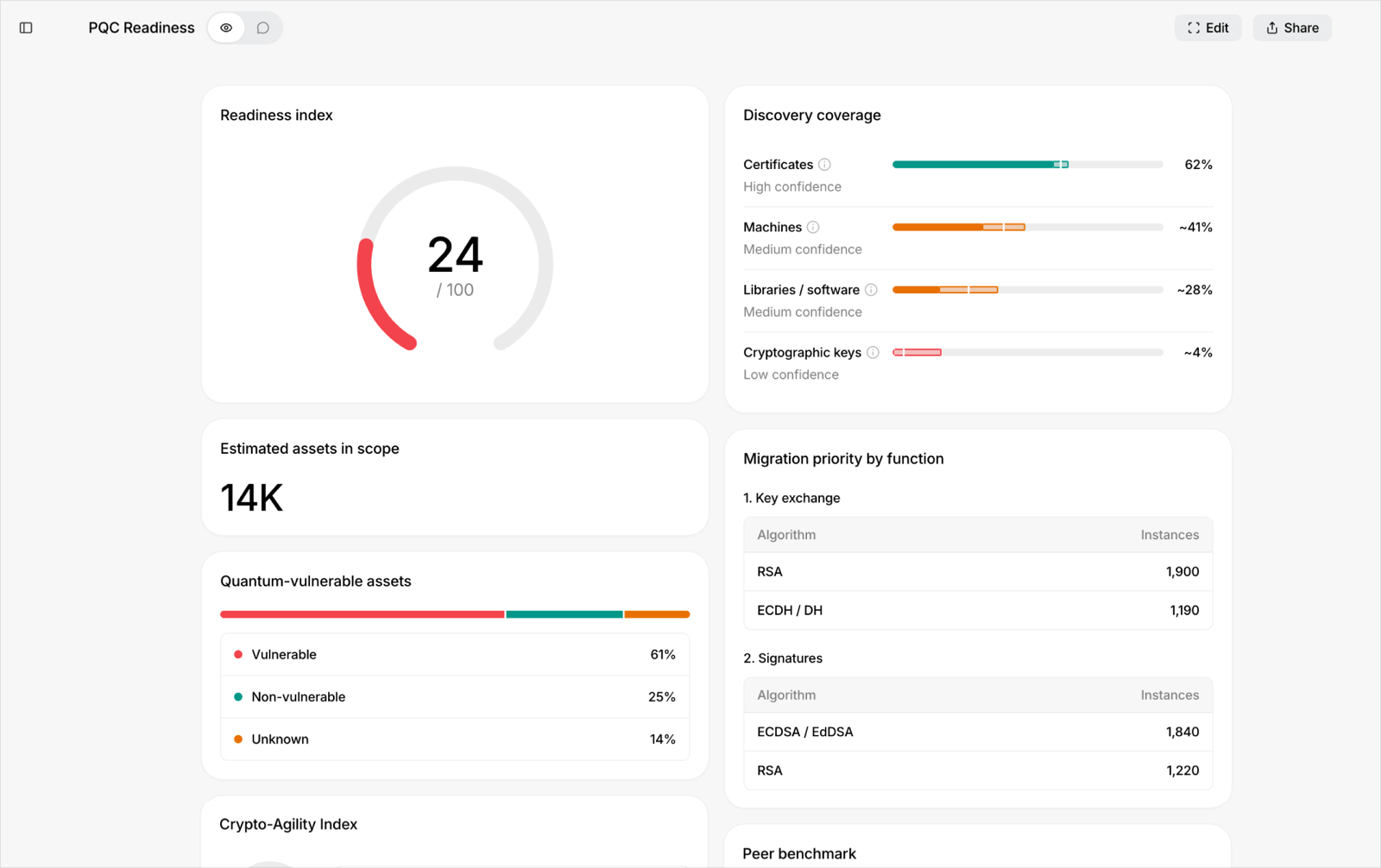
Two properties of this design are worth knowing:
- The agent composes; it doesn't sit between you and your data. Once a widget is on the canvas, it renders and refreshes directly from your tenant data. Refreshes are fast and deterministic, and the numbers match what the classic dashboards show.
- If your request is ambiguous, the agent asks. Rather than guessing, it presents option cards so you choose the direction before it composes.
How composition stays fast and repeatable
The agent runs once, at compose time — the slow, generative step where it reads your request and decides which widgets to place. Everything after that is deterministic: refreshing a widget, clicking to drill in, or re-running a query goes straight to your data with no AI in the loop. That's why a composed workspace behaves like a normal dashboard once it exists, and why two people who open the same workspace see the same numbers.
A composed report holds at most five widgets — if you ask for "everything," the agent composes the five most important angles and offers more in a follow-up. The agent can only place widgets that already exist in the catalog and can only read data through pre-approved queries; it never writes its own queries, invents a widget, or reaches another user's or tenant's data.
When the agent asks first
When a request could reasonably mean more than one thing, the agent stops and shows a choice card above the composer instead of guessing. There are two kinds:
- Which view do you mean? A short question with two to four suggested interpretations as buttons — for example, "Top risk programs by score" versus "Top compliance programs by coverage." A Something else… field lets you phrase your own.
- Which widget do you want? When your words map to more than one valid widget — "programs" could mean security programs or a software inventory, "graph" could mean the identity graph or a risk-trend chart — the buttons name the candidate widgets so you can pick the one you meant.
Your choice is recorded in the conversation and drives the next composition. The agent asks, then waits — nothing is composed until you answer.
Persona workspaces
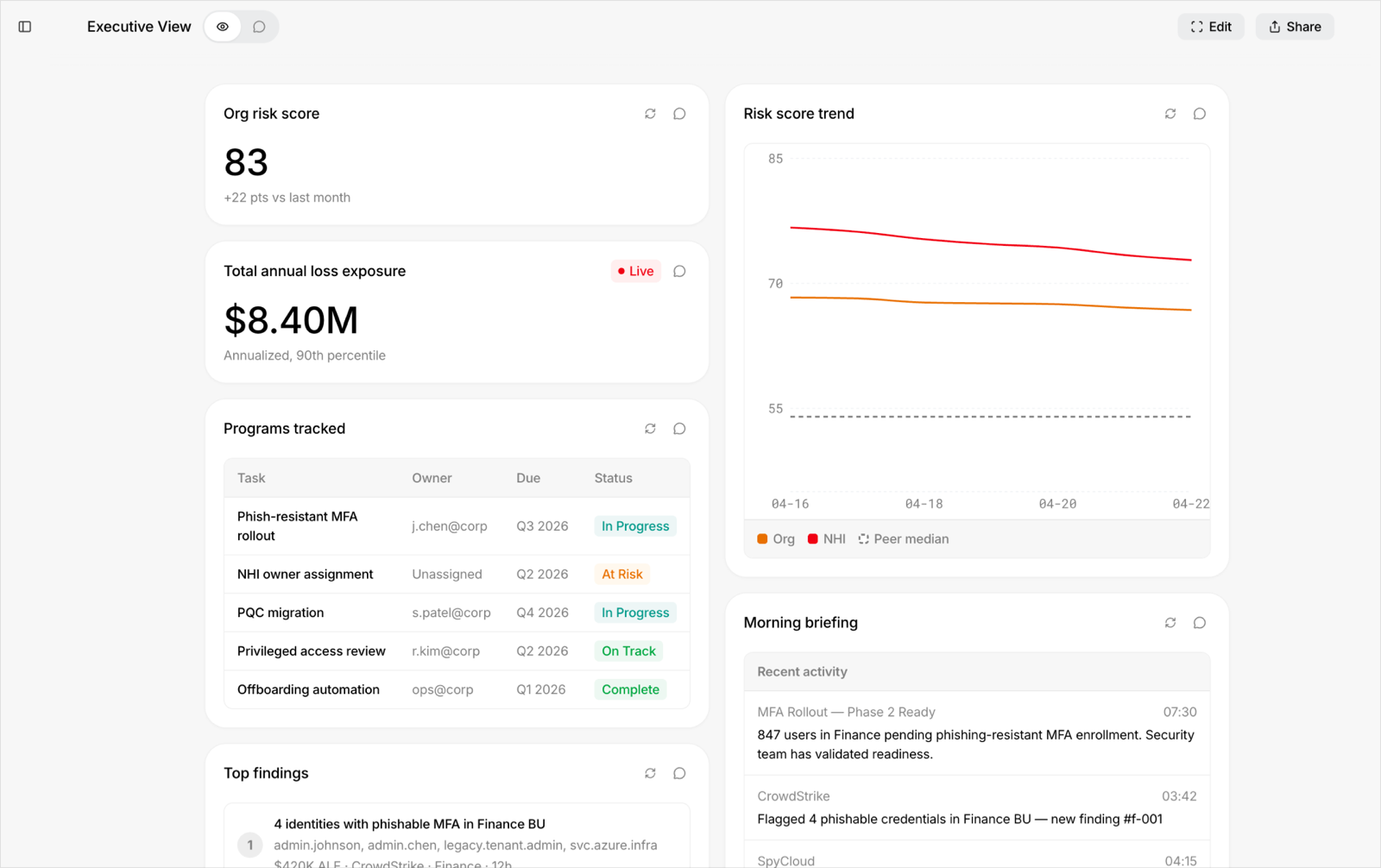
Three ready-made workspaces cover common roles, so you can start from a composed view instead of a blank canvas. Selecting a persona chip composes its view instantly and reliably — the same set of widgets every time:
- Executive View — posture and trend at leadership altitude: the organization risk score, a 90-day risk-score trend, the Daily Briefing, total annual loss exposure, tracked Programs, and the loss reduction your remediation has delivered.
- Audit & Compliance — framework coverage, a control-coverage heatmap, and a cyber-insurance readiness score.
- Security Operations — the identity risk cluster, top findings, the top attack path (kill chain), the identity-exposure breakdown, and an inventory of the autonomous AI agents active in your tenant.
The widget catalog
Every widget the agent places comes from a curated, platform-wide catalog of around three dozen widget types. They span the domains Mesh reports on: identity risk (risk-score gauge, trend, top findings, risk-bubble cluster), compliance and audit (framework coverage, control heatmap, insurance readiness), financial risk quantification (the annual-loss-expectancy family of widgets), attack paths (the kill-chain walkthrough), and non-human and agentic-AI inventory. Because the catalog is curated, every placed widget renders your real data rather than numbers the agent made up.
You don't have to go through the agent to add one. The + Add widget palette lets you browse the whole catalog grouped by category and drop a widget onto the canvas yourself.
Each widget carries a small freshness label so you always know how current its data is: live for real-time, per-entity lookups, and as of <date> for views built from a daily rollup. Promoting a frozen snapshot into a live, refreshing widget is always something you do (see Snapshot, live, and curated) — the agent never does it silently.
The Daily Briefing
The Daily Briefing (shown on the Executive View) is a once-a-day, scannable summary of what changed across your identity-risk posture overnight and what needs attention today. An overnight rollup compares today against yesterday and produces an ordered list — movements in your organization risk score, newly flagged findings, notable day-over-day changes in finding volume, and dark-web credential exposures. Because it's computed on a schedule and cached per day, everyone in your organization sees the same briefing, and it isn't rewritten by the AI on every page load.
The card splits into two groups: Needs attention items that call for a decision, above informational FYI items. A colored dot marks each item's severity. On a Needs-attention item, an action button prefills the workspace chat with a suggested follow-up — for example, a request to open a remediation ticket — for you to review and send. It never sends on its own and never takes an action directly; you stay in control of the handoff.
Working with a workspace
-
Drill in with focus frames. Select a row, card, or finding and it opens as a focus frame — a full-screen view on top of the canvas, composed of detail widgets scoped to the one thing you clicked. Drilling is deterministic: the click maps to a pre-defined layout, so the same click always opens the same set of detail widgets and the AI isn't involved. See Investigations for what each drill contains.
- Pivot without leaving. The frame header shows an editable subject pill. Retype the subject and the whole frame re-binds to it — a fast way to jump from one identity or finding to the next.
- Only the relevant filters follow you in. A frame inherits just the filters its layout declares (a time range, a department), shown as inherited; editing them affects the frame only.
- Step back out with the frame's Back button, the browser Back button, or the Escape key. The breadcrumb trail lets you pop to any depth.
-
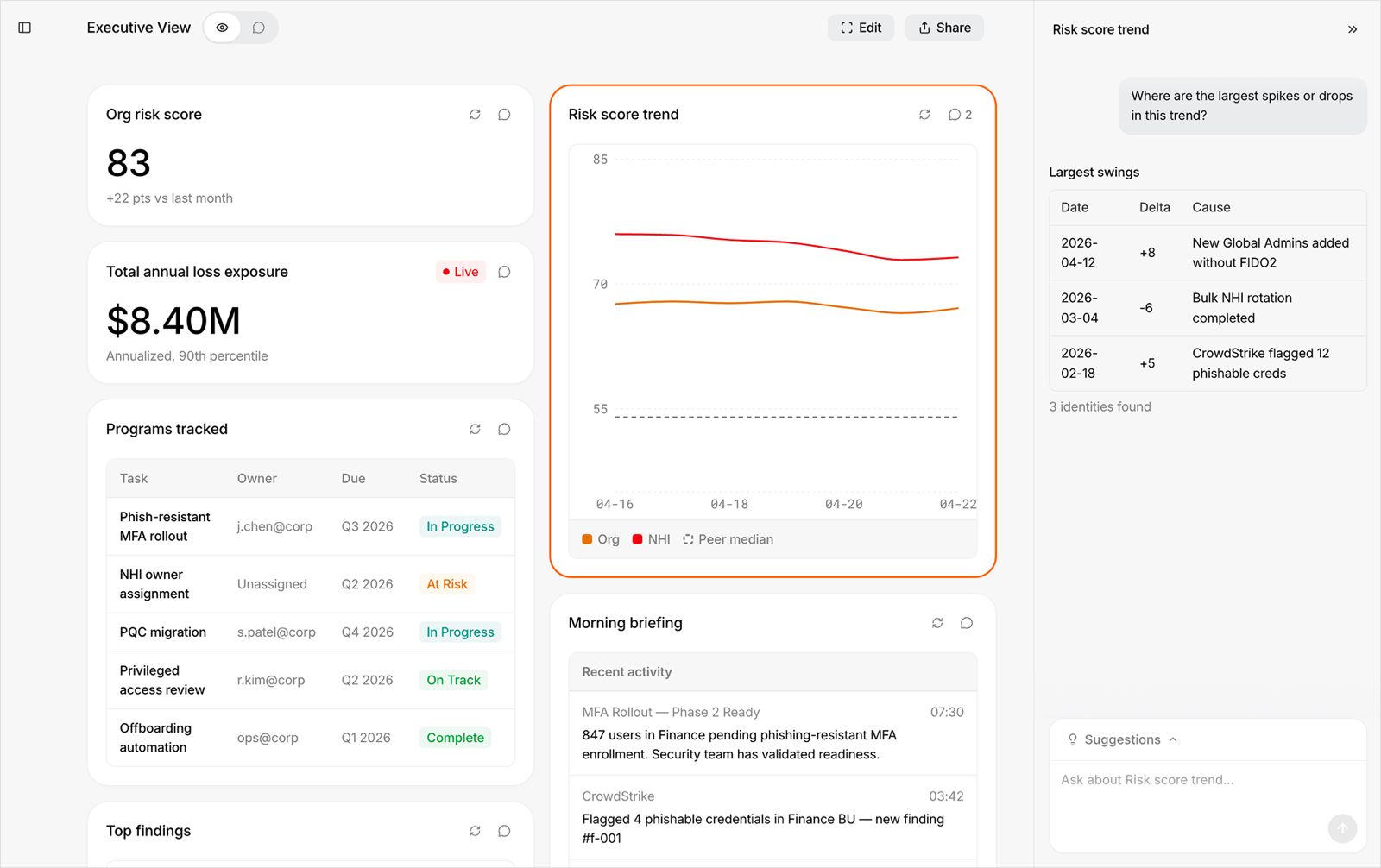
Talk to the agent. The conversation panel covers the whole workspace; each widget also has its own chat drawer for questions scoped to that widget. Widget conversations last for your session and aren't saved.
-
Inspect any widget. The Inspector opens a tabbed view so you can trust a number before you put it in front of others:
- Overview — what the widget is, its data source, its rung (see below), and who composed it and when.
- Query — the pre-approved query the widget runs.
- Audit — a timeline of changes, such as when the widget was promoted.
- Promote — the Make live action, available when the widget is a frozen snapshot.
Snapshot, live, and curated
A composed widget sits on one of three rungs, and the Inspector always shows which:
- Snapshot — a frozen, one-off answer that won't refresh.
- Live — bound to a data source and refreshing on demand. This is the default for widgets the agent composes.
- Curated — a platform- or tenant-blessed template that anyone can reuse.
You move a widget up the ladder with Make live (snapshot → live); admins curate views for the whole tenant. The agent always defaults to a live widget and never promotes one silently — promotion is your decision.
Organizing and sharing
- Pin the workspaces you return to; the left rail keeps Pinned and Recents groups so your important views stay one click away.
- Share a workspace when it's ready: workspaces start private to you and can be shared with your organization.
- Save as template so others can start from your composition with their own view of the data.
- Turn a drill-in into its own workspace. From a focus frame, Pin as workspace saves the drilled-in view as a first-class workspace; an admin can Save as template to make that drill layout reusable across the tenant.
- Deep link to a workspace view — including a drilled-in focus frame — with a stable URL you can bookmark or paste into a ticket.
The classic dashboard isn't going away
Both modes coexist. The fixed navigation, the bubble chart overview, and the PQC dashboard all work as before, and everything in this User Guide that describes the classic dashboard remains accurate. Many teams live in classic dashboards for routine monitoring and compose workspaces for briefings, reviews, and investigations.
Permissions, data handling, and auditing
The generative experience follows the same rules as the rest of Mesh:
- You only see data your account is permitted to see, and your organization's data stays fully isolated.
- Personal data is tokenized before any AI request leaves the platform and restored in responses — see AI features and data handling.
- AI interactions are recorded in the audit log.
Current limitations
- Per-widget conversations aren't saved — they last for your session.
- Some widgets may show limited data while their sources finish rolling out in your tenant.
- Availability is per tenant during the rollout, and details of the experience may evolve — new capabilities are announced in the release notes.